
Robert Letzler
March 14, 2026
Standing on Many Shoulders to Design Effective Interactive Graphics
An effective data-journalism-style app presents important results with effective graphics, text, and tables. It uses interactive tools to help users find the results they care about and understand the details. Insights from conventional data visualization and data analysis, user experience, web design, and agile software development can all improve interactive graphics, but there are insights unique to interactive graphics.
Other authors have discussed how to find results and present them effectively using traditional graphics. I have particularly benefited from Jon Schwabish’s Better Data Visualizations and Cole Nussbaumer Knaflic’s Storytelling with Data podcast. Comparable material on interactive graphics seems scattered. You can find pieces in guides to data journalism, interface design, and user experience. This post focuses on insights about how to use interactive tools effectively. While the commentary is broadly applicable, it is particularly appropriate for using Python on public Plotly sites to provide compelling details and experiences to audiences with diverse interests. I focus on interactive aspects in general in part 1 and Plotly-specific aspects in part 2.
Part 1. Making effective interactive graphics
Interactivity often replaces a few wrenching decisions with many consequential choices.
Static graphics force weighty decisions about what to convey. Ultimately, most static graphics projects produce a comparatively small set of graphics and thus can address only the most important questions and the most typical audience member.
If a small set of static graphics cannot meet your audience’s needs, consider an interactive site that delivers more detail. That interactive can speak to more audiences, but it requires choosing elements like views, navigation, and hover (mouse-over) text and weaving them into a coherent, high-quality whole. This is important. You need to anticipate the needs of cold readers who are unfamiliar with the analysis and topic, often without user feedback. The attention you pay to the details will be one of the outside reader’s significant chances to assess whether your analysis was careful. It may determine whether the reader finds and appreciates the insights she needs or clicks away in frustration.
Budget time accordingly.
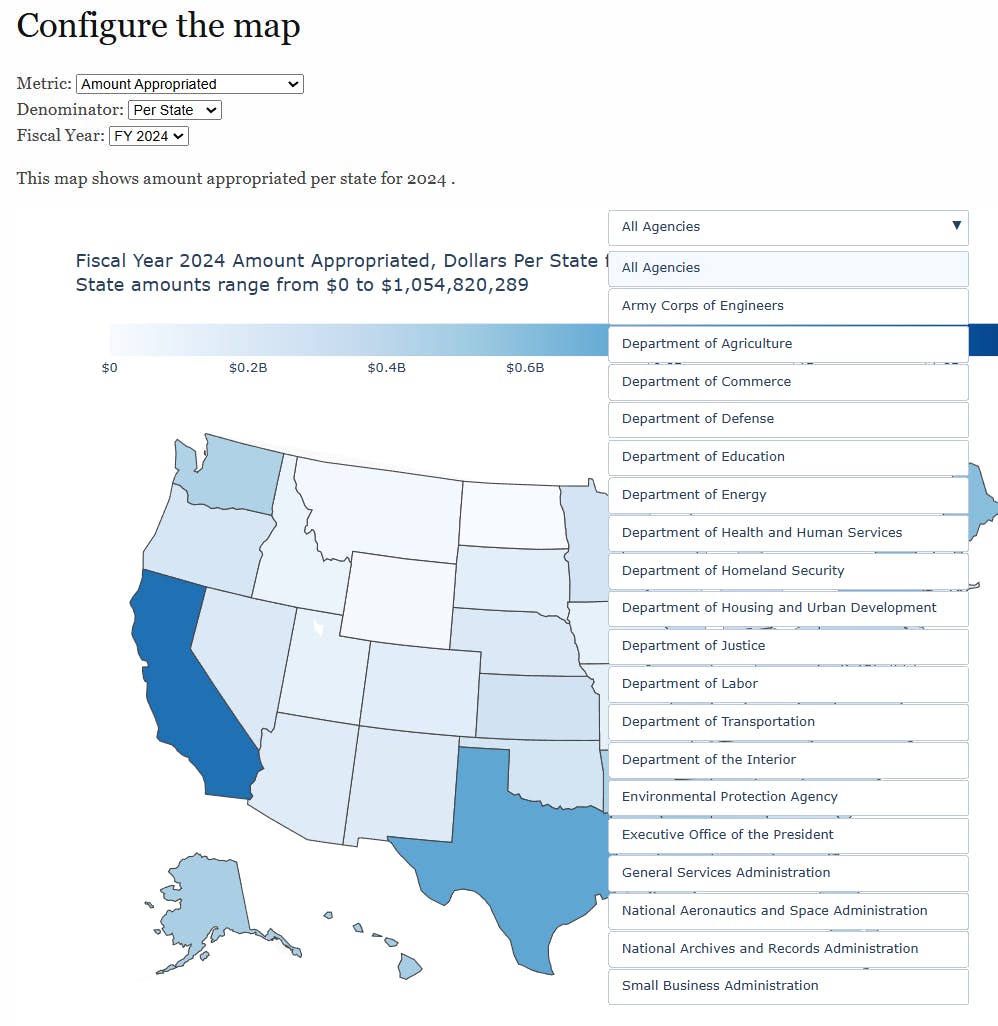
Your design process will choose the type, content, order, and default value of the navigation elements. The two examples below solve similar problems, one using tabs and the other using nested drop down menus:
Example 1: Tabbed navigation

Example 2: Drop-down navigation
A good first draft will teach you how to make the next one better.
The right approach for your app depends on your goals, your data, and your story. Reflect regularly on how drafts and colleagues’ feedback suggest ways to make a better, perhaps simpler and more focused graphic.
Consider starting with a sketch or a storyboard to see if your concept coheres and resonates with clients or colleagues. Preliminary digital graphs generate insights about how best to visualize your data set. One data set may leave the perfect slot for an inset. Another may have challenging outliers. Drafts help prioritize and improve. Drafts can surface design challenges and open questions, identify viable approaches, reveal unneeded complexity or troubling omissions, and anchor conversations with your colleagues.
Early reflection and feedback help avoid wasting time refining details when necessary revisions will render those details irrelevant.
Use your drafts, your goals, and your knowledge of your audience to distinguish important details from distractions.
Eliminating extraneous distinctions and details often streamlines the graphs and exposition. Drafts can also help identify inconsistency in categorization within a project that demands revision or explanation. A distinction that is necessary in the context of an early draft may become irrelevant and distracting as you focus the analysis. Consider dropping lower-value elements that clutter the site, complicate exposition, force uncomfortable design tradeoffs, distract your team from more important tasks, or threaten timelines. Sometimes it is wise to say no to ideas that are good in isolation, but are difficult to integrate with the overall project. In other cases, two simple graphs may be easier for coders to create and readers to understand than a single, combined graph. Consider simplifying or turning off hover text and less prominent views if you cannot design them to your organization’s standards within your time budget.
Interactivity is not an alternative to figuring out what is important.
Interactives escape the limits of the printed page, but need to respect the limitations of your audience’s eyes, screen, memory, and attention span. Know your story, audiences, and priorities. Allocate scarce space on your landing page, axes, prominent views, development time, and menus accordingly.
Allocate easy-to-see and -understand aspects of your app thoughtfully.
Chapter 1 of Jon Schwabish’s Better Data Visualizations offers a hierarchy of visual attributes. Graph elements range from pre-cognitive things that people notice immediately — like pops of bold color — and aspects that people understand accurately like element length to aspects that require more audience thought and that communicate less accurately. A similar hierarchy applies to interactives. Most of the details you can add through interactivity and navigation components are relatively obscure. The default view on the landing page is the only one every visitor will see. Most users will only visit a few views. Use obvious, easily understood elements of the graphics on your landing page to deliver the insights every reader needs. Use the interactive elements to empower motivated readers to answer unusual questions.
The prioritization necessary for the explorable appendix is different from what is needed for an interactive, scrolly-telling style exposition. Scrolly telling recommends a path through a series of views. It offers more prime real estate and relieves pressure to develop a single screen that does everything important. Nonetheless, users may get bored and click away from a linear presentation. Some users may value a way to share direct links to the result most relevant to their colleagues.
Space on dropdown menus is often at a premium.
A single menu that offers the user dozens of possible views gets overwhelming, as do interacting menus that offer hundreds of combinations. You can prune the list of views to focus on the highest value and most insightful views. A blend of Plotly and boilerplate JavaScript can let users choose a category of views which offers a second, nested menu drilling into specific details from that category.
Seize the opportunity to find the most important patterns and present them clearly.
Good graph designers explore the data, find important patterns, and deliver them effectively. If you ask the reader to sift through needless minutiae to discover what is important, only the most motivated and sophisticated readers will discover the key patterns. Many readers may draw superficial and unhelpful conclusions or just give up. Users will have reason to be annoyed.
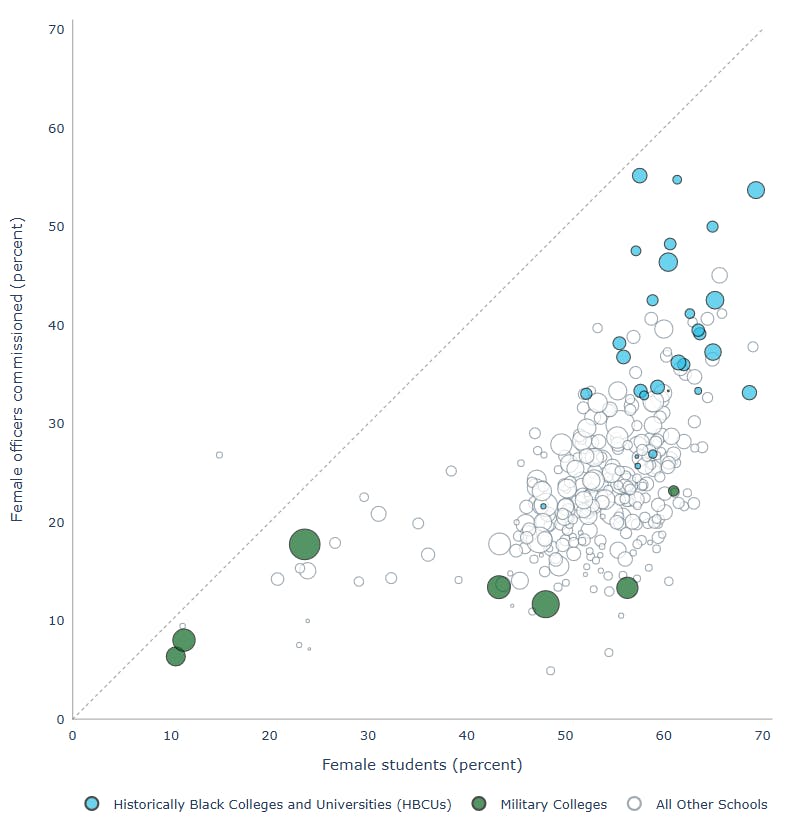
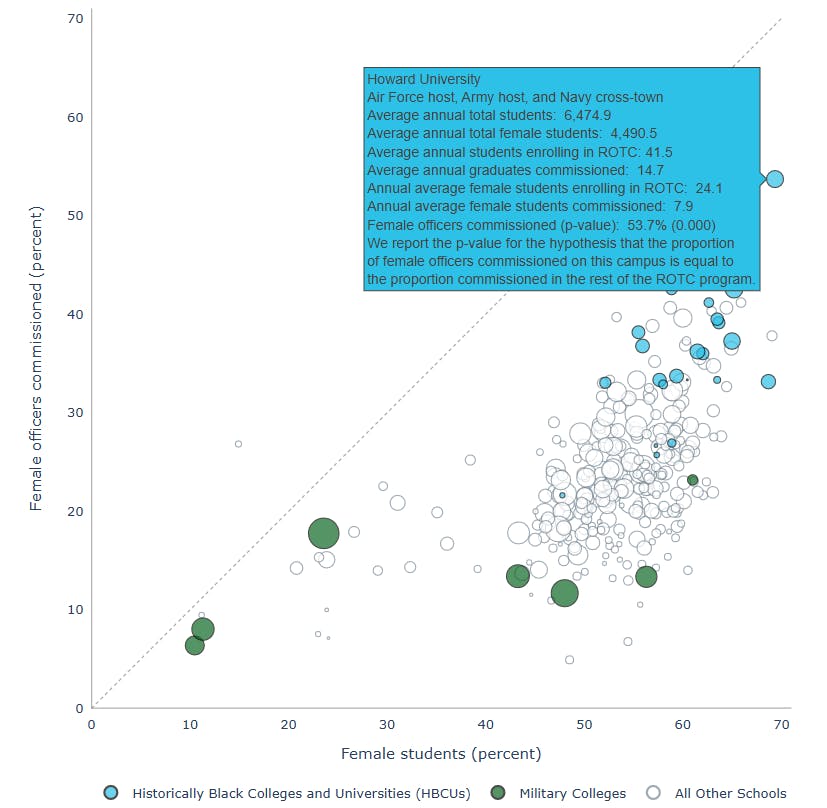
The graph below delivers a clear message. The cluster of blue dots in the top right show that nine of the 10 ROTC campuses that have the highest percentages of women among their graduating ROTC officers are at Historically Black Colleges and Universities.
Providing downloadable, disaggregated data can empower users to do their own, novel analysis to address needs you did not anticipate or could not accommodate.
The data is in the Plotly JSON anyway — so the only decision is whether to make it available in a more obvious and more convenient form.
Design to meet user needs.
Consider asking colleagues to articulate stories about who we hope will come to the site and what they hope to learn. Prioritize and design navigation accordingly. Site visitors who run the whole program that the site describes likely need a big picture view, while visitors from an individual facility or multi-facility region might want to understand their own performance in absolute terms and relative to comparable organizational units. Insights from user testing and broadly applicable, textbook, user-experience insights may be informative in designing your graphics to meet those needs.
Presenting final analysis to diverse groups including cold readers is different from building live data dashboards.
Dashboard users typically visit the site repeatedly and often know the context; users of data journalism style sites tend to visit just once and often begin using the site knowing less about the context and analysis.
You might be stuck at the stoplight color convention. Consider alternative visual routes!
The red-is-bad, green-is-good convention does not work for the red/green color blind. It is the design equivalent of asbestos — it is useful and convenient enough to have seemed like a good idea in the 20th century but is toxic and hard to get rid of. It persists because so many people, likely including your clients and readers, have seen it so many times that it now seems like the conventional choice. One in twelve men are red/green color blind and find conventional stop light colors inaccessible. Thus, stop light colors, are not compliant with Section 508 color accessibility and Web Content Accessibility Guidelines (WCAG) level AA contrast standards.
Nonetheless, convincing clients to rid your project of stoplight style colors may not be worth the fight, especially when the discussion is embedded in an ongoing relationship. The time and bureaucratic capital spent arguing for e.g. a blue and orange palette cannot be spent advocating for a better analytic strategy or coming to consensus about the right way to present puzzling results. There are, however, ways to get out of the stop-light color box.
- Consider adding visual elements like sparkline-style trend lines on each row, horizontal lines showing the relevant standards or symbols like ⚠, 🎉, ☆, ▼ or ▲. Up and down arrows (e.g. ▼ and ▲) can capture either trends or performance relative to expectations. Visual elements can complement or replace colors.
- Consider reserving bold colors for one or two categories the visualization seeks to highlight and putting the rest in a standard, neutral shade (often gray, blue, or white). If the goal of the visualization is to focus attention on the problems or successes, consider neutral colors for the other outcomes.
- Consider using separate visuals to draw attention to problems and to give teams credit for high performance not just because red, green, and yellow struggle to coexist but also because a different analysis may give credit to groups that exceeded expectations given their exceptionally difficult circumstances. For example, the analysis we should do to target investments aimed at raising the lowest test scores is different from the best analysis to identify the teachers who add the most value considering their students’ background and prior performance. A single stoplight colored chart would likely struggle to answer both questions.
- Consider applying a pattern fill to just one color to give color blind readers an alternative way to identify an otherwise-hard-to-distinguish color.
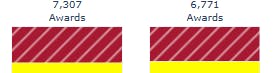
Some commentators offer alternative palettes or insights on hues that the color blind can distinguish while retaining the convention that reddish is a problem, greenish is good. Mozilla writes, “a reddish-orange and a bluish-green are distinguishable by color blind users, while still conveying the cultural ‘good’ and ‘bad’ meanings” and offers commentary on contrast requirements as well. Alex O’Neal offers commentary about choosing red, green, and yellow colors that can coexist, but her contrast ratios appear to be less than the Section 508 and WCAG standards-compliant 3:1.
Additional commentary and tools are available including a site that simulates how a screenshot will look to the color blind, the WebAIM Contrast Checker from Utah State University, and an accessible palette generator.
Consider getting professional advice. Colors are surprisingly hard. Graphic design professionals can add a lot in a brief conversation about color selection, and one, accessible organizational palette can both establish a consistent visual brand and be reused across many projects. Chapter 12 of Better Data Visualizations covers the development of such an organizational data visualization style guide.
Expect differences in scale across views.
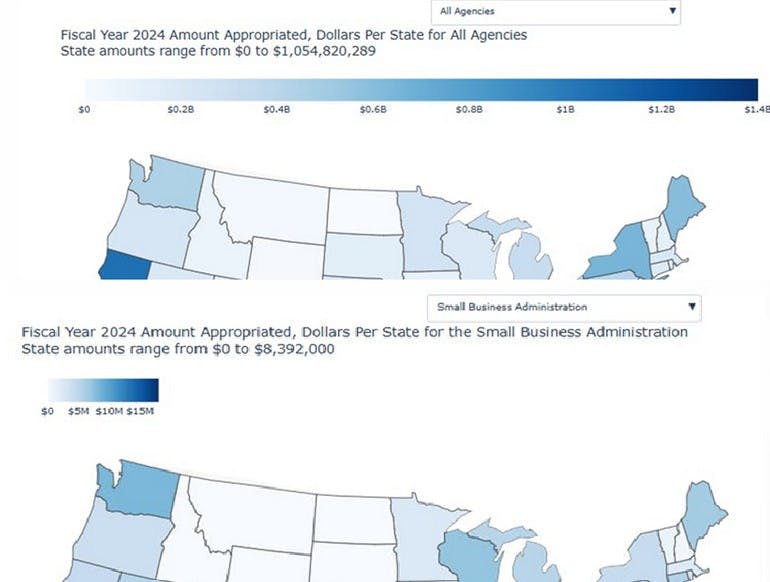
Interactive sites often let users see both the big picture and smaller components. A scale that accommodates all government spending in California will likely obscure meaningful variation among smaller agencies and smaller states — leaving views focused on smaller amounts populated with tiny bars or nearly white shades. It may thus be necessary to use different scales for different views to make the within-view variation clear. If you use different scales — so that comparing across views could be misleading — telegraph that to the reader by e.g. being consistent in grid line spacing — say having a grid line at $20 million in sales that is near the bottom of the national view but close to the top of a regional view.
This example uses different scales — and adjusts the length of the color bar in the legend — to avoid using the national total range that tops out at about $1 billion to show Small Business Administration values that top out at about $8 million and would be indistinguishable and nearly white using the national scale.
You can deal with the problem of consistent scale by
- varying the color scheme and color bar length if you convey values through, say, a set of color-coded (choropleth) maps as this visualization of Congressionally directed spending by agency does. You could also choose colors specific to each scale, perhaps using the Plotly blues scale for when the graph includes some larger values and the Plotly greens scale when the graph shows only smaller values.
- being deliberate about choosing the number of scales to balance the effectiveness of any given view while seeking to make views of similar concepts easy to compare. The example shows a couple dozen agencies using just six scales.
Do not neglect details
Getting the aforementioned details right is frustrating because the task requires significant attention at a time when the project feels all but done, you know what the data has to say, and the next project screams for attention. If you have not thought about important categories of users who may not think like you do, polished your hover text, or sought feedback on the navigation, heed the advice from Colorado highway signs where the Denver skyline comes into view:

Part 2. Plotly-specific tools to make compelling interactive sites efficiently
df.to_markdown() makes it easy to integrate tables with your interactives
The Pandas df.to_markdown() command is an efficient way to produce and format tables for a site you build with Python, Pandas, and Plotly. Dash AG Grid offers even more flexibility.
The Plotly title element knows where the bottom of your graphic is.
If you need to include a source line or note at the bottom of your graphic, the Plotly title element supports container coordinates which make doing so easy.
Sometimes the graphing tools are the best way to take control of legends
Sometimes the best way to make a nuanced legend is to use a highly labelled, illustrative graph using the subplots domain option or an inset.
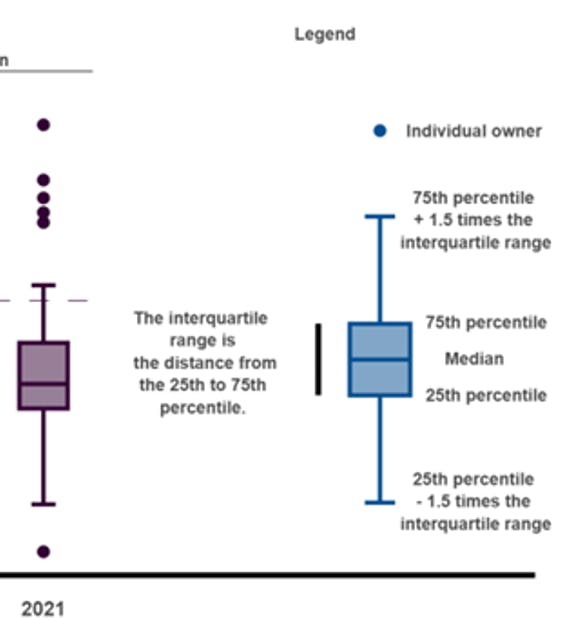
Use tick mode array if you need to take fine grained control of categorical axes.
Plotly’s categorical axes put data points next to plain text labels. They are often everything you need. Sometimes, categorical axes are insufficient, and you want to use tickmode=’array’ to take full control of spacing. Perhaps you want to put distance between printers and supplies when your categories show profits from printers, ink, and paper. Perhaps you want to graph nations’ GDP with a wide horizontal bar in one column and their literacy rates by gender with two horizontal bars in another column. Tick mode array can map the categories to the desired coordinates. Syntax like 'for n, category_name in enumerate(list_of_categories)' may help you get started with an initial numerical coordinate for each category that you can adjust further. Tick mode array lets you put your categorical labels back.
Hover text may be a great place for contextual data that does not fit into the main graph.
Hover text is a foundational interactive feature and a great place to enrich your story with carefully chosen details. By default, it reiterates the graph with more precision.
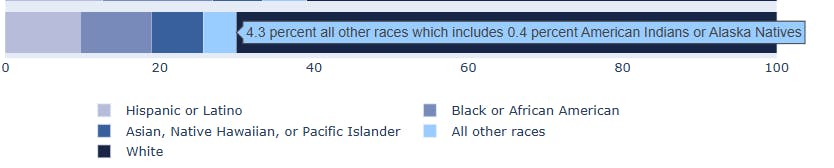
This hover text fills in a detail that would not graph well.
This hover text provides many relevant details about the patterns underlying the scatterplot.
Hovertext may be one of the last things you think about, but do not make it an afterthought.
You likely do not want to publish the default hover text. Polish the mouse-over wording and formatting with hover templates. Hover text is a place where readers will notice details like: “1.0 students graduated.” You can take control of hover text by blending Plotly hover templates with clever Pandas and f-string coding. For example, if you want to display “1 project”, but “2 projects”, you can create a variable that contains the string “s” only if the region has more than one project but is blank if there is exactly 1. Similarly, you can write, f"Sales volume of {'organic '*(certified_organic==True)} produce" to include the word organic only as needed. Hover templates are JavaScript strings which are subtly different from Python f-strings and notably require a % sign before variable names in braces, i.e. %{variablename}.
Conclusions: Great published interactives deliver important insights with thoughtful (conventional) graphics and smart interactive details.
Effective interactive graphics strengthen your message and credibility while meeting the needs of users with diverse priorities, perspectives, and attention spans. Your readers will likely never see the care you took in cleaning the data, robustness testing your model, or exploring alternative hypotheses. They absolutely will see whether you thought carefully about their needs and made it easy to find the details they need. They will see whether you polished your legends, axis labels, and hover text.
Tools like menus and hover text benefit from learning, including the lessons above, experimentation, expert feedback, and experience. Judicious choices and iterative refinement make your important conclusions easy to find and understand.
Good, detail-oriented design builds your credibility and ensures that interactivity delivers your message rather than distracting from it.
Biography: Rob Letzler is a policy-oriented data scientist and energy economist. He has worked with large and small organizations in the public, private, and non-profit sectors. He is a contributor to the Plotly documentation and holds a Ph.D. in Public Policy from the University of California, Berkeley.
Note: The opinions expressed in this post are the author’s own and do not necessarily reflect the views of his employer, management, colleagues or any organization he has been affiliated with.
Acknowledgements: I am indebted to the people who have helped me advance in interactive graphics work, including Priyaanka Arora, Liam Connors and Greg Wilson who have provided feedback on my contributions to the Plotly documentation and blog. Ken Letzler provided valuable comments on drafts. Sima Raha applied Plotly creatively to help document ways to e.g. wrap long bars and make diverging bar charts. Ryan Han has helped me on my journey for years and offered thoughtful input on the stoplight color section. I am grateful for the conversations and collaborations I have had with Ellen Arnold, Bri Bovbjerg, Abby Brown, Jackson Gode, Chris Gresh, Sharon Jan, David Jones, Matt Levie, Gabe Nelson, Philip Menchaca, Marc Molino, Colby Porter, Sam Portnow, Rose Recht, Ethiene Salgado-Rodriguez, Spencer Schultz, Sam Sloate, Dylan Stagner, Jay Wang, and Les Wilkins.