
Marie Anne
March 27, 2026
Responsive Design with Plotly, Dash, Bootstrap and AI
Author: Marie Anne
Part 1: Introduction to responsive thinking for Dash/Plotly
“It works!” After all these years, AI has finally made it possible for you to put together your own dashboard or app for your own knowledge field with Dash and Plotly. You did it yourself, with prompts. It's logical that you're proud. You've put your creation on the web so your friends, your boss, and maybe even your customers can see it too.
And then it happens. After the initial enthusiastic reactions, the comments start coming in. Someone has viewed your app on a mobile phone or other small screen. The order of the content isn't logical, could or should be better, some graphs don't fit on the screen or are unusable. Now what?
In this blog, you will learn some basic principles and terminology related to responsive design, see examples, and find links to useful overviews and solutions specifically aimed at Dash, Plotly, and Bootstrap. This will enable you to prompt faster and more effectively, because while AI will often get you there, knowing the terminology will get you there faster (and therefore cheaper).
You might be wondering why any of this matters, why bother learning the basics when AI can just figure it out for you?
The answer is control. The more specific you can be in your prompts, the closer the result will be to what you actually had in mind. And to be specific, you need two things: a basic understanding of how responsiveness works, and the vocabulary to describe it. Knowing the difference between a breakpoint and a column width, or when to reach for Flexbox instead of a grid, means you can ask for exactly what you want rather than hoping the AI makes the right guess.
Plotly, Dash, Bootstrap and Bootstrap components
In its most basic form, without any styling framework added, a Dash app is simply a collection of elements stacked vertically on top of each other. They take up the full width of the screen and rely on whatever default styling the browser provides for fonts, tables, and other elements. Functional, but not particularly polished.
Responsive frameworks were invented to solve exactly this problem, both the styling and the ability to adapt to different screen sizes. Bootstrap, which has been around since 2010, is one of the most widely used. At its core, what a responsive framework does is provide ready-made styling code (CSS) that allows your app to adjust to the viewport of whatever device is being used. A viewport is simply the visible area of a web page on a device, not counting browser elements like the address bar. The same app might look quite different on a mobile phone than on a laptop, and that difference in layout is responsive behaviour in action.
Styling is part of it too. If you prompt AI to add a page title to your app, it might produce something like html.H1("my page title"). With Bootstrap integrated, the font size of that title gets automatically recalculated for the viewport, larger on a desktop, smaller on a mobile. It just happens, without you having to think about it.
Bootstrap is widely used by both commercial and non-commercial projects as a foundation for website and app themes. When building a Plotly Dash app, combining a Bootstrap theme with Dash Bootstrap Components (DBC) makes the whole process considerably easier. DBC gives you access to a richer set of ready-made components, things like badges or tabs, and the Bootstrap theme styles all of them consistently, giving your app a coherent look and feel throughout.
AI makes building apps easier, but being familiar with the terminology around responsive design still pays off. Knowing the vocabulary means you can describe what you want more precisely, which leads to better results, less back and forth, and fewer tokens spent getting there.
How to start with Plotly, Dash, and Bootstrap?
Select a theme and start your prompt with something like this:
Create a dash app, use bootstrap, use the theme Cosmo
What you should know about themes, templates and responsiveness
Are Plotly charts automatically styled according to a loaded Bootstrap theme? No, you need the plot template too.
One thing worth knowing: plots don't automatically pick up the styling from your Bootstrap theme. To get your charts to visually match the rest of your app, you need to explicitly load the Plotly template that belongs to your chosen theme. It's a small but easy step to overlook, and without it your charts can end up looking like they belong to a different app entirely.
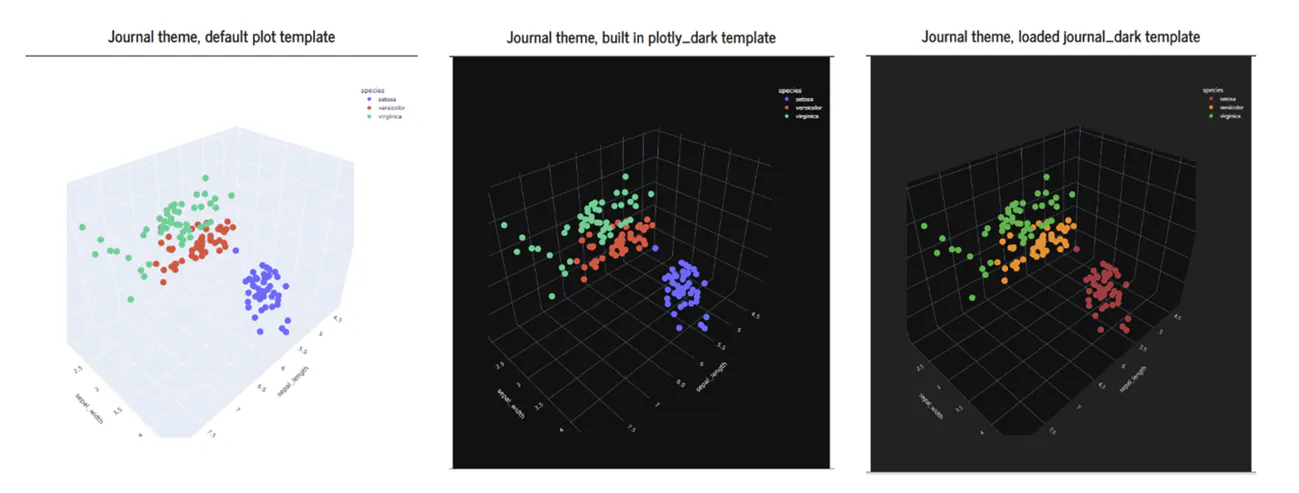
Theme used Journal, left to right: Plotly default template, plot with built-in plotly_dark template, plot after loading and using journal_dark template
Using the template belonging to the theme means plot fonts and colors are adjusted to the theme you use for your app.
A prompt for loading the Journal theme and Journal plot template:
Create a dash app, use bootstrap and the Journal theme.
Load the Journal template for plots and use it in all plots.
show this visual:
df = px.data.iris()
fig = px.scatter_3d(df, x='sepal_length', y='sepal_width', z='petal_width',
color='species')
Sometimes it is easier to know what happens in the code.
The 3D scatter used in the prompt with a specific Plotly built-in template:
px.scatter_3d(df, x='sepal_length', y='sepal_width', z='petal_width',
color='species', template=”ggplot2”)
The 3D scatter used in the prompt using journal_dark:
from dash_bootstrap_templates import load_figure_template
load_figure_template("journal_dark")
px.scatter_3d(df, x='sepal_length', y='sepal_width', z='petal_width',
color='species', template=”journal_dark”)
Are Plotly charts adjusted to the screen size?
As long as you don't specify a fixed width in your prompt, and as long as the AI doesn't sneak one into the code, a plot will naturally size itself to whatever space is available. That's the behavior you want.
Problems start when a fixed width gets introduced. Say a plot is set to 600px wide but the viewport is only 412px. The plot simply doesn't fit, and one of two things happens: a horizontal scrollbar appears, or if scrolling is disabled, the plot gets cut off and you only see the portion that fits on screen. Neither is a great experience on mobile.
It can happen on larger screens too. If a plot's fixed width exceeds the space available within the layout, it will push beyond its boundaries and compromise the surrounding layout. You'll know it when you see it, it's that moment where you look at your screen and think "that's... large."
Is the content of a chart reorganized according to the available screen width?
Not quite, or at least only partly. While the plot itself will resize to fit the available space, not everything inside it follows suit.
Elements like the legend, plot title, and margins don't automatically reposition themselves to adapt to the available space. The legend might switch from horizontal to vertical when space gets tight, but it won't move from the right side of the chart to the top to free up room. A plot title that's too long for a small screen won't wrap onto a second line, it'll just overflow or get cut off.
So, while the overall width of the plot behaves responsively, the internal layout of the chart is much more rigid. It's something worth keeping in mind when designing for smaller screens.
Responsive with bootstrap, essentials
How do layout changes work, how is the general layout defined in bootstrap?
Imagine dividing your screen into 12 equal slices side by side, that's basically what a Bootstrap row is.
Those 12 slices are yours to play with. Want one big column that takes up the whole row? Give it a width of 12. Want to split the row in half, say, text on one side and a chart on the other? Use two columns of width 6 each. The only rule is that your widths should add up to 12. If they don't, your app will still run, but the layout will probably look a bit off.
What happens when you do not define any width?
This prompt:
create a dash app with 12 columns. Use bootstrap, columns, do not define widths in the app.
will create an app (unless AI starts to help you) with the following output:
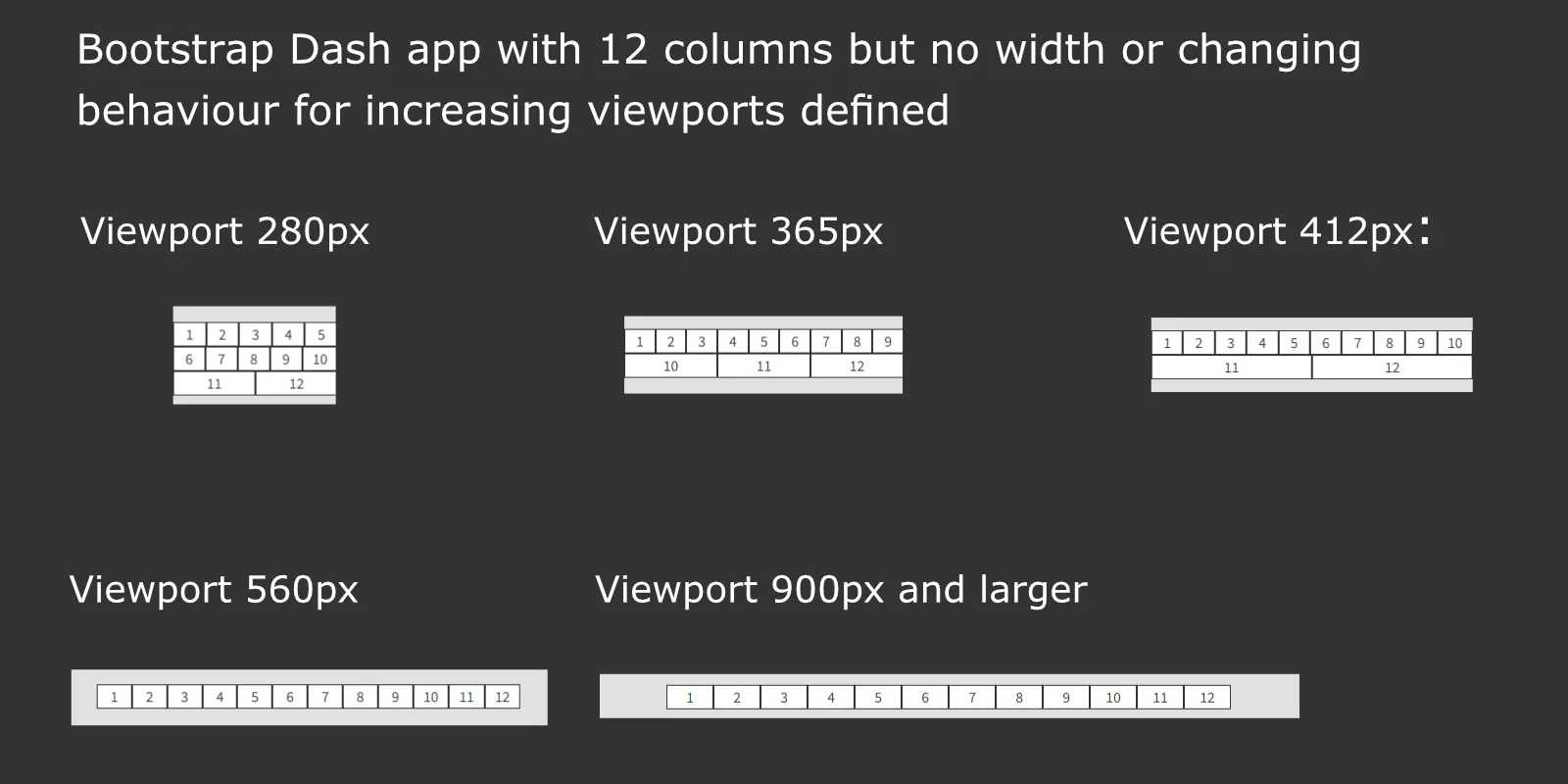
The app tries to squeeze all the columns onto one line, using whatever width the viewport has to offer. When a column no longer fits, it wraps onto the next line and the process continues from there. As you can see, the larger the viewport, the more columns the app manages to fit side by side.
Breakpoints to define when layout behavior should change
Think of breakpoints as the moments where your layout decides to change its behaviour, like a website shifting gears depending on the screen it's being viewed on.
Bootstrap has six of these breakpoints: xs (any size from 0px), sm (576px and up), md (768px and up), lg (992px and up), xl (1200px and up), and xxl (1400px and up). Each one represents a screen width threshold where you can tell your layout to do something different.
When writing a prompt to get a certain layout, the safest approach is to be specific. Instead of saying "on large screens", you can write ">=992px" to make absolutely sure the effect kicks in at exactly the right point. That said, saying "large screens" in your prompt usually gets you the desired result.
You'll also notice that some of the prompt examples following in this blog define both a starting width and a point where it changes, while others only mention the change. Neither approach is wrong, it's mostly a matter of personal preference. The one practical benefit of being more explicit is that it leaves less room for the AI to fill in the blanks on its own, which can sometimes lead to unexpected results.
The same 12 columns but now with predefined behaviour for different viewports
The moment you define a width, either a default one (any number from 1 to 12) or a screen-size-specific one like xl=3 for extra-large screens, the behaviour shifts. Instead of squeezing, the layout becomes truly responsive, adjusting deliberately as the screen size changes.
The prompt below defines a different grid arrangement for almost every breakpoint. What it's essentially saying is: by default (xs), stack the columns. On small screens (576px and wider), place two columns side by side (two columns of width 6). And so on from there. The prompt:
create a dash app with 12 columns, use bootstrap, the app should be non-fluid
default size of a column is width 12
on small screens width 6
on medium screens width 4
on large screens width 3
on extra large screens width 1
Will generate output like this:
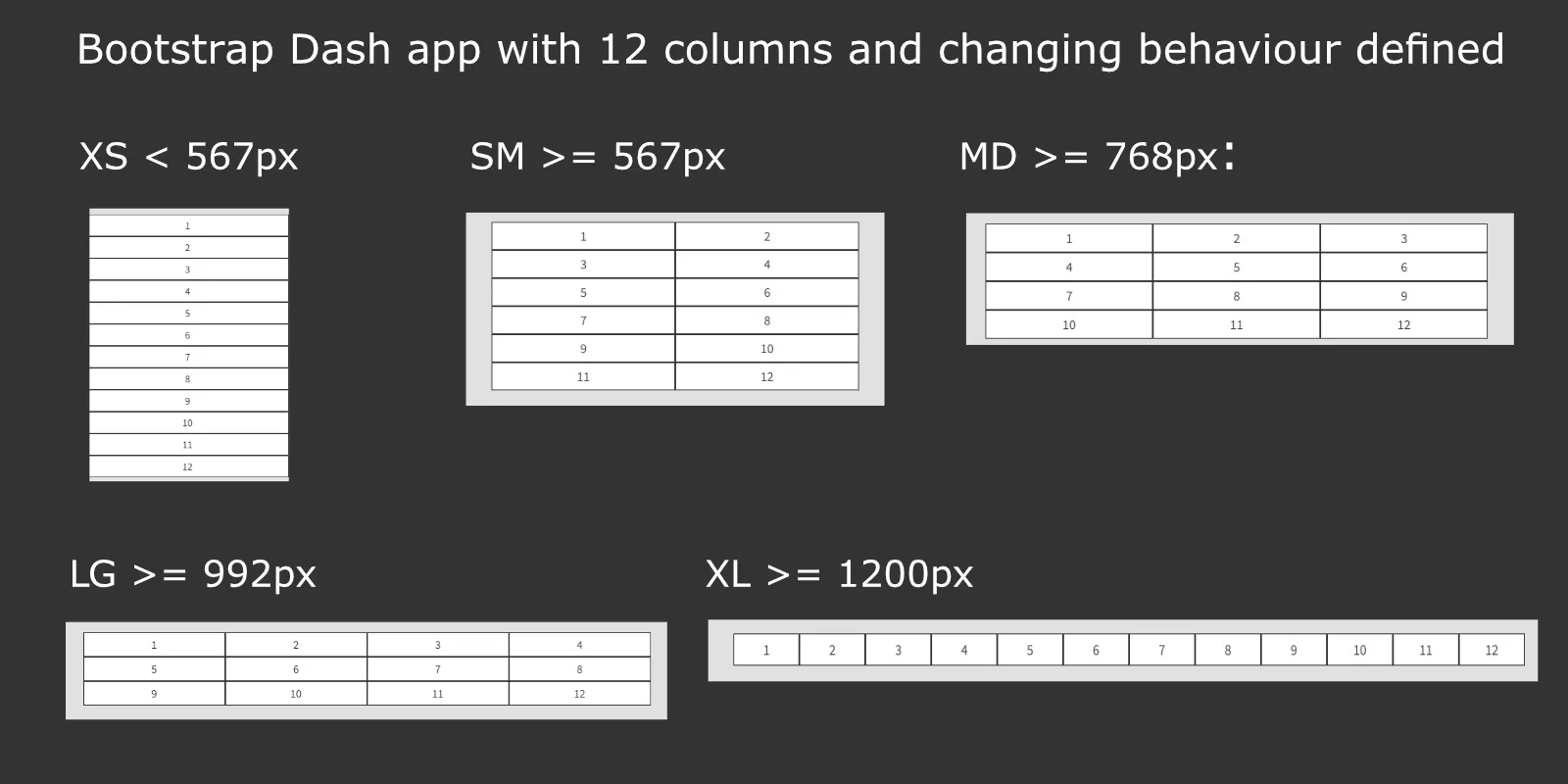
What does fluid in the prompt mean?
An app or dashboard can be fluid or not. Fluid means the app stretches to fill the entire viewport, if your browser has 1600px available, every pixel of it gets used. Not fluid means the app keeps some breathing room, adding margins to the left and right that adjust depending on the viewport width.
“I will never create an app or dashboard with 12 columns.”
That's probably true, but the 12-column example is the best way to illustrate the concept of adjusting a layout to different screen sizes. From here, it only gets easier.
Example 1: an app with two equal width columns
Example 1 puts the above theory into practice with a simple layout: one row, two equal columns. On mobile, the columns stack on top of each other. On large screens, 992px and wider, they sit side by side. A small but clear example of breakpoints doing exactly what they're designed to do. The prompt:
Create a dash app with bootstrap.
Layout: 1 row, 2 columns.
Column 1: content “Column A – takes full width by default, 50% on large screens”
Column 2: content “Column B – takes full width by default, 50% on large screens”
Will output this:
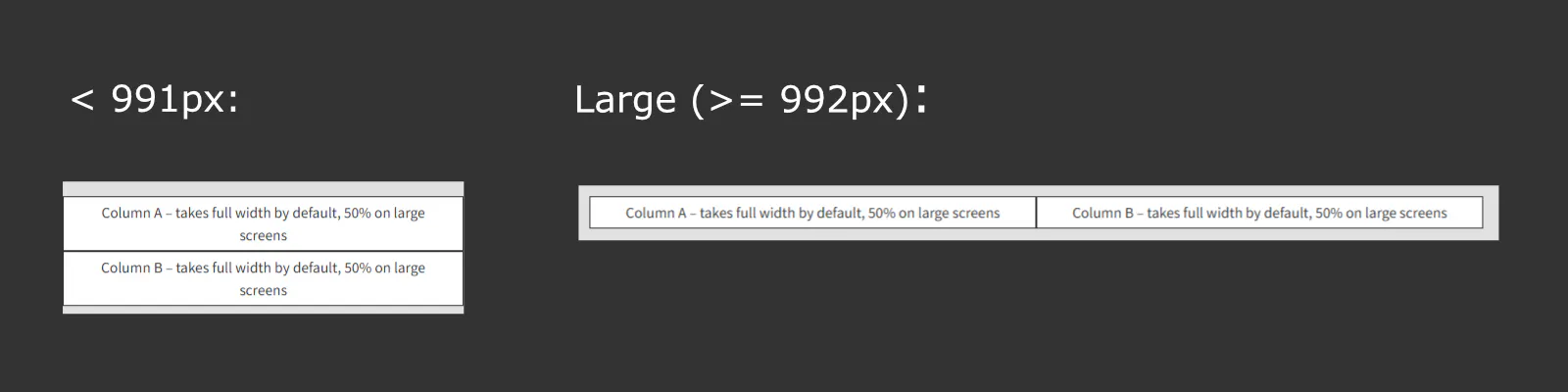
But sometimes you want to reorder columns for a certain screen size.
It's possible to reorder columns for different screen sizes. Simply give AI the default column order and tell it what order you want at a specific breakpoint. A prompt could be:
Create a dash app with bootstrap.
Layout: 1 row, 2 columns.
Column 1: content “my text 1”, order 1
Column 2: content “my text 2”, order 2
Reverse the order when the screen size is large.
Reverse order is the easy way out in this case and would output this:
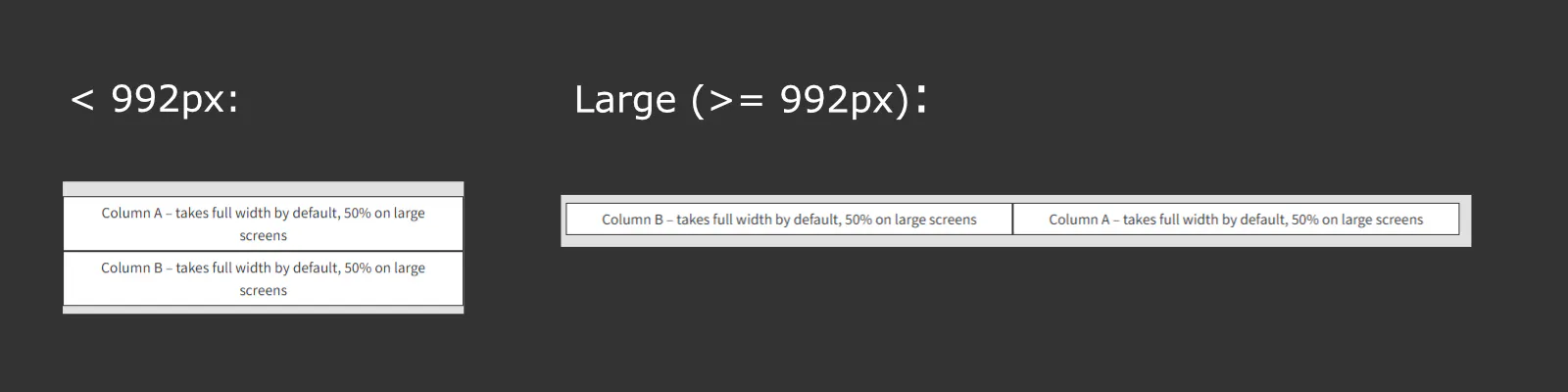
A rewrite of the reverse order prompt above could be:
Create a dash app with bootstrap.
Layout: 1 row, 2 columns.
Column 1: content “my text 1”, order 1, on large screens order 2
Column 2: content “my text 2”, order 2, on large screens order 1
You can extend this prompt to reorder more than two columns. It is not possible to reorder rows.
Example 2: four columns on large screens, with widths of 1, 4, 5, and 2.
Example 2 is a bit more involved. Suppose you designed your layout on a large screen, wider than 992px. It looks great, but on smaller screens it just doesn't fit and becomes difficult to use. Those two narrow columns position your content exactly where you want it at larger screens, but that precision comes at a price.
That's the moment to think about how you want your app or dashboard to behave on smaller screens. One solution could be to stack all four columns on top of each other by default, then rearrange them into a 2x2 grid on medium screens, with the first two columns on the first row and the other two on the second. On large screens, all four columns line up side by side in a single row. A prompt could be:
Create a dash app with bootstrap.
Column 1: content "large w-1", width=12, medium screens w=3, large screens = 1
Column 2: content "large w-4", width=12, medium screens w=9, large screens = 4
Column 3: content "large w-5", width=12, medium screens w=8, large screens = 5
Column 4: content "large w-2", width=12, medium screens w=4, large screens = 2
The output would look like this:
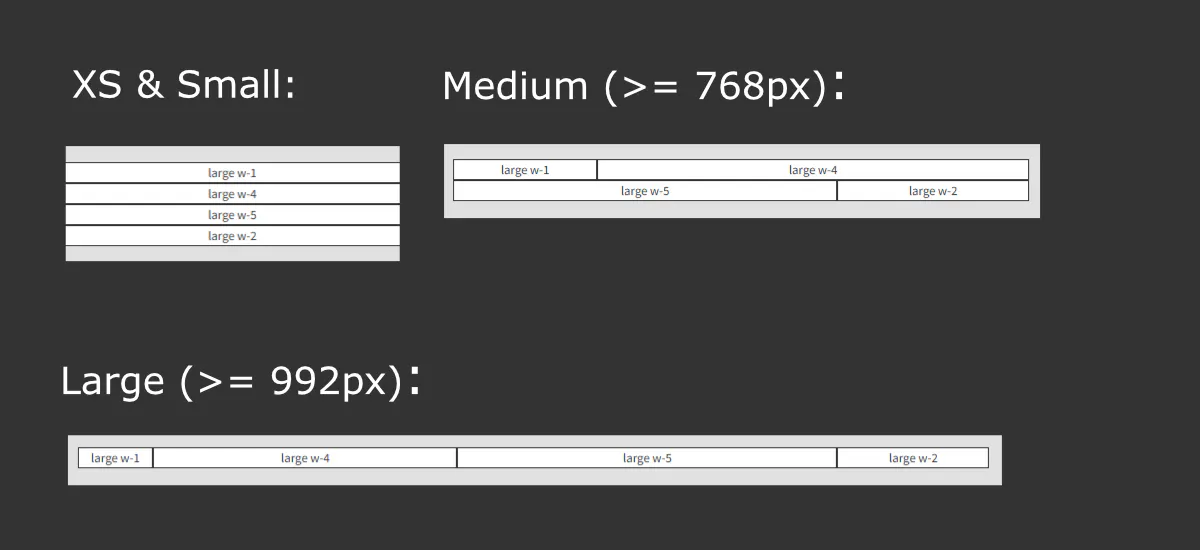
The chosen width values for the medium screens are totally arbitrary.
Here's the thing though: two of those columns on the large screen view are very narrow (widths of 1 and 2). Writing a prompt that correctly describes this layout, including how it should behave across all the different screen sizes, is genuinely tedious work, certainly when you start to think about the content of those columns and start defining more complex layouts.
It can be tempting to go down this road, small columns, especially when you're designing on a large screen and everything looks great right in front of you. But if you find yourself reaching for column widths of 1 or 2, that's a good moment to pause and ask whether there's a simpler way to get a similar result. Flexbox, for example, is worth considering as an alternative that can achieve much the same thing with less hassle.
What is flexbox and how to use it?
Flexbox (Flexible Box Layout) is a CSS3 web layout model designed to easily arrange, align, and distribute space among items in a container, even when their size is unknown or dynamic. It allows elements to flex, grow or shrink to fill available space, making it ideal for responsive, one-dimensional layouts (rows or columns).
An unofficial definition: flexbox makes it easy to play around with elements regarding alignment and space between the elements in one row or one column. You do not have to load extra libraries, when you define Flexbox elements, all modern browsers will understand what to do.
That header you see on almost every mobile app, logo tucked in the top left, a few icons in the top right, is a classic example of Flexbox in action. It's one of those layouts that Flexbox handles naturally and elegantly, which is exactly why it shows up so consistently across mobile design. A prompt like this:
create a dash/bootstrap app with 1 row, 2 columns, the background color of the row should be white
- column 1: width 6, has the plotly logo , padding of 5 pixels and max logo height of 80px.
- column 2: width 6, a hamburger icon and search icon (please find 2 icons), align the icons right.
for column 2 use flexbox
Generates Dash code with output like this:
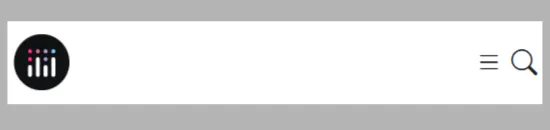
Header with logo and 2 icons.
If you have an image with an url, use the url of the image in your prompt.
As you can see, there's no need to define a separate column for every individual icon. The icons are treated as a group of two elements that gets pushed to the right as a whole, that's Flexbox doing its thing. The width of 6 given to each column ensures the logo and icons always sit side by side, no matter the screen size, they'll never stack.
One thing worth noticing: the icon order appears reversed. That's a side effect of the right-alignment requirement. And that vertical centering you see, where the logo and icons line up neatly along the middle of the row? That wasn't actually asked for in the prompt. The AI added it on its own initiative, a nice touch, even if it was a happy accident.
Flexbox as an alternative for the first small column in example 2
Here's one way to sidestep the complexity of example 2's narrow columns, merge the first two columns into a single column with a width of 5 (which is just 1+4 combined). The row layout then becomes columns with widths 5 + 4 + 2 on large screens, which is much more practical to work with.
The trade-off is a small change in how the content is arranged. In the original example 2, the image and text lived in two separate columns side by side. In this Flexbox version, they share the same column, Flexbox then handles placing them next to each other within that single column. The end result looks similar, but the underlying structure is simpler and easier to prompt for.
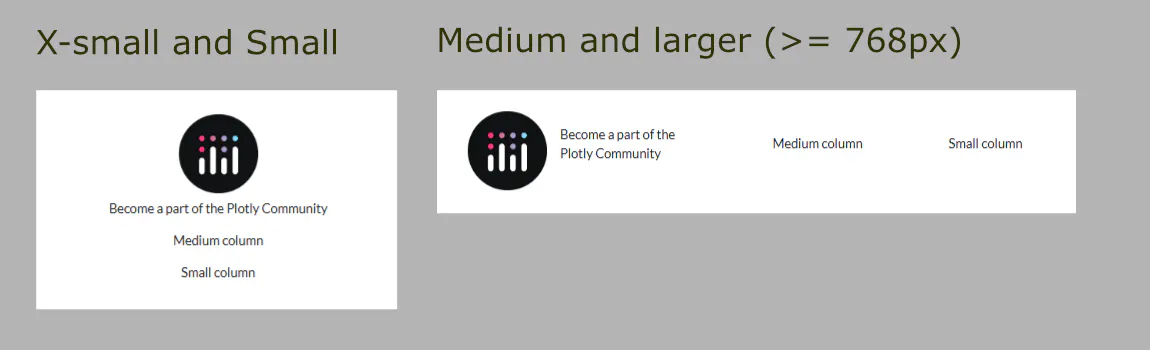
The first column uses flexbox to handle the image/text combination. Flexbox replaces the use of a very small column and second wider column.
Here's the prompt to create the layout:
create a dash/bootstrap app with 1 row, 3 columns.
- column 1: width 12, on medium screens 5, has an image of the plotly logo and the text "Become a part of the Plotly Community", the image has a max-width of 100 pixels.
- colomn 2, width 12, on medium screens 5, has the text "Medium column"
- column 3, width 12, on medium screens 2, has the text "Small column"
Center the content of all columns
Show column 1 by default as image above the text, on all screens >= 768 px show the image left from the text.
Use flexbox for column 1
Resize the image in column 1 to make sure the text fits.
Fluid is false
The result of merging those two columns into one isn't bad at all, but it does come with a few things to think about.
Adding a requirement like "center the content of all columns" sounds simple enough, but it affects both horizontal and vertical positioning at once, and blanket-applying it to every column isn't always a good idea, especially on medium and larger screens where it can look out of place.
But the more fundamental question is: does it actually matter that you've gone from two columns to one? And the answer is, it depends. If the content is straightforward and the context allows for it, the difference may be barely noticeable. But the order in which content appears on screen can matter a great deal, and that order can change depending on the screen size. What looks logical and well-structured on a large screen might tell a very different story on mobile.
Comparing column versus flexbox, revisiting the navigation header and example 2
Navigation header with two icons:
Here's an interesting thought experiment. You could try building that same header using three plain columns with widths of 10 + 1 + 1, logo in the first, search icon in the second, hamburger menu in the third. On a mobile screen it would look more or less the same as the Flexbox version.
But picture it on an extra large screen. Those two icon columns would spread apart, leaving a big gap between them. They'd stop looking like a group and just become two isolated icons floating at the end of a wide row. Not quite the effect you're after.
That's the limitation of using fixed columns for this kind of layout. Flexbox keeps the icons together as a group regardless of screen size, because it's the group itself that gets aligned to the right, not each icon individually. For this particular requirement, Flexbox isn't just a nice alternative, it's the right tool for the job.
Example 2 and flexbox:
Whether sticking with separate columns or merging them with Flexbox is the right call really does come down to content and context. Let's walk through an example to make that concrete.

Take the original layout of 1 + 4 + 5 + 2 and put an image in the first column and descriptive text in the second, the same content we merged together earlier with Flexbox. On mobile, if you add a few requirements for image size and centering, the stacked result looks pretty much the same either way. And on medium and larger screens, the separate column approach might actually give you better alignment straight out of the box.
Now swap that image for an actionable button, something the user clicks after reading the description in column 2. On mobile, stacking means the button ends up above the text. If the description is long and requires scrolling, the user has to scroll all the way back up to find the button again. Not great for click rates.
To fix this with the column approach, you'd need to reorder the columns and then check every breakpoint to make sure the screen always shows the text before the button. That's a lot of work. Merging the two into one column and letting Flexbox handle the internal arrangement is simply more efficient, you control the order of the content directly, without juggling column order across multiple screen sizes.
Yes, a clickable button is a bit of a contrived example, but it gets the point across: the right structure depends on what's inside the columns and how that content needs to behave in the broader layout.
Mobile first
You may have already noticed that Bootstrap's breakpoints run in order from smallest to largest, starting at 0px and going all the way up to 1400px. This ordering is actually quite deliberate; it reflects how Bootstrap thinks about styling.
The starting point is always mobile. Bootstrap applies its base styling for the smallest screen first, then adjusts upward for larger sizes. If you're using a theme, a lot of those adjustments, things like font sizes scaling up or columns rearranging, are already baked in for you.
This has a practical implication for your prompts. If you define a change for medium screens, that change automatically carries up to large, extra large, and beyond. You only need to explicitly add another requirement if you want something different at a larger breakpoint. Otherwise, Bootstrap just keeps applying the medium screen rule as the screen gets wider.
That's why a prompt like this works the way it does:
column 2, width 12, on medium screens 5, has the text "Medium column"
You're telling Bootstrap to start at full width (12) on small screens, then switch to width 5 from medium screens onwards. You don't need to repeat that width 5 instruction for large or extra-large, it just carries through automatically.
Reverse Thinking:
Right now, in early 2026, the web is full of posts along the lines of "look at my AI-built dashboard, and it's responsive too!", usually accompanied by a screenshot of a large desktop layout. Which is fine, but it's rarely possible to actually test the claim.
Setting aside whether your dashboard even needs to be responsive, there's another common pattern worth acknowledging: most people build the large screen version first. That's a natural way to work, unless a client has specifically made clear that mobile is a priority.
If you do decide you want your dashboard or app to be responsive, here are some habits worth developing early, even if you're not actively building mobile layouts from the start.
- When you're choosing chart types, get into the habit of asking yourself whether they'd actually work on a small screen. An interactive map with 2000 data points or a horizontal bar chart with 20 bars might look great on a large monitor, but could be a frustrating experience on a phone.
- If you already have a layout on your large screen, take a moment to look at it and roughly imagine how it would translate to a smaller size. You don't need to build it yet, just think it through.
- And be prepared for surprises in both directions. Sometimes things look and work far better on mobile than you expected. Sometimes worse. The result isn't fully predictable.
- Finally, be realistic about the journey from "it works" to "wow, this is polished." That last stretch takes time and dedication, and that's true regardless of how good your starting point is.
Being less specific, how something simple can go wrong
An app with prompt requirements, as specific as possible for the layout:
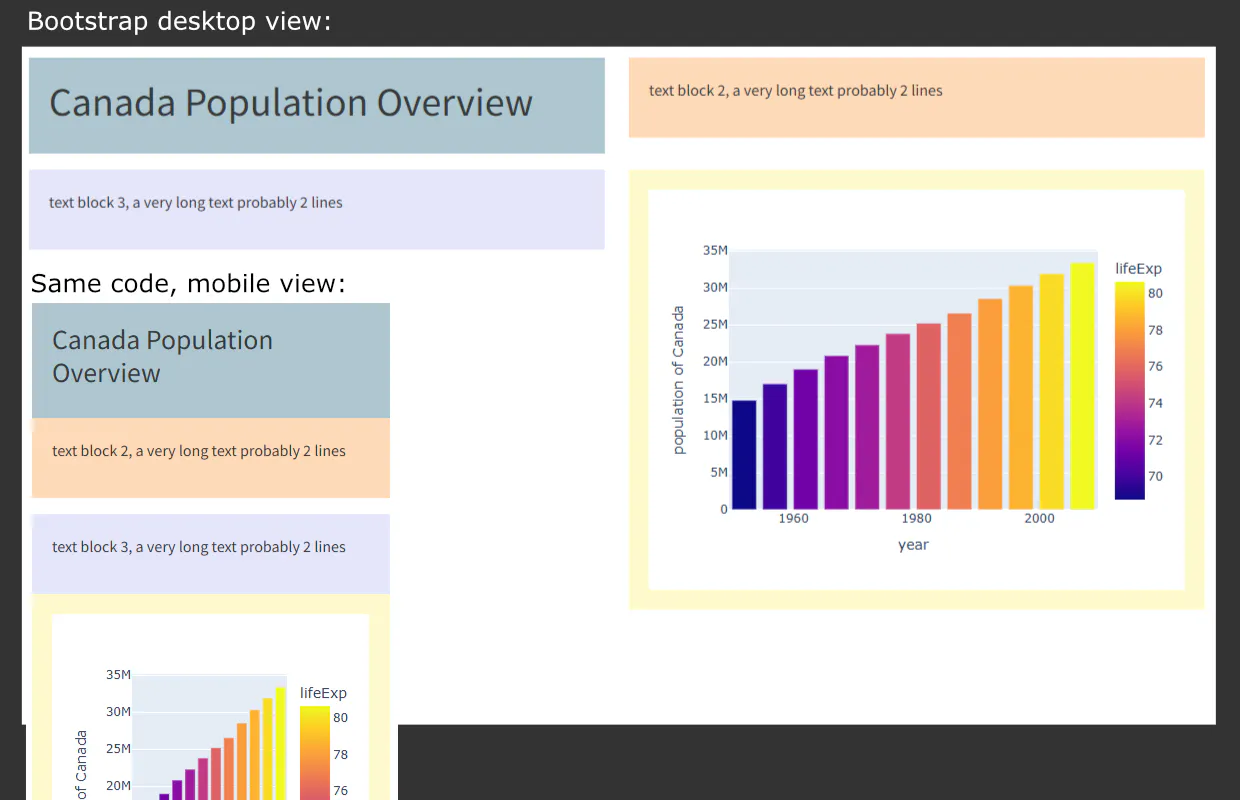
This app consists of 2 rows, the columns stack automatically on smaller screens. The app uses the Plotly default template for plots.
The app shown here is deliberately simple, a title, two text blocks, and a chart. The requirement was that on small screens, the content should appear in this order: title, text block 2, text block 3, chart. And as you can see in the mobile view, that's exactly what's delivered. A good example of how being specific about order, something that's easy to overlook when designing on a large screen, pays off when the layout shifts to mobile.
The prompt (background colors are strictly for showing movement):
create a dash app consisting of the following components:
- block 1: create an appropriate title
- block 2: paragraph with exact text "text block 2, a very long text probably 2 lines"
- block 3: paragraph with exact text "text block 3, a very long text probably 2 lines"
- block 4: display this figure, wrapped in a div:
df = px.data.gapminder().query("country == 'Canada'")
fig = px.bar(df, x='year', y='pop',
hover_data=['lifeExp', 'gdpPercap'], color='lifeExp',
labels={'pop':'population of Canada'}, height=400)
use the following background colors for block 1 to 4:
Pastel Blue: #AEC6CF (Safe for red-green blindness)
Pastel Orange/Peach: #FFDAB9 (Creates good contrast with blue)
Lavender/Purple: #E6E6FA (Distinguishable from yellow/blue)
Pale Yellow/Cream: #FFFACD (Provides high contrast)
use bootstrap, use the theme Cosmo, to divide the screen into:
- row 1: column block 1 + column block 2
- row 2: column block 3 + column block 4
for larger screens
columns should be equal widths,
use bootstrap classes for responsiveness,
do not use fluid
add a margin to the top of the screen
do not fantasize
But what if your prompt had been vaguer, leaving AI with too much freedom to make its own structural decisions? The result might have looked perfectly fine at first glance on your large screen:
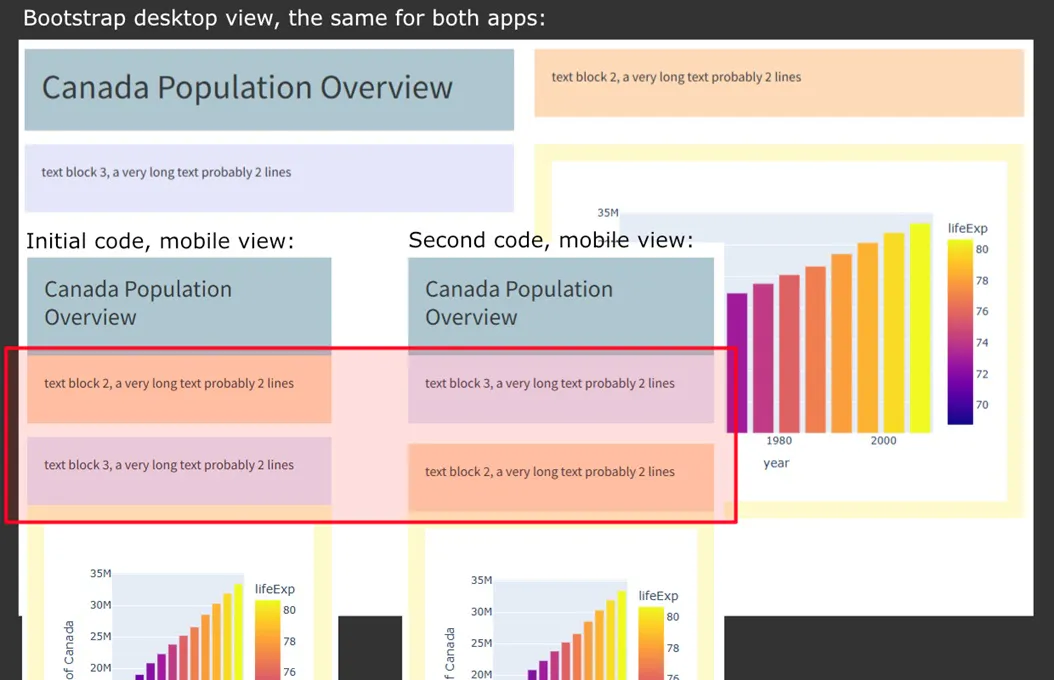
Different code, same desktop output, different mobile output.
At second glance though, and certainly on a smaller screen, the cracks would start to show. Without explicit instructions about rows, columns, and order, the AI might have made structural choices that are difficult or even painful to unpick later. And that's the core of it: what looks right on a large screen can hide a lot of problems that only reveal themselves when the layout is put under pressure.
What happened?
If you compare the two mobile views in the second image, you'll notice that text block 2 and text block 3 have swapped places. The reason is straightforward.
Because the prompt was vague, the AI made its own structural decision: one row with two columns. The first column got the title and text block 3, the second got text block 2 and the chart. That arrangement looks fine on a large screen. But remember what happens to columns in a row on small screens, they stack. So, text block 3, sitting in the first column, ends up above text block 2, which is in the second column. The order gets flipped without anything obviously going wrong in the code.
This is exactly the kind of problem that's easy to miss if you only ever check your work on a large screen. The fix is simple in principle: be as specific as you can when translating your wishes into requirements. The more precisely you describe the structure and order you want, the less room there is for the AI to make a well-intentioned choice that quietly breaks your layout on smaller screens.