
Musa Touray
March 23, 2026
How to Connect Plotly Studio to Microsoft Fabric SQL Analytics Endpoint
Author: Musa Touray
Plotly Studio lets you query, visualize, and explore data using natural language. If your data lives in Microsoft Fabric (whether in a Warehouse or a Lakehouse) you can connect Plotly Studio directly to its SQL Analytics Endpoint and start querying within minutes.
This guide walks you through every step: from locating your connection strings in Fabric, to creating a Service Principal in Azure, to entering your credentials in Plotly Studio.
What You'll Need
- Access to a Microsoft Fabric Workspace (Warehouse or Lakehouse)
- An Azure account with permission to register applications
- A Plotly Studio account
Part 1: Get Your SQL Analytics Endpoint and Workspace ID
Plotly Studio connects to Fabric through the SQL Analytics Endpoint — a read-only SQL interface available on every Warehouse and Lakehouse.
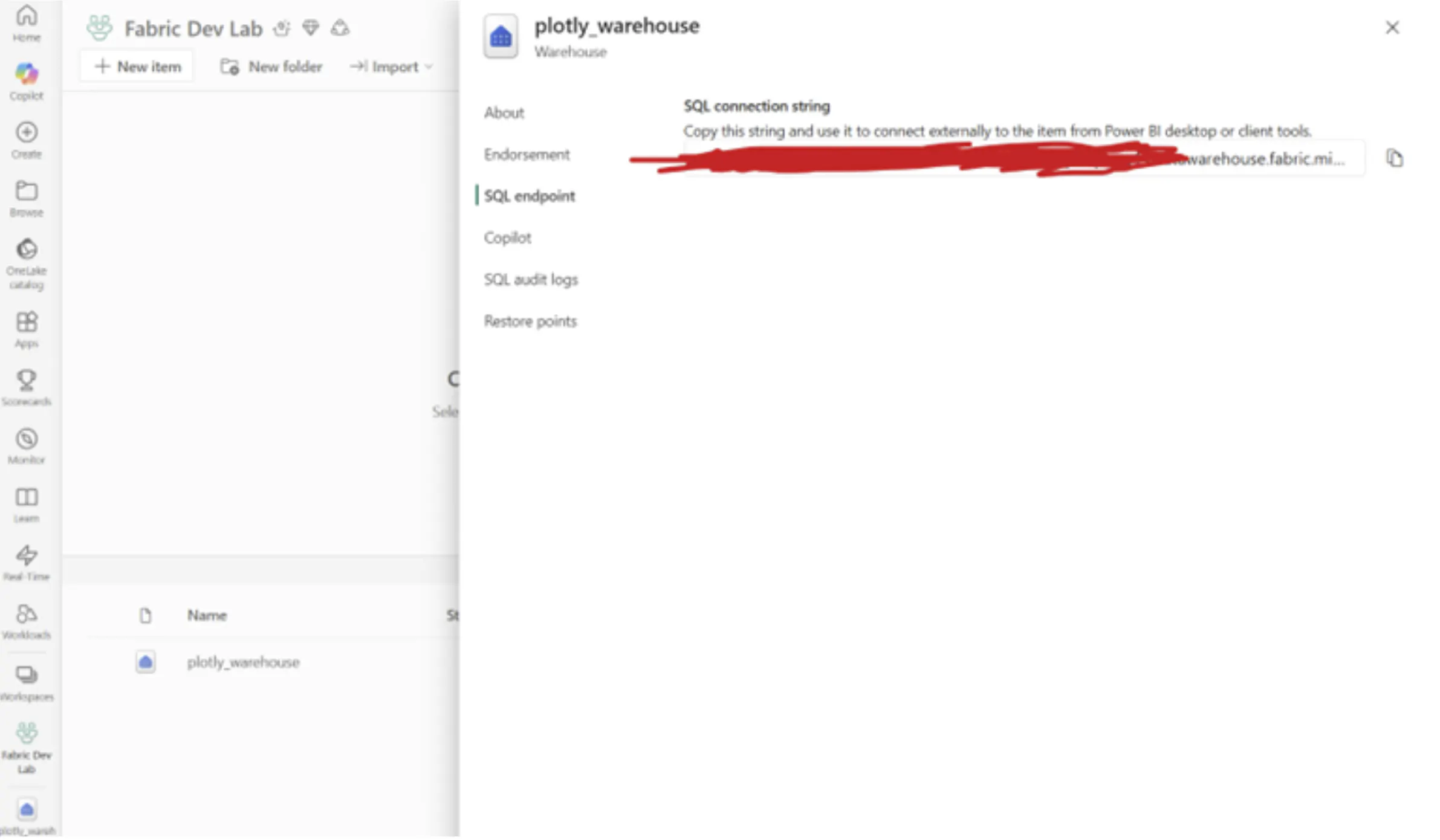
Get the SQL Analytics Endpoint:
- Open your Fabric Workspace and select your Warehouse or Lakehouse.
- Go to Settings → SQL endpoint.
- Alternatively, click Copy SQL connection string from the item's context menu.
- Save the endpoint. It will look like this: xxxxxxxxxxxxxxxxxxxxxx4bp4-xxxxxxxxxxxxxxxblff6u37dte.datawarehouse.fabric.microsoft.com
Get the Workspace ID:
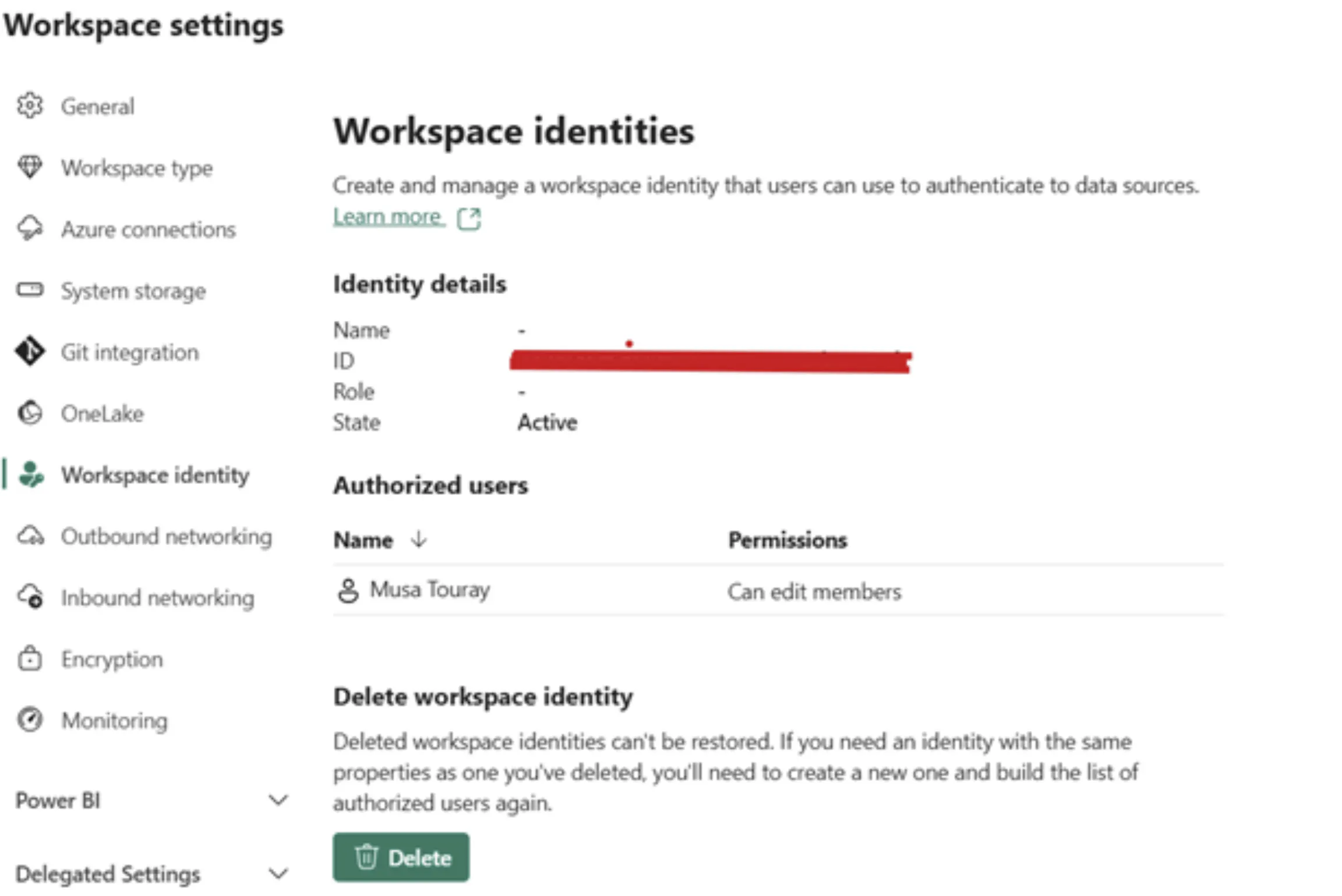
1. From your Fabric Workspace, go to Workspace Settings → Workspace Identity.
2. Copy the Workspace ID. It will look like this:
xxxxxxxx-xxxx-xxxx-xxxx-a8594ab2f6f0
Part 2: Create a Service Principal in Azure
Plotly Studio supports two authentication methods: Microsoft Account (email and password) and Service Principal. This guide uses a Service Principal because it is the recommended approach for application-level access; it does not depend on any individual user's account, making the connection more stable, secure, and suitable for shared or production environments.
A Service Principal is an application identity that Plotly Studio will use to authenticate with Fabric. You create it through Azure's App Registrations.
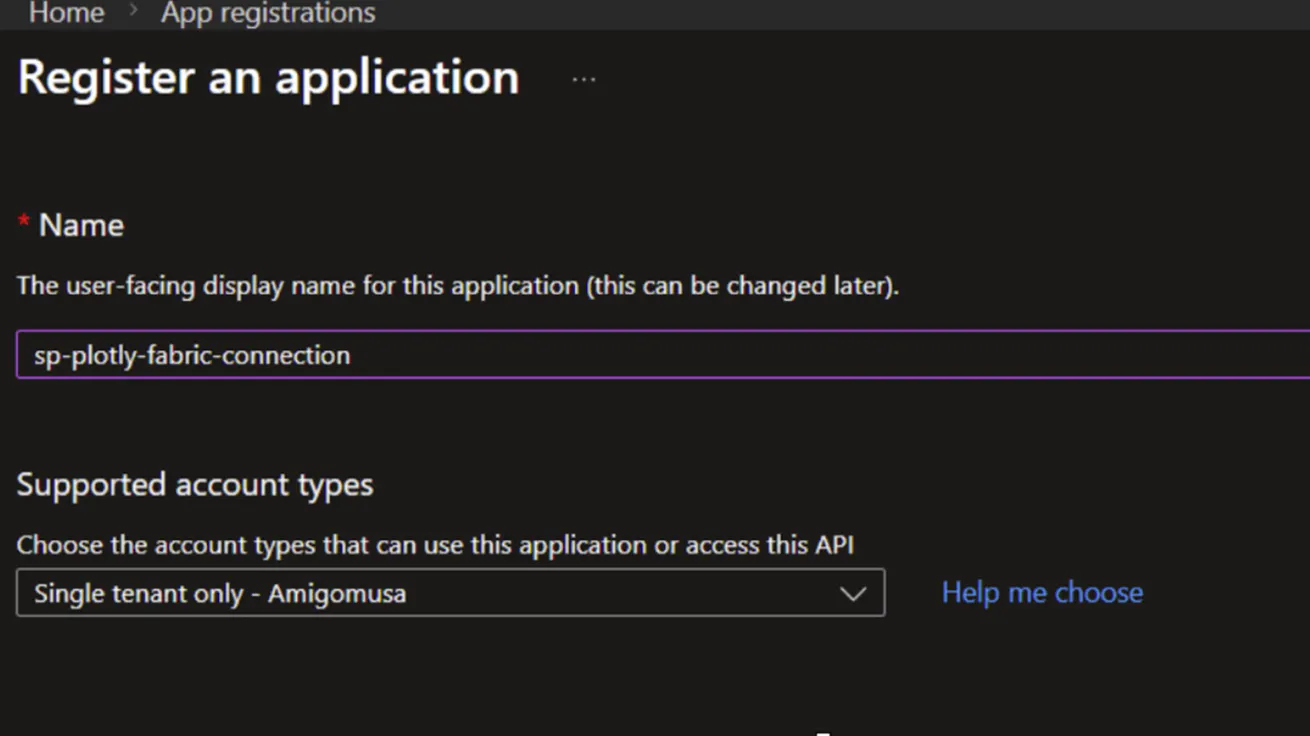
- Go to the Azure Portal ( https://portal.azure.com/auth/login/ ) and navigate to App registrations.
- Click New registration and fill in the following:
- Name: Give it a descriptive name, e.g. sp-plotly-fabric-connection
- Supported account type: Select Single tenant only
- Click Register.
Copy the Application and Tenant IDs:
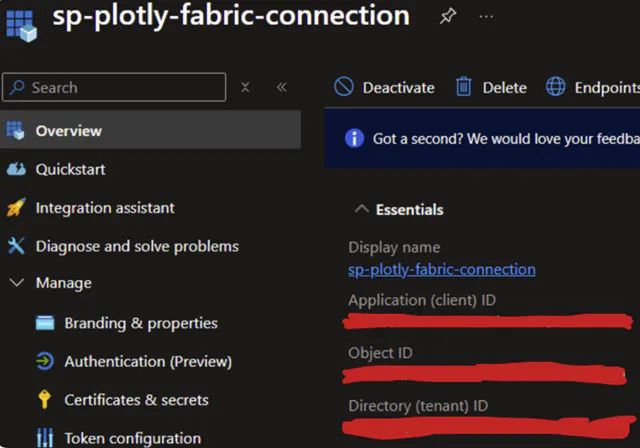
On the app's Overview page, copy and save:
- Application (Client) ID — e.g. cd5ecdd0-xxxx-xxxx-xxxx-2e24af04f1cc
- Directory (Tenant) ID — e.g. e7fdb2a2-xxxx-xxxx-xxxx-a3b54c1f817f
Create a Client Secret:
- In the left menu, expand Manage and click Certificates & secrets.
- Click New client secret and fill in:
- a. Description: e.g. plotly-fabric-access
- b. Expiry: Use the default recommended option (180 days)
- Click Add.
- Copy the secret Value immediately — it will not be shown again.
- a. Secret value example: L18Q~7jwpDBwL~xxxxxxxxxxxxxxxx-xxxxxxx
Important: copy the secret Value, not the Secret ID. Once you leave this page, the value will be hidden permanently.

Part 3: Grant the Service Principal Access to Your Workspace
Before Plotly Studio can connect, the Service Principal needs to be added to your Fabric Workspace.
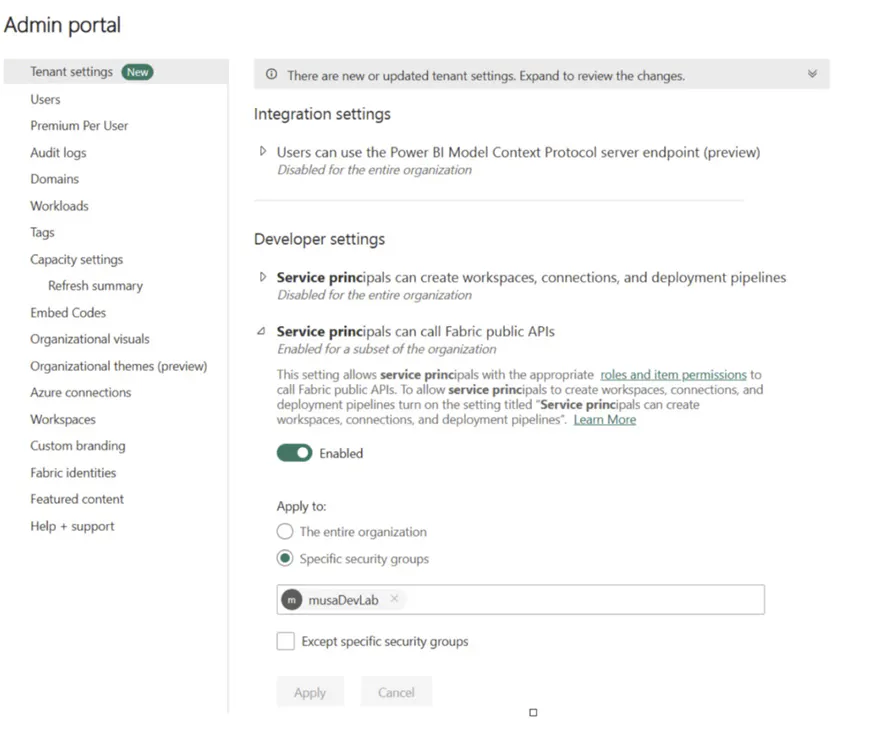
To enable Service Principal API access in Fabric:
- Go to the Fabric Admin Portal ( https://app.fabric.microsoft.com/admin-portal/ ).
- Under Developer settings, ensure "Service principals can call Fabric APIs" is enabled.
Add the Service Principal to your Workspace:
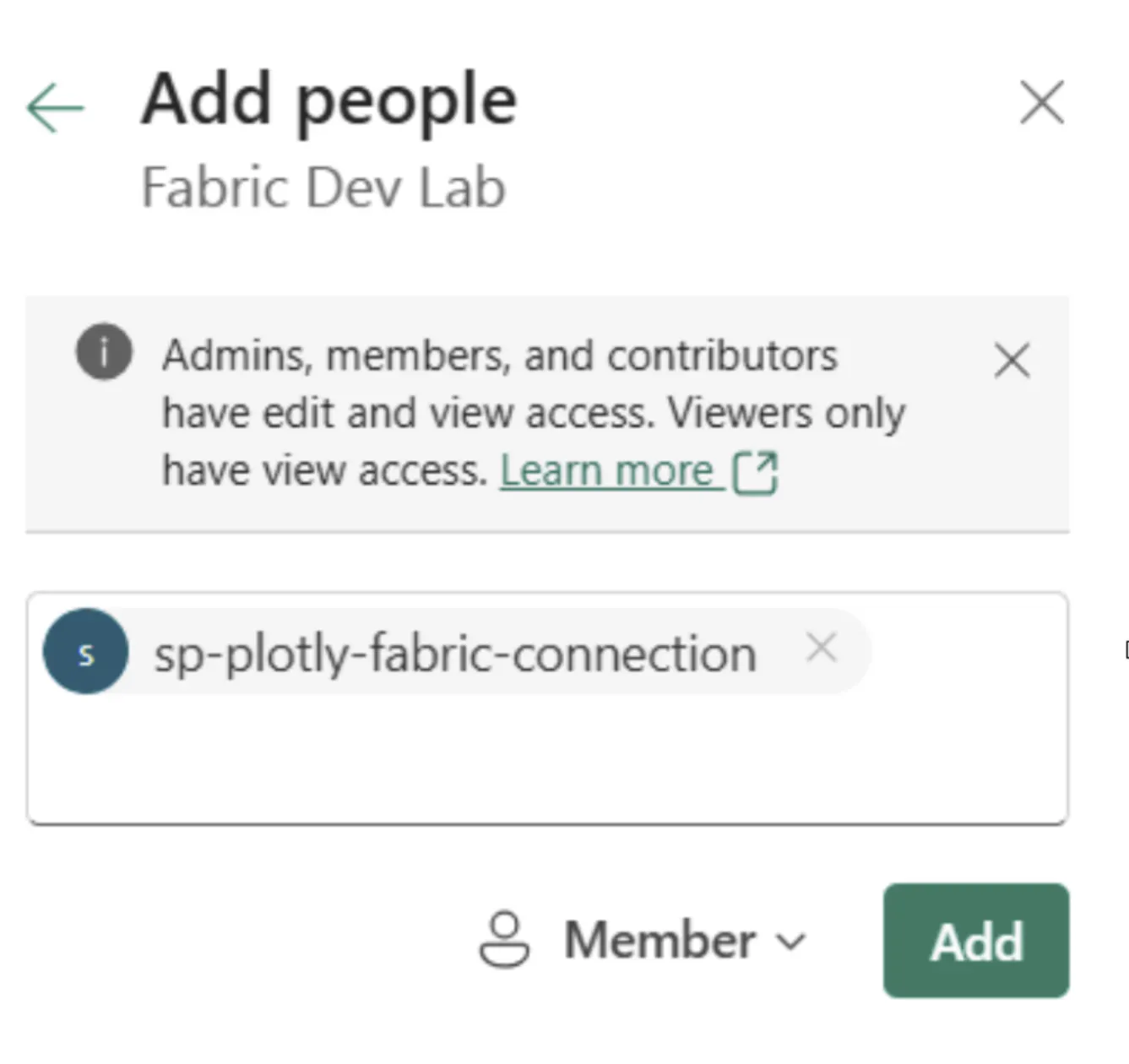
- Open your Fabric Workspace and click Manage access.
- Click Add people or groups.
- Search for and select your Service Principal by name (e.g. sp-plotly-fabric-connection).
- Assign the role Member or Contributor.
- Click Add.
Part 4: Connect Plotly Studio to Fabric
You now have everything needed to complete the connection. Open Plotly Studio and type the following prompt into the chat to trigger the connection form. Replace the 3 variables located in between quotation marks in the first sentence, based on your workspace, semantic model, and table names:
Connect to PowerBi services and the “Superstore Sales Analysis” semantic model in the “test-workspace-1”. Show the “fact_sales” table.
For authentication, use only these credentials:
tenantID
client secret value
client application ID
Try this as scope: https://analysis.windows.net/powerbi/api/.default - not https://api.powerbi.com
Include comprehensive error handling and diagnostic reporting in the code.
Do not try to use or install the azure library.
Plotly Studio will respond by presenting input fields for each credential. Fill them in with the values you collected in the previous steps. A successful connection will display a table view of your data.
Once connected, you can query your data using natural language. Here are a few prompts to get started (example with NYC Taxi Trip dataset):
- Query the "Trip" table and remove trips that occurred in midtown
- Filter the data to include trips between 2024 to 2025
- Only keep trips where the value under the tip columns are over 5 dollars
Summary
Here's a quick recap of what you did:
- Retrieved the SQL Analytics Endpoint and Workspace ID from Fabric
- Registered an application (Service Principal) in Azure and generated a client secret
- Added the Service Principal to your Fabric Workspace with Member/Contributor access
- Entered all connection details into Plotly Studio
Your Plotly Studio instance is now connected to Microsoft Fabric and ready to query live data.