
Matt Brown
October 22, 2026
How to Set Up SSO for Plotly Dash Apps (Okta, Entra ID, OneLogin and More)
Connect your identity provider once to protect every Dash app your team publishes. No code changes required, and your users only have to log in once.
Dash apps might start as one person's analysis, but they often end up as a resource that a whole department relies on. That's usually when someone from IT asks the hard questions: Who can open this? Does it enforce our MFA policy? What happens when someone leaves the company?
Your company probably already has an identity provider (IdP) to govern access, whether that's Okta, Microsoft Entra ID, OneLogin, Google Workspace or similar. Single sign-on (SSO) lets your Dash apps use that central IdP for managing access, instead of keeping a separate list of users and passwords.
Writing authentication into each app yourself is a common antipattern. You end up owning token validation, session security, logout, secret rotation and proxy configuration, and maintaining all of it across every app your team ships. Plotly's two hosting platforms, Dash Enterprise and Plotly Cloud, handle SSO at the platform level instead. An administrator connects the identity provider through a guided wizard, and from then on every app is protected automatically.
This guide covers:
- Which identity providers are supported
- Setting up SSO on Plotly Cloud (about 15 minutes)
- Setting up SSO on Dash Enterprise, including group mapping and per-user features in your app code
- What the platform handles for you
Plotly Cloud or Dash Enterprise?
Both platforms put your organization's login screen in front of your Dash apps. The main differences are where the apps run and how much your app code can know about the person viewing it.
Plotly Cloud
Dash Enterprise
Where apps run
Plotly-managed cloud
Your own infrastructure (on-premises, or your AWS, Azure or GCP account)
Plan
Enterprise plan
Any Dash Enterprise license
Who sets up SSO
A team Creator, once
A Dash Enterprise administrator, once
Protocols
SAML 2.0, OpenID Connect
SAML 2.0, OpenID Connect, LDAP/LDAPS
App access control
Per-app sharing: anyone with the link, the whole team, or specific people
Per-app viewer access: Restricted (specific users and IdP groups), Authenticated, or Unauthenticated
IdP groups
Not currently used
Mapped from your IdP and used for app access and in app code
User identity in app code
Not exposed
dash-enterprise-auth returns the signed-in user and their claims
Auth code in your app
None
None (optional one-liners to read the user)
Choose Plotly Cloud when you want your apps private to your organization with the least setup and no infrastructure to run.
Choose Dash Enterprise when apps must run in your own environment, when you need LDAP, or when your apps should behave differently depending on who's viewing them, such as row-level data filtering or admin-only features driven by IdP groups.
Supported identity providers
Dash Enterprise and Plotly Cloud both connect to any identity provider that speaks SAML 2.0 or OpenID Connect (OIDC). Dash Enterprise also supports LDAP and LDAPS directories, such as Active Directory.
Dash Enterprise's setup wizard has guided flows for these providers:
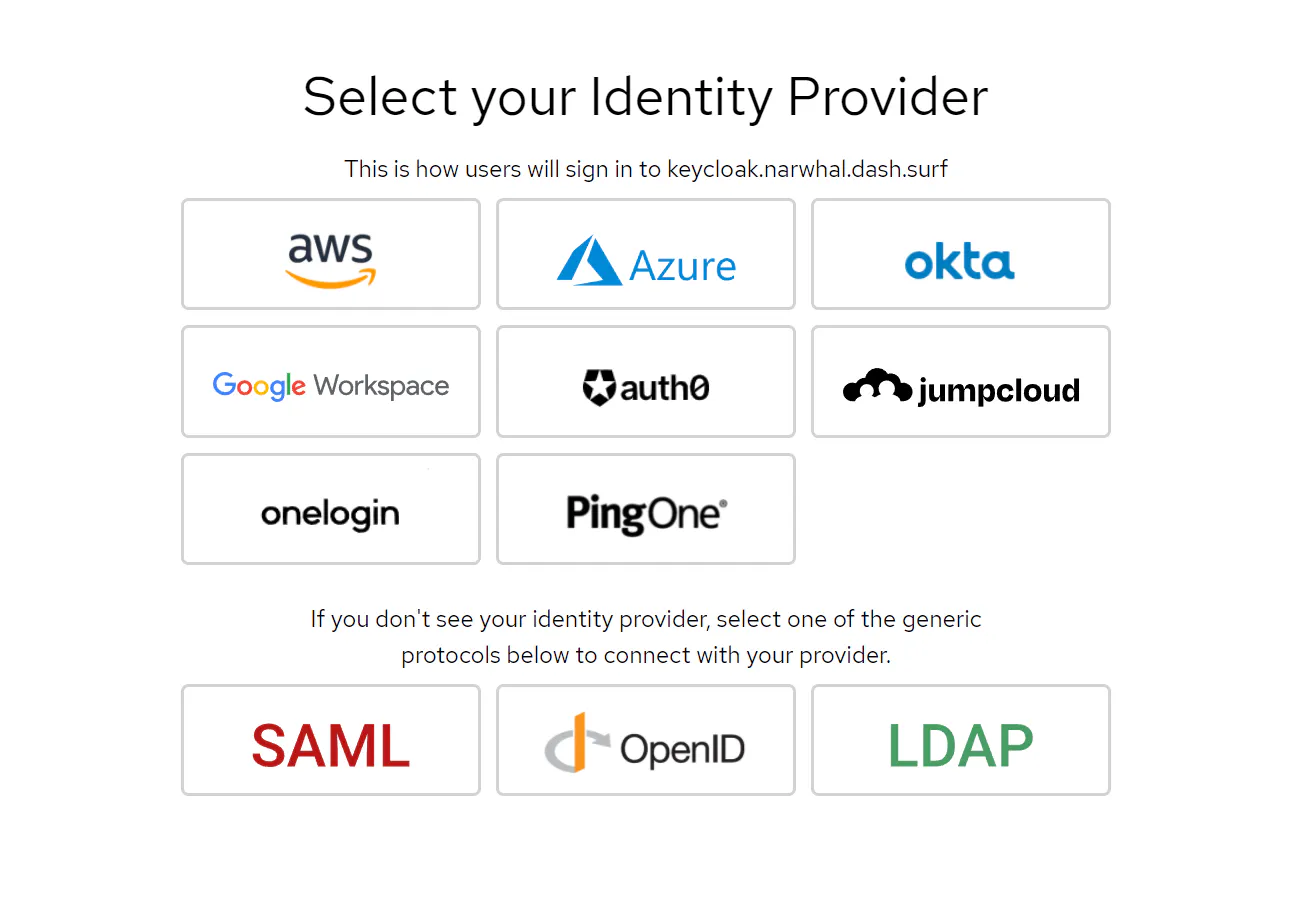
Dash Enterprise's IdP Setup Wizard. If your provider isn't listed, choose SAML, OpenID or LDAP.
Provider
Plotly Cloud
Dash Enterprise
Okta
✅
✅ Guided (SAML, OIDC, LDAP interface)
Microsoft Entra ID (formerly Azure AD)
✅
✅ Guided (SAML, OIDC)
OneLogin
✅
✅ Guided
Google Workspace
✅
✅ Guided
Auth0
✅
✅ Guided
PingOne / PingFederate
✅ via SAML or OIDC
✅ Guided (PingOne)
JumpCloud
✅ via SAML or OIDC
✅ Guided
AWS (IAM Identity Center)
✅ via SAML
✅ Guided
Microsoft Active Directory / AD FS
✅ via SAML (AD FS)
✅ LDAP/LDAPS or SAML (AD FS)
Keycloak, Duo, CyberArk, IBM Security Verify, Shibboleth and other standards-based IdPs
✅ via SAML or OIDC
✅ via SAML, OIDC or LDAP
Whichever provider you use, your users see the sign-in page they already know, and any multi-factor authentication (MFA) or conditional access policy your IdP enforces applies to your Dash apps too.
Set up SSO on Plotly Cloud
On Plotly Cloud, a team Creator connects the identity provider for the whole team. After that, team members sign in through your IdP, and each app's sharing settings decide who can open it.
Prerequisites
- A Plotly Cloud team on the Enterprise plan
- The Creator role in that team
- Access to your company's DNS settings (to verify your email domain)
- Admin access to your identity provider, or a colleague who has it
Step 1: Verify your email domain
SSO is tied to your company's email domain, so Plotly Cloud first asks you to prove you own it.
- In Plotly Cloud, open Team settings.
- Under Email domain verification, select Add domain. The verification page opens in a new tab.
- Enter your domain (for example, example.com) and select Continue. Plotly Cloud detects your DNS provider automatically.
- Follow the instructions to add a DNS record that proves ownership.
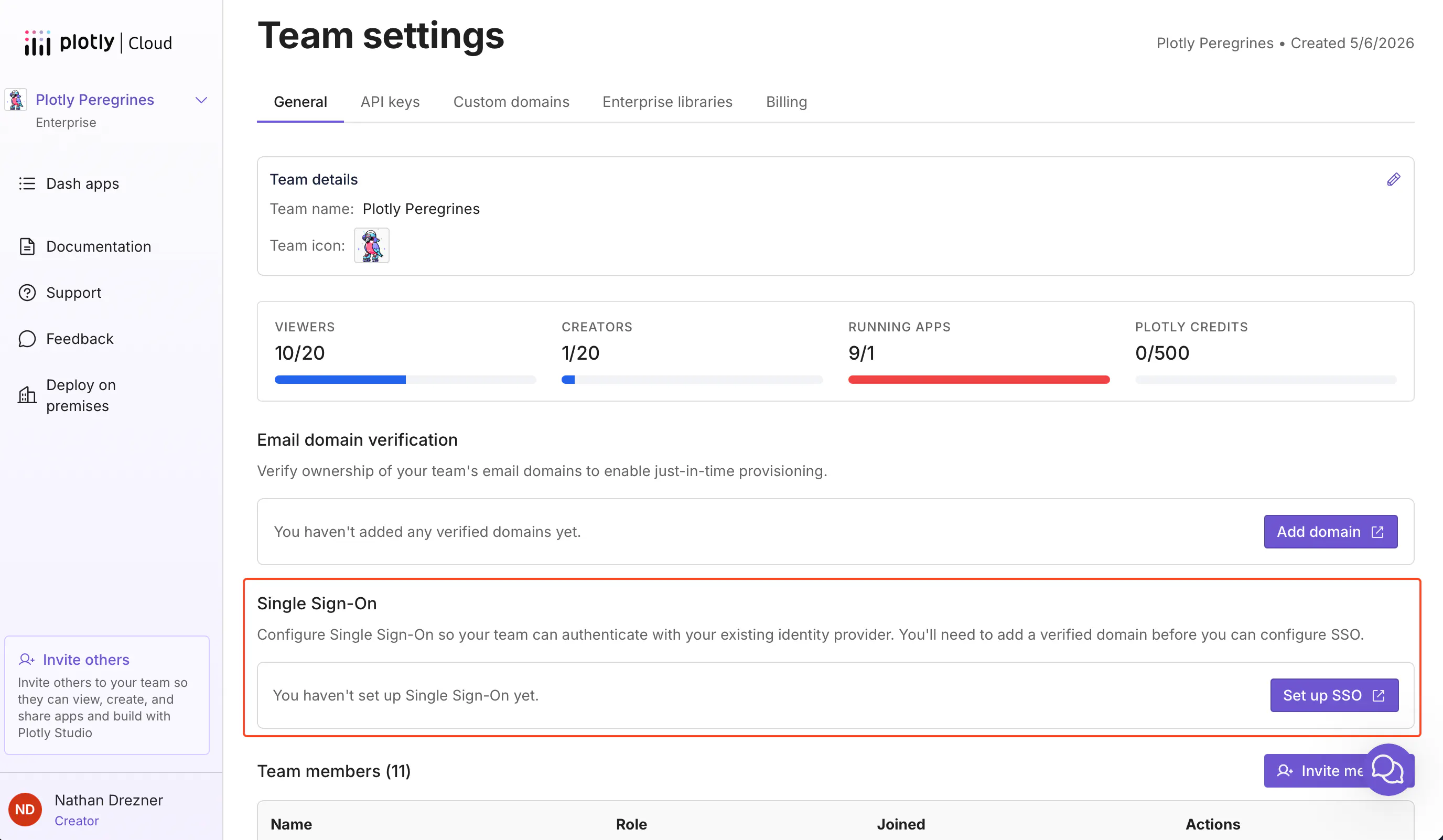
Team settings in Plotly Cloud. Verify a domain first, then set up SSO.
Good to know: After you verify a domain, anyone who signs up to Plotly Cloud with a matching email address joins your team automatically as a Viewer.
Step 2: Launch the SSO wizard
- Back in Team settings, under Single Sign-On, select Set up SSO.
- The Configure Single Sign-On wizard opens in a new tab.
Step 3: Connect your identity provider
Choose your identity provider in the wizard. The wizard tailors each step to that provider and tells you exactly what to copy between it and your IdP's admin console. For OneLogin, the flow looks like this:
- In the OneLogin admin portal, go to Applications > Add App and create a SAML Custom Connector (Advanced) app. Name it something your users will recognize, such as Plotly Cloud.
- Copy the ACS URL and Entity ID from the Plotly Cloud wizard into the app's Configuration tab.
- From OneLogin's SSO tab, copy the Issuer URL (metadata URL) back into the wizard.
- On the Access tab in OneLogin, assign the roles or users who should be able to sign in.
Tip: You can stop at any point. Go back to Team settings and select Continue setup to pick up where you left off, which is handy if you need to wait for a colleague who administers the IdP.
Step 4: Test the connection
The wizard's final step runs a test sign-in. Sign in with your IdP account. When it succeeds, the Single Sign-On section in Team settings shows the provider as Connected.

Once connected, select Manage to edit the configuration, re-run the test, or review sign-in sessions.
Step 5: Share apps with your team
From now on, team members sign in through your identity provider. To decide who sees each app, open the app's Settings and go to the Sharing tab:
- Team members: give everyone in the team Can view (or Creators Can edit).
- Add specific people: limit an app to named colleagues.
- Anyone with the link: leave this at No access for internal apps.
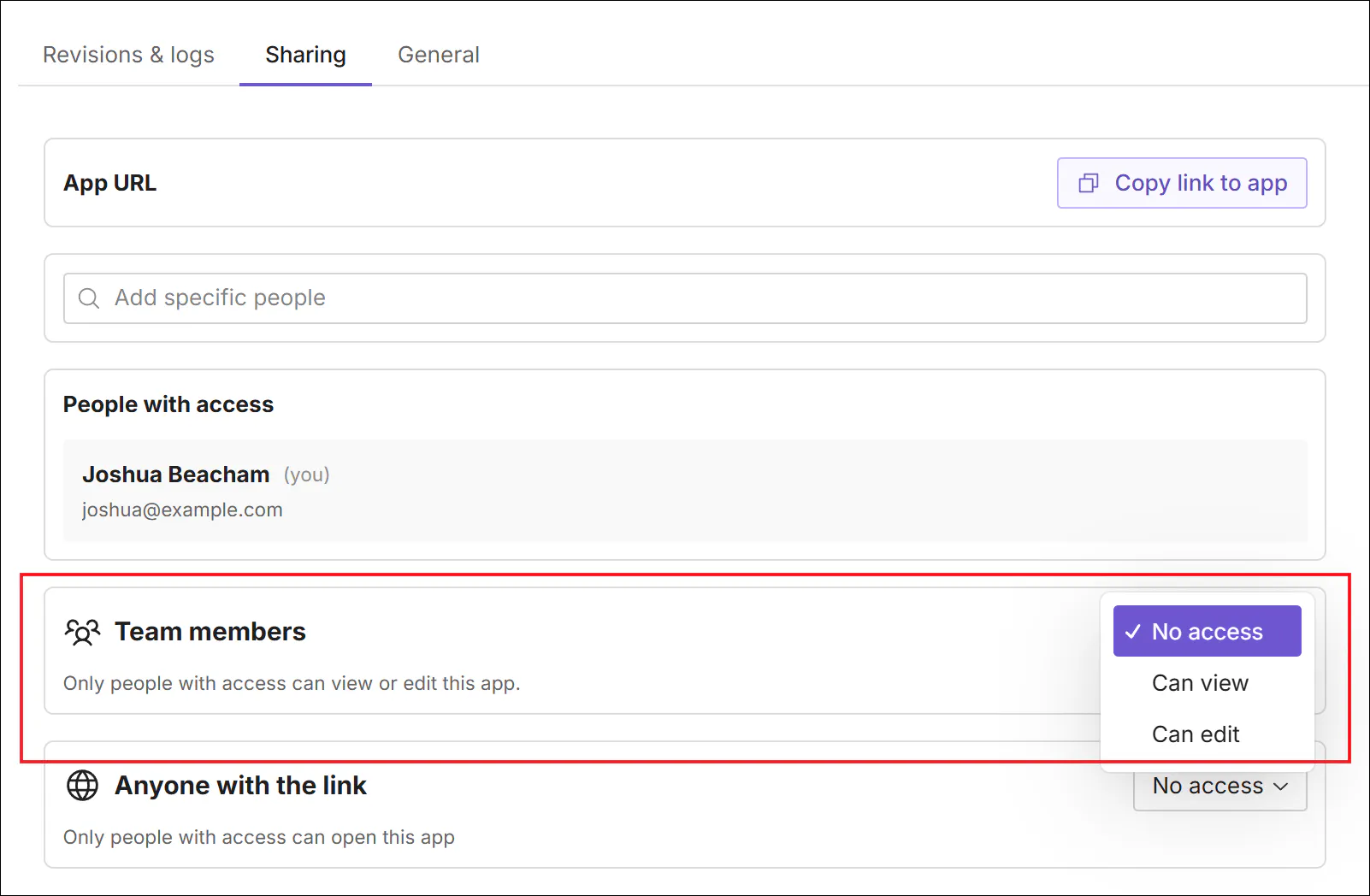
Team-wide access in an app's Sharing settings.
That's it. The Dash app itself doesn't change: the same app.py you run locally is now behind your company's SSO.
Set up SSO on Dash Enterprise
Dash Enterprise authenticates users through a built-in Keycloak identity broker. You connect your IdP to it once with the IdP Setup Wizard. Then, if you want, you map your IdP's groups so app owners can grant access to whole teams and apps can tailor what each person sees.
Prerequisites
- A running Dash Enterprise instance (5.x)
- A Dash Enterprise user with the admin role
- The Keycloak admin credentials stored during installation
- Network access from Dash Enterprise to your identity provider
- Admin access to your identity provider
Step 1: Open the IdP Setup Wizard
- In the Dash Enterprise App Manager, go to Settings.
- Select Keycloak IdP Setup Wizard. (Before your first sign-in, you can also go directly to https://auth-<your-dash-enterprise-server>/auth/realms/dash/wizard.)
- Sign in with the Keycloak admin credentials from your installation.
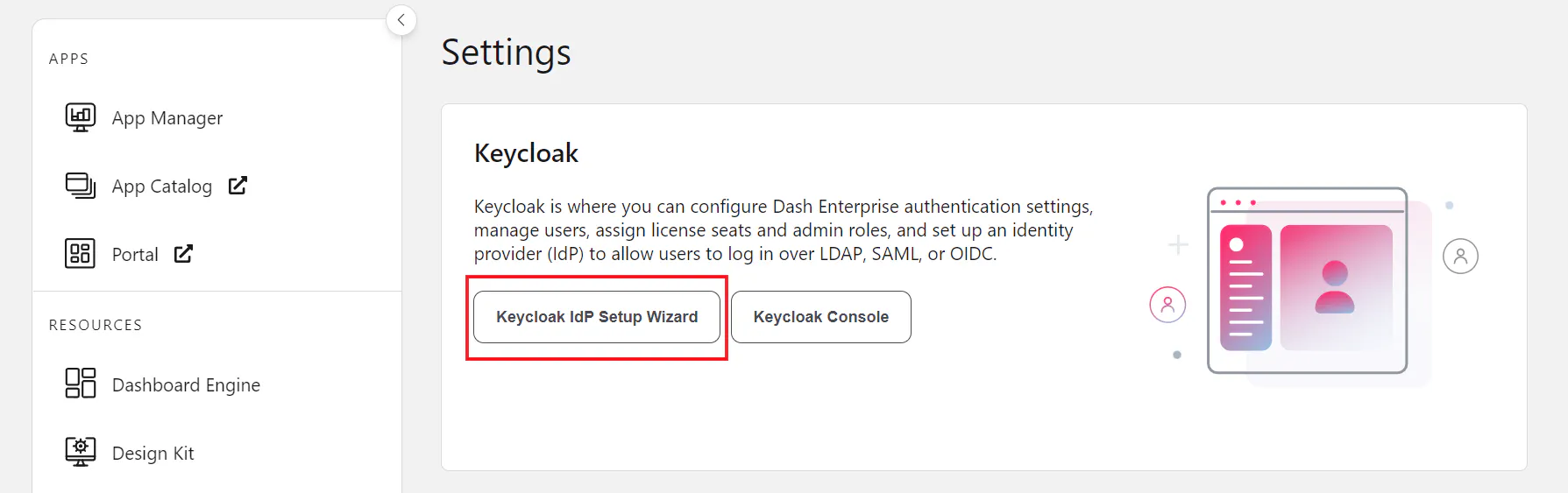
The wizard lives under Settings in the App Manager.
Step 2: Choose your identity provider
Select your provider's tile. If it isn't listed, choose the generic SAML, OpenID or LDAP option.
Step 3: Follow the guided steps
The wizard walks you through the provider-specific configuration. Typically, you:
- Create an application in your IdP's admin console (for example, an OIDC Web Application in Okta).
- Paste the redirect URI or SAML metadata that the wizard gives you into that application.
- Paste your IdP's client ID and secret, or its metadata URL, back into the wizard.
- Choose a display name, such as Sign in with Okta. This becomes the button label on the Dash Enterprise login page.
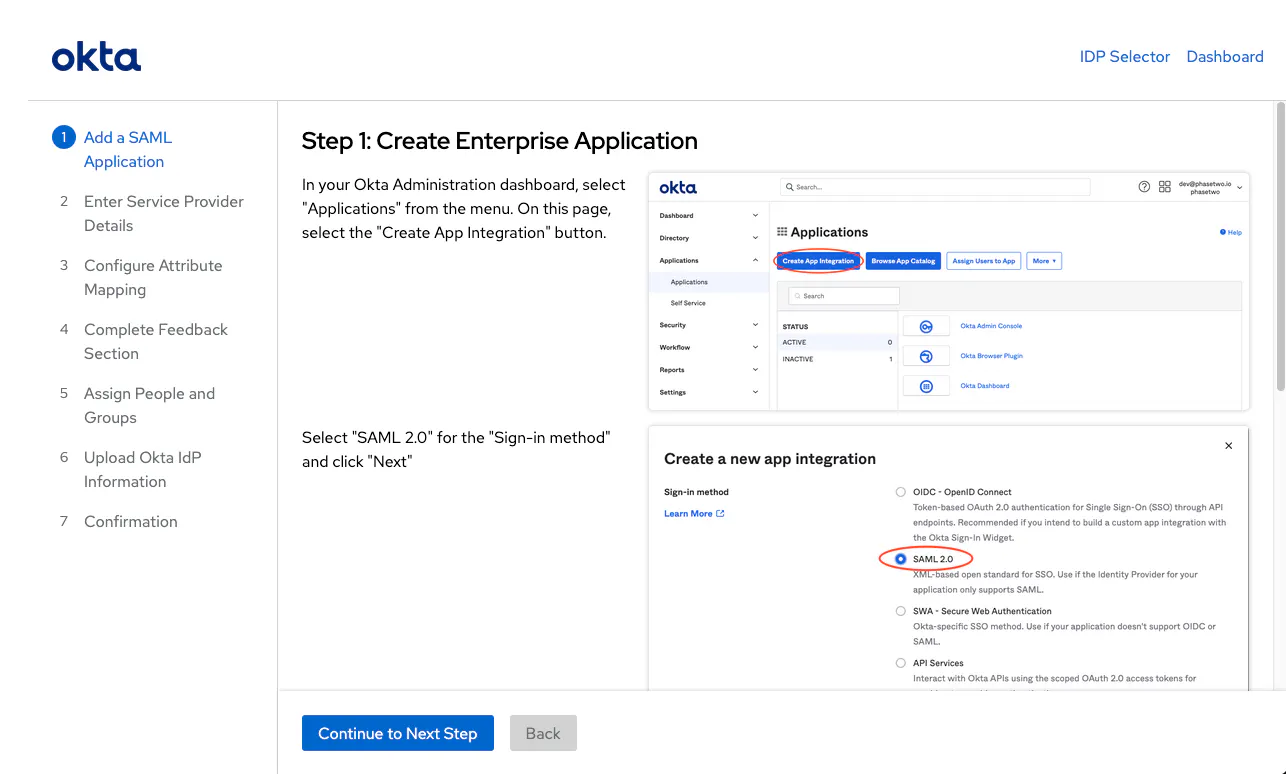
The wizard's guided Okta flow shows each step in the Okta admin console.
When you finish, users who visit https://<your-dash-enterprise-server> see a button for your IdP on the login page. With LDAP, they sign in with their directory credentials directly.
Good to know: With SAML or OIDC configured, developers deploy apps over SSH or with the Dash Enterprise CLI rather than over Git HTTPS.
Step 4: Map your IdP groups
Groups are what make SSO on Dash Enterprise powerful. Once your IdP's groups are mapped in, app owners can grant access to Finance or Analysts - Europe in one click instead of adding people one by one, and your apps can read a user's groups.
Here's the flow for Okta over OIDC. Entra ID, Okta SAML/LDAP and Auth0 steps are in the docs.
In Okta:
- Open the application you created in Step 3 and go to the Sign On tab.
- In the OpenID Connect ID Token panel, select Edit.
- Set the groups claim type to Filter, the claim name to groups, and the filter to Matches regex .* (or a narrower pattern such as ^Dash.*).

Adding a groups claim to Okta's ID token.
In Keycloak (https://auth-<your-dash-enterprise-server>):
- Go to Identity Providers and select your Okta OIDC configuration.
- On the Mappers tab, select Add mapper and set:
- Mapper Type: Claim to Group Mapper
- Claim: groups
- Sync Mode Override: inherit
- Create groups if not exists: On
- Select Save.
Groups appear in Dash Enterprise once a member of each group has signed in.
Tip: If your directory has thousands of groups, use the mapper's Contains text filter (or a narrower Okta regex) so that only Dash-relevant groups come through.
Step 5: Control who can view each app
Every new app on Dash Enterprise starts out Restricted, so only its owner, co-owners and administrators can see it until you grant access.
- In the App Manager, select the app and open the Access tab.
- Select Edit Access and choose a viewer access level:
- Restricted: only the users and groups you add.
- Authenticated: anyone who can sign in through your IdP.
- Unauthenticated: anyone on the network (admins can disable this option company-wide).
- For Restricted apps, go to Groups, select Add Groups, and pick the IdP groups that should have access.
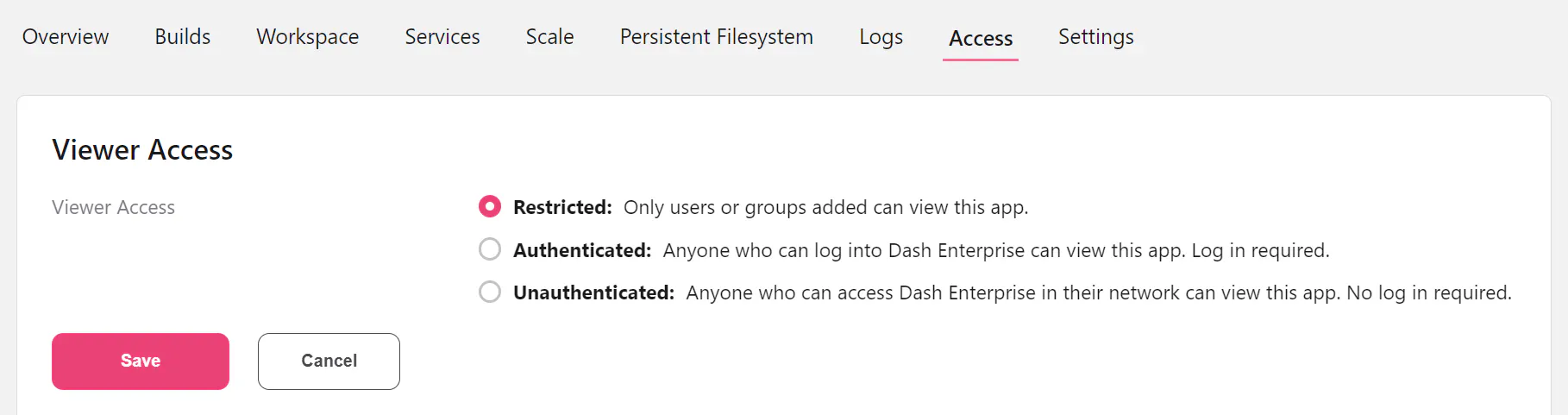
Viewer access is enforced by Dash Enterprise before a request ever reaches your app.
Offboarding takes care of itself: when someone is removed from a group or deactivated in your IdP, they lose access to your Dash apps.
Step 6 (optional): Personalize apps by user and group
Access control covers who can open an app. Sometimes the app itself needs to know who's viewing, so an analyst in Europe sees only European data or only admins get an export button. On Dash Enterprise, that's a few lines with dash-enterprise-auth, which ships with dash-enterprise-libraries:
import dash_enterprise_auth as authimport plotly.express as pxfrom dash import Dash, Input, Output, callback, dcc, htmlADMIN_GROUP = "Dash Admins"GROUP_TO_CONTINENTS = {"Analysts - Americas": {"Americas"},"Analysts - Europe": {"Europe"},"Analysts - APAC": {"Asia", "Oceania"},}df = px.data.gapminder()app = Dash(__name__)server = app.serverdef allowed_continents():groups = set(auth.get_user_data().get("groups", []))if ADMIN_GROUP in groups:return set(df["continent"].unique())return set().union(*(GROUP_TO_CONTINENTS.get(g, set()) for g in groups))app.layout = html.Main([html.Header([html.H2(id="greeting"), auth.create_logout_button()]),dcc.Dropdown(id="continent", clearable=False),dcc.Graph(id="life-exp"),])@callback(Output("greeting", "children"),Output("continent", "options"),Output("continent", "value"),Input("greeting", "id"),)def init(_):continents = sorted(allowed_continents())return f"Welcome, {auth.get_username()}", continents, continents[0] if continents else None@callback(Output("life-exp", "figure"), Input("continent", "value"))def update_graph(continent):# Always enforce on the server: hiding a dropdown option isn't access control.if continent not in allowed_continents():return px.line(title="Not authorized for this region")dff = df[df["continent"] == continent]return px.line(dff, x="year", y="lifeExp", color="country", title=continent)
There's no login route, client secret, session configuration or token handling in that file. Dash Enterprise has already authenticated the user before the request reaches your app; dash-enterprise-auth simply reads the verified identity.
What the platform handles for you
Connecting SSO at the platform level means none of this lives in your Dash apps:
- The login flow: redirects, callbacks, state and nonce checks, and token signature validation
- Secrets: no client IDs or secrets in app code or app environment variables
- Sessions: cookie security, session lifetime and idle timeouts, set once for every app
- Logout: single logout back through your IdP
- MFA and conditional access: enforced by your IdP on every app automatically
- Access control: per-app sharing (Plotly Cloud) or Restricted/Authenticated viewer access with IdP groups (Dash Enterprise), enforced before requests reach your app
- Offboarding: remove someone in your IdP and they lose access to every app
- Consistency: the tenth app your team ships is exactly as secure as the first
Next steps
- Already on Plotly Cloud Enterprise? Open Team settings > Single Sign-On and select Set up SSO. See the Plotly Cloud SSO docs.
- Running Dash Enterprise? Start with Using Keycloak, then Mapping Your IdP Groups and Dash Enterprise Auth.
- Evaluating? Compare Plotly Cloud plans or talk to us about Dash Enterprise.