
Chris Parmer, Co-founder & Author of Dash
October 21, 2026
How to use the persistent filesystem in Dash apps
TL;DR
- The persistent filesystem gives a Dash app a folder that keeps its files across deploys and restarts. It's a great fit for apps that work with data: caching slow or expensive warehouse queries, keeping a local copy of a dataset that refreshes on a schedule, saving notes and settings in SQLite, and holding files too big for Git.
- It's on Dash Enterprise today and on Plotly Cloud starting October 21. On Dash Enterprise it's a disk on the app's own server. On Plotly Cloud it's network storage that several apps can share.
- Data apps work best with plain files. Parquet, Arrow, DuckDB and SQLite are all files, and Polars and DuckDB read them faster than any network round trip.
- This post showcases six example apps: a warehouse query cache, a scheduled data sync, shared app state in SQLite, large files fetched on deploy, a disk cache for expensive callbacks, and a file browser.
- A cached query came back in 2 to 26 ms. Running it against the source, remote Parquet files that stand in for the warehouse in our demo, took 3.6 to 5.9 s. DuckDB aggregated 20 million rows of local Parquet in 85 ms on a 32-CPU Dash Enterprise server, and in 1.8 s to 150 ms on Plotly Cloud from the smallest app size to Performance L. pandas took about 2 seconds on every size, and didn't fit at all on the smallest.
- Caching locally also cuts warehouse bills. One busy dashboard can keep a Snowflake warehouse awake all day, while an hourly sync wakes it for a couple of minutes per hour.
Dash apps usually get their data from somewhere else: a warehouse, an API, a folder of files someone exports every night. Fetching it again for every visitor is slow, and with a warehouse it's expensive too. The obvious fix is to keep a copy on disk. But a deployed Dash app runs in a container that's rebuilt on every deploy, so anything it writes to disk disappears.
Two situations come up again and again. In the first, a dashboard pulls last quarter's orders from Snowflake, and every dropdown change runs the same query, waits about three seconds and adds to the bill. Caching the result on disk would fix it, until the next deploy wipes the cache. In the second, the app needs a 400 MB reference dataset. GitHub won't take files over 100 MB, so the app downloads it at startup, and every deploy and every restart waits a minute for the same bytes.
The persistent filesystem fixes both. It's a folder that keeps its contents across deploys and restarts, on Dash Enterprise and on Plotly Cloud. To the app it's a normal directory, so any Python library that reads or writes files works with it. Your app finds the folder through the DASH_DATA_DIR environment variable, which defaults to ../mount:
import osfrom pathlib import Path# Where the persistent filesystem is attached. Defaults to ../mount.MOUNT = Path(os.environ.get("DASH_DATA_DIR", "../mount"))df = pl.read_parquet(MOUNT / "orders.parquet")
On Dash Enterprise the default is already right. On Plotly Cloud you set DASH_DATA_DIR to wherever you attach the filesystem, which is covered below. To develop locally, run the app from its own folder and the files land in a mount/ folder next to it. The rest of this post writes ../mount for short.
Why files
Most of the Python data stack is built around files:
- folders of Parquet, which Polars and DuckDB scan faster than most databases answer a query over the network
- SQLite, a full SQL database in a single file
- Arrow IPC, NumPy .npy, pickles, PDFs and model weights
When the data sits on disk next to the app, you skip connection pools, drivers, credentials and network latency, and you can use whichever library fits the job.
Until now there was nowhere good to put those files:
- Git can't hold large or changing data
- the container's own disk resets on every deploy
- object storage puts a network hop back in the path
The persistent filesystem is a place inside the app's environment where files stay put.
Six example apps
Each example has the problem, the prompt we'd give a coding agent to build it, and the part of the code that matters. They all use public data (NYC taxi trips, arXiv papers, Plotly's sample stock prices) so you can run them as-is and then point them at your own sources. We deployed all six to both Plotly Cloud and Dash Enterprise and tested them in a browser on each.
1. Cache warehouse queries as Parquet
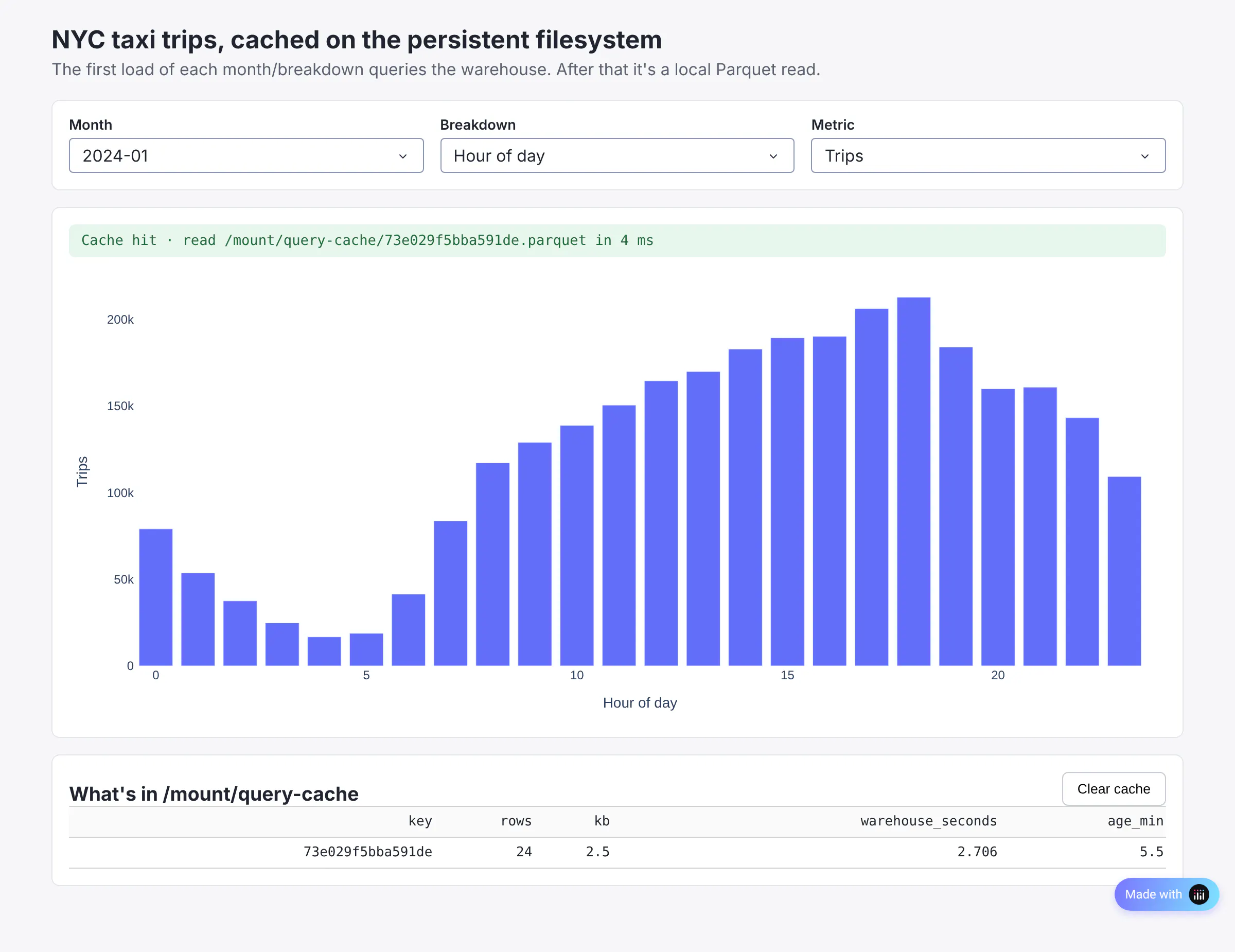
A dashboard runs a handful of aggregate queries against the warehouse, and most people ask the same handful of questions. There's no reason to pay for "trips by hour, March 2024" forty times a day.
This app caches each query's result as a Parquet file the first time it runs. Every later request, from any worker and after any redeploy, reads the file instead.
Prompt
Build a Dash app (dash>=4.4.1) that shows NYC taxi trip metrics and caches warehouse query results on the persistent filesystem (the path in the `DASH_DATA_DIR` environment variable, defaulting to `../mount`).Data: Put the warehouse behind one function, `run_warehouse_query(sql) -> pyarrow.Table`. For the demo, implement it with DuckDB's httpfs extension over the public NYC TLC Parquet files for January to June 2024, exposed as a view called `trips`. Add a docstring showing how to swap in Snowflake with `fetch_arrow_all()`.Cache: Write `cached_query(sql, ttl)` that hashes the normalized SQL, and if the current version of `../mount/query-cache/<hash>.parquet` is younger than the TTL, reads it with Polars. Otherwise it runs the query, writes the result to a new file named with a timestamp, points a small `<hash>.parquet.latest` file at it, deletes versions older than 10 minutes, and writes a small JSON sidecar with the SQL, row count and query time. Put the versioning in a `versioned.py` module with `publish(path, write)` and `current(path)`. Use a `filelock` per key so that when several gunicorn workers miss at the same moment only one runs the query.UI: Dropdowns for month, breakdown (hour, weekday, payment type, passengers) and metric (trips, average fare, tip %, distance). One SQL query per month and breakdown that returns every metric, so switching metrics never touches the warehouse. A status bar that says "Cache hit, read in N ms" or "Cache miss, warehouse took N ms". A table of cache entries and a Clear cache button.
Under the hood
def cached_query(sql: str, ttl: float = DEFAULT_TTL) -> tuple[pl.DataFrame, dict]:path = CACHE_DIR / f"{_key(sql)}.parquet"if version := _fresh_version(path, ttl):return pl.read_parquet(version), {"source": "cache"}# Several workers can miss at the same moment. The lock makes one of them# run the query while the others wait, then read the file it wrote.with FileLock(str(path) + ".lock", timeout=300):if version := _fresh_version(path, ttl):return pl.read_parquet(version), {"source": "cache"}table = run_warehouse_query(sql)# Each refresh gets a new file name, so a reader halfway through the# old version keeps reading the old version.versioned.publish(path, lambda f: pq.write_table(table, f))return pl.from_arrow(table), {"source": "warehouse"}
versioned.py is about 50 lines. The core of it:
def publish(path, write):version = path.with_name(f"{path.stem}.{time.time_ns()}{path.suffix}")write(version)tmp.write_text(version.name)os.replace(tmp, pointer) # a few bytes, read in one go, so this swap is safeprune(path, keep=version) # delete versions older than 10 minutesdef current(path):return path.with_name(pointer.read_text().strip())
The file lock stops a thundering herd: if ten people open the dashboard right after a deploy, the warehouse sees one query. The versioned files mean a refresh never touches a file someone might be reading, which matters with four gunicorn workers or other apps reading the same cache (more in Doing it safely, below). In our runs a miss took 3.6 to 5.9 seconds and a hit took 2 to 26 ms.
The cache key is the SQL text, so "invalidation" is a TTL plus a Clear button. If your warehouse tables load on a known schedule, set the TTL to match it.
2. Sync data on a schedule
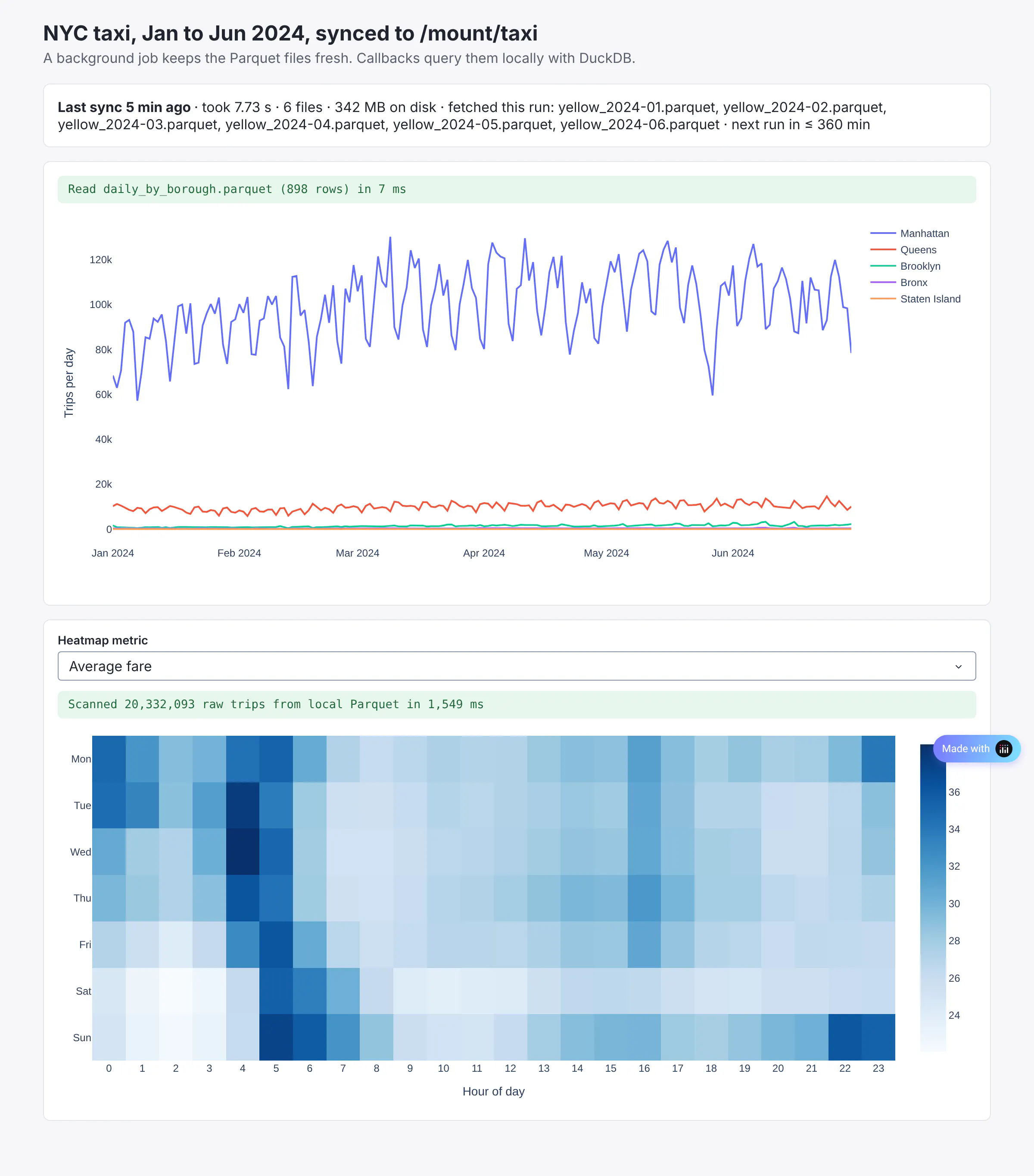
Example 1 fills the cache lazily, one query at a time, so the first person to ask each new question still waits for the warehouse. If you copy the whole dataset to ../mount ahead of time, nobody waits: every query, including the first, runs against local files, and you can slice the data any way you like without writing a new warehouse query. A daily sales extract or the last six months of events are good candidates.
Prompt
Build a Dash app (dash>=4.4.1) that keeps six months of NYC yellow taxi trips (January to June 2024, about 340 MB of Parquet) on the persistent filesystem at `../mount/taxi` and queries it locally with DuckDB.Sync: In `sync.py`, write `sync()` that downloads any missing monthly file plus the taxi zone lookup CSV. Download to a temp file, check the size against Content-Length (a dropped connection can end the stream without an error), then rename into place. Skip files already on disk so redeploys are free. When anything changed, use DuckDB `COPY ... TO` to build a small `daily_by_borough.parquet` summary, published as a new version with example 1's `versioned.py`, since the app reads the summary every few seconds. Write a `manifest.json` with the sync time, duration and file list. Guard the whole thing with a file lock.Schedule: Support three ways to run it: `python sync.py` once (for a predeploy script), `python sync.py --every 21600` (for a Procfile worker on Dash Enterprise), and `start_scheduler(seconds)` called from `app.py` (for platforms without workers). The in-app scheduler should run in only one gunicorn worker: each worker tries a non-blocking lock on `.scheduler.lock` and only the winner loops.UI: A status card from the manifest (last sync, duration, files, size, what was fetched), a daily trips line chart by borough from the summary file, and an hour-by-weekday heatmap that scans every raw trip with DuckDB, with a metric dropdown. Show query timings. Refresh status every few seconds with `dcc.Interval`.
Under the hood
On Dash Enterprise, give the job its own process in the Procfile, and have project.toml run a sync before the new version's processes start, so a brand new install never shows an empty chart:
web: gunicorn app:server --workers 4worker: python sync.py --every 21600
[scripts]predeploy = "predeploy.sh" # runs: python sync.py
On Plotly Cloud the schedule runs inside the web app, and a file lock elects one worker to run it:
def start_scheduler(every_seconds: int):leader = FileLock(str(DATA_DIR / ".scheduler.lock"))def loop():while True:try:leader.acquire(timeout=0) # only one worker gets itexcept Timeout:time.sleep(60) # the rest check again every minutecontinuewhile True:try:sync()except Exception as e:print(f"sync failed: {e!r}", flush=True)time.sleep(every_seconds)threading.Thread(target=loop, daemon=True).start()
The operating system releases a file lock when its process exits, so if gunicorn recycles the leader, another worker picks the job up within a minute. Since Plotly Cloud apps can share a filesystem, the sync can also be its own small app that writes ../mount/taxi, with any number of dashboard apps reading from it.
The first sync took 15 seconds for 342 MB. Every sync after that took 0.2 seconds, because nothing was missing. The heatmap scans all 20.3 million raw trips on every interaction, straight from local Parquet.
The callbacks read the files on every call. If you load data into a global at import time instead, the app won't see new syncs until it restarts.
3. Keep app state in SQLite
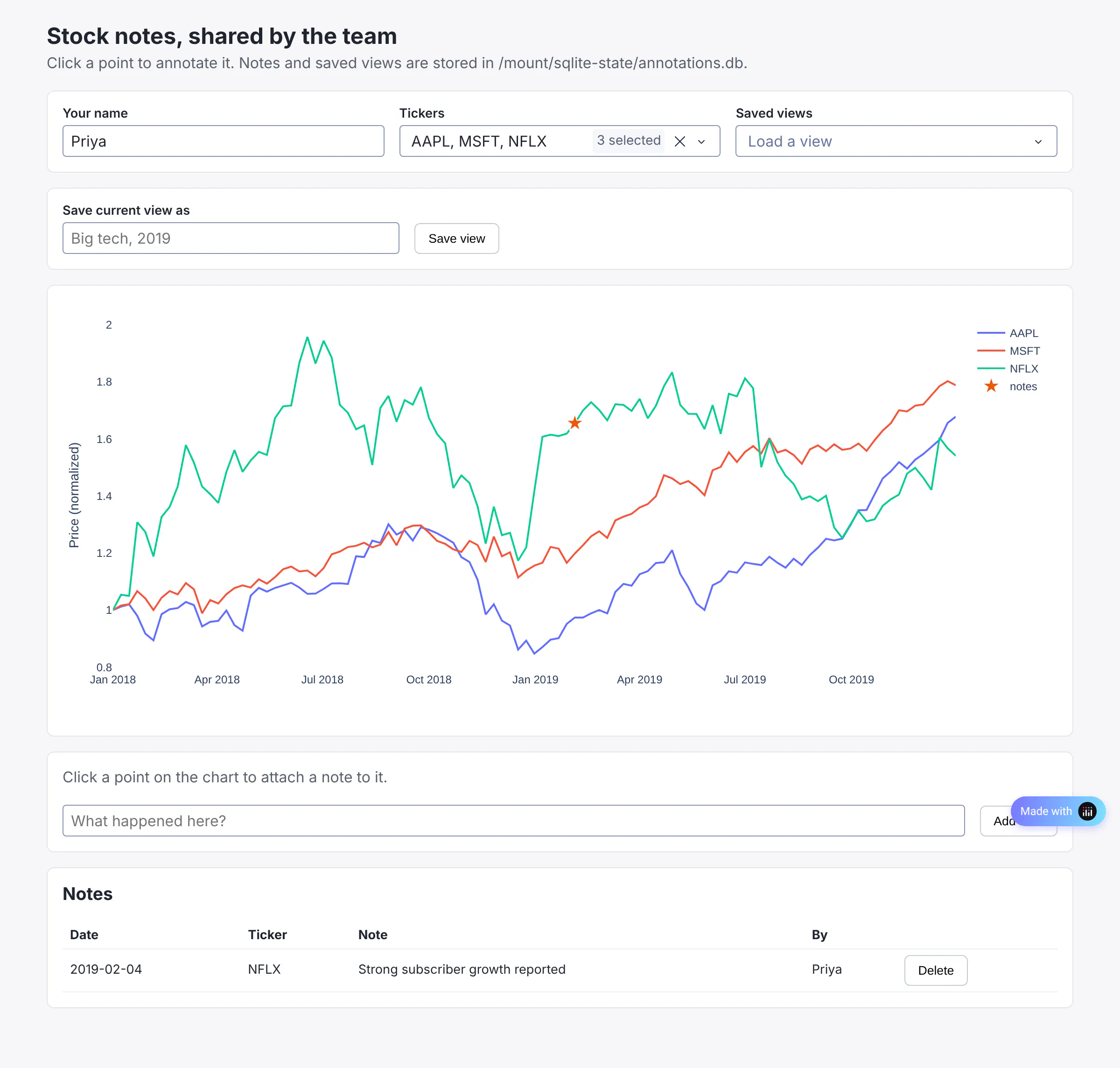
Apps collect things: annotations on a chart, saved filter presets, approval decisions, comments, a log of who exported what. That state has to outlive the deploy, and it has to be shared between the gunicorn workers, so a Python dict won't do.
SQLite is a full SQL database in one file. Put that file on the persistent filesystem and you have durable, shared state with no database server.
Prompt
Build a Dash app (dash>=4.4.1) where analysts annotate a stock price chart and save named views. Store everything in SQLite at `../mount/sqlite-state/annotations.db`, using SQLAlchemy so that setting `DATABASE_URL` switches to Postgres with no other changes.Data: `plotly.express.data.stocks()` for prices. Two tables: `annotations` (ticker, date, note, author, created_at) and `saved_views` (unique name, comma-separated tickers, author). On SQLite connections, set `busy_timeout=5000`, then `journal_mode=DELETE` when the database is on a network filesystem (check its type in `/proc/mounts`; Plotly Cloud's is NFS) or `journal_mode=WAL` with `synchronous=NORMAL` on local disk.UI: A name input (persisted in the browser), a ticker multi-select, and a saved-view picker. Clicking a point on the line chart selects that ticker and date, and a text box with an Add note button saves an annotation. Draw annotations as star markers on the chart with the note in the hover text. Below, a table of notes for the selected tickers with Delete buttons. A Save view button stores the current tickers under a name, and picking a saved view restores them.
Under the hood
DB_URL = os.environ.get("DATABASE_URL", f"sqlite:///{MOUNT / 'sqlite-state' / 'annotations.db'}")engine = create_engine(DB_URL, pool_pre_ping=True)# WAL needs every process on one host. Plotly Cloud's filesystem is NFS (Amazon EFS).JOURNAL_MODE = "DELETE" if on_network_fs(MOUNT) else "WAL" # reads /proc/mountsif engine.dialect.name == "sqlite":@event.listens_for(engine, "connect")def _sqlite_pragmas(dbapi_conn, _):cur = dbapi_conn.cursor()cur.execute("PRAGMA busy_timeout=5000") # wait for a lock instead of failingcur.execute(f"PRAGMA journal_mode={JOURNAL_MODE}")if JOURNAL_MODE == "WAL":cur.execute("PRAGMA synchronous=NORMAL") # safe with WAL, much faster
busy_timeout makes a second writer wait its turn instead of raising "database is locked". The journal mode depends on the platform. On Dash Enterprise's local disk, WAL lets readers keep reading while one worker writes, and SQLite committed about 35,000 single-row transactions per second. On Plotly Cloud's network filesystem WAL can corrupt the database, so the app uses the rollback journal: one writer at a time, and about 15 commits per second. That's plenty for notes and saved views. Doing it safely, below, explains why.
SQLite stops being the right choice once more than one machine writes. If you scale an app to several replicas, or several apps on Plotly Cloud need to write the same data, use Postgres. On Dash Enterprise you can attach a Postgres database to the app, set DATABASE_URL, and this code switches over without changes. Until then, one replica with four or eight workers handles a lot of traffic.
4. Fetch files too large for Git on deploy
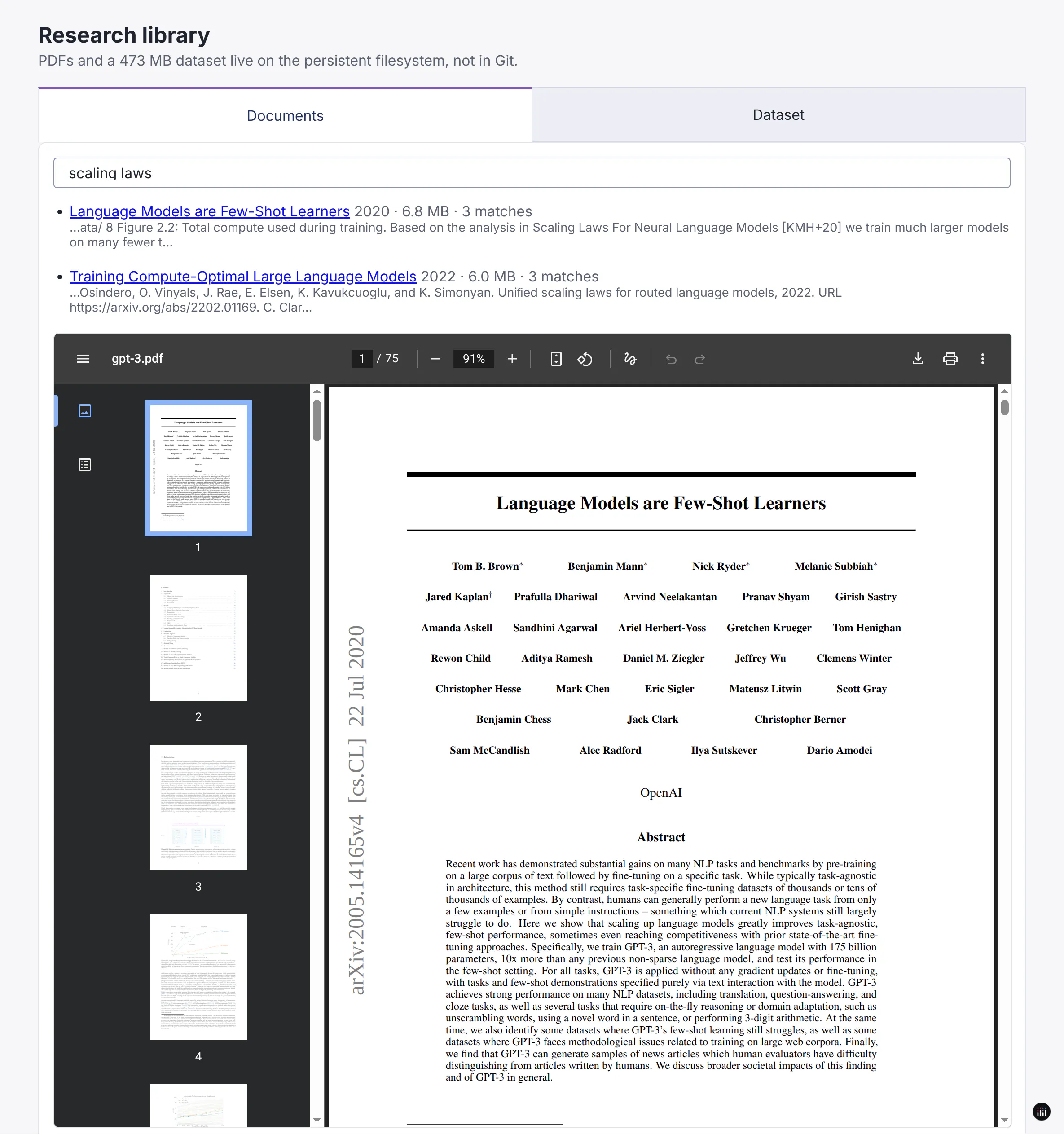
Some apps need big files that don't change often: a reference dataset, a library of PDFs, a trained model, a geospatial boundary file. GitHub rejects anything over 100 MB and Git LFS has its own quotas. Downloading on every boot makes every deploy slow.
Commit a small manifest of what the app needs, and have the app download those files to ../mount the first time it runs. Later deploys find them already there.
Prompt
Build a Dash app (dash>=4.4.1) that is a research library: four arXiv PDFs and a 473 MB Parquet file (Uber/Lyft trips, January 2024, from the NYC TLC) that live on the persistent filesystem at `../mount/library`.Assets: List the files in `assets.json` (file name, URL, title). In `fetch_assets.py`, download any missing file (temp file, size check, rename), write a `.sha256` next to each one, and extract each PDF's text with pypdf to a cached `.txt` file. Hold a file lock while fetching. Call it from `predeploy.sh` via `project.toml`, and also from `app.py` in a background thread if any file is missing, for platforms without a predeploy hook.Serving: Add a Flask route `library/<name>` on `app.server`, registered under `app.config.routes_pathname_prefix` (Dash Enterprise serves apps under `/<app-name>/`), that serves only files listed in `assets.json`, using `send_from_directory`. Build links to it with `app.get_relative_path`.UI: Two tabs. Documents: a full-text search box over the cached text, results with title, year, size, match count and a snippet, each linking into an iframe PDF viewer. Dataset: a line chart of trips by hour for Uber vs. Lyft, computed with DuckDB directly on the local Parquet file, with the query time shown.
Under the hood
The manifest in Git:
{"documents": [{"file": "attention-is-all-you-need.pdf", "url": "https://arxiv.org/pdf/1706.03762", "title": "Attention Is All You Need", "year": 2017}],"datasets": [{"file": "fhvhv_tripdata_2024-01.parquet", "url": "https://d37ci6vzurychx.cloudfront.net/trip-data/fhvhv_tripdata_2024-01.parquet"}]}
And the route that serves the files to the browser:
# Dash Enterprise serves the app under /<app-name>/, so register the route under# the app's prefix and build links with app.get_relative_path("/library/...").@server.route(f"{app.config.routes_pathname_prefix}library/<path:name>")def serve_library_file(name):if name not in DOCS: # only what's in assets.jsonabort(404)return send_from_directory(fa.LIBRARY, name)
The first deploy spent 53 seconds downloading 488 MB. Every deploy after that spent 0.2 seconds confirming the files were there. The text extraction is a side-effect cache too: pypdf runs once per document, and search reads the .txt files.
Routes on app.server sit behind the same login as the rest of the app, so the PDFs are only visible to people who can open the app.
5. Memoize expensive callbacks to disk
Some callbacks are slow because of the computation itself: a Monte Carlo simulation, a model fit, a big join, a geospatial operation. Caching in memory helps one worker until it restarts. Caching on the persistent filesystem helps every worker, and the results are still there after the next deploy.
diskcache is a cache library that stores its data in SQLite and files in a folder. Point it at ../mount and you get a process-safe, persistent @memoize.
Prompt
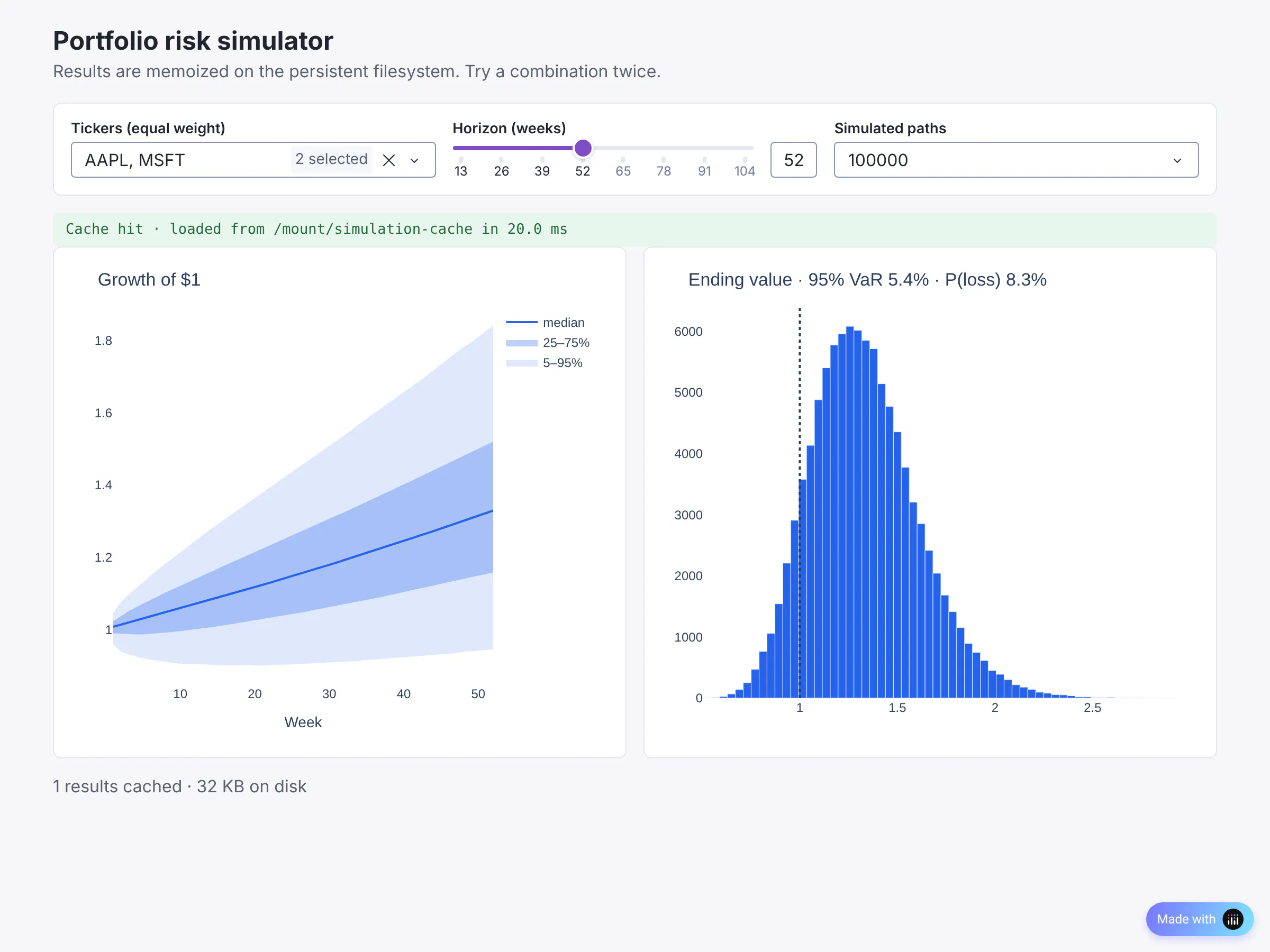
Build a Dash app (dash>=4.4.1) that runs a Monte Carlo risk simulation for an equal-weight stock portfolio and memoizes results with diskcache in `../mount/simulation-cache` (2 GB size limit, least-recently-used eviction). diskcache keeps its index in SQLite, so on a network filesystem pass `sqlite_journal_mode="delete"` and `sqlite_mmap_size=0`.Model: Bootstrap weekly returns from `plotly.express.data.stocks()` into N simulated paths over a chosen horizon. Return percentile bands (5, 25, 50, 75, 95), a histogram of ending values, 95% VaR and probability of loss. Decorate the function with `@cache.memoize(name=f"simulate-v{MODEL_VERSION}", expire=7 days)` so bumping `MODEL_VERSION` ignores old results.UI: Ticker multi-select, horizon slider (13 to 104 weeks), number of paths (50k, 100k, 200k). A fan chart and a histogram side by side. A status bar showing whether the result came from the cache or was computed, with timings, and the number and size of cached results.
Under the hood
on_nfs = on_network_fs(MOUNT) # Plotly Cloud is NFS: no WAL, no mmap therecache = diskcache.Cache(MOUNT / "simulation-cache",size_limit=2 * 1024**3,**({"sqlite_journal_mode": "delete", "sqlite_mmap_size": 0} if on_nfs else {}),)MODEL_VERSION = 1@cache.memoize(name=f"simulate-v{MODEL_VERSION}", expire=7 * 24 * 3600)def simulate(tickers: tuple, weeks: int, paths: int, seed: int = 42) -> dict:...
A 100,000-path simulation took 2.1 seconds the first time. After that it came back in 0.3 ms on Dash Enterprise and 18 ms on Plotly Cloud. The name includes a version number on purpose: the cache outlives your code, so when you change the model you need a way to tell it the old answers are wrong. Bumping the version gives every result a new key, and the size limit evicts the stale ones over time.
Cache the small summary a chart needs. The percentile bands for this app take a few kilobytes. The 200,000 simulated paths behind them would take hundreds of megabytes.
6. Browse, upload and download files
Mostly your code does the reading and writing, so you won't miss a file manager. When you do need to look inside, on Dash Enterprise the app's Workspace mounts the same folder. Open the file explorer to drag files in, or a terminal to ls, du -sh or sqlite3 ../mount/sqlite-state/annotations.db. Changes show up in the running app immediately, with no redeploy.
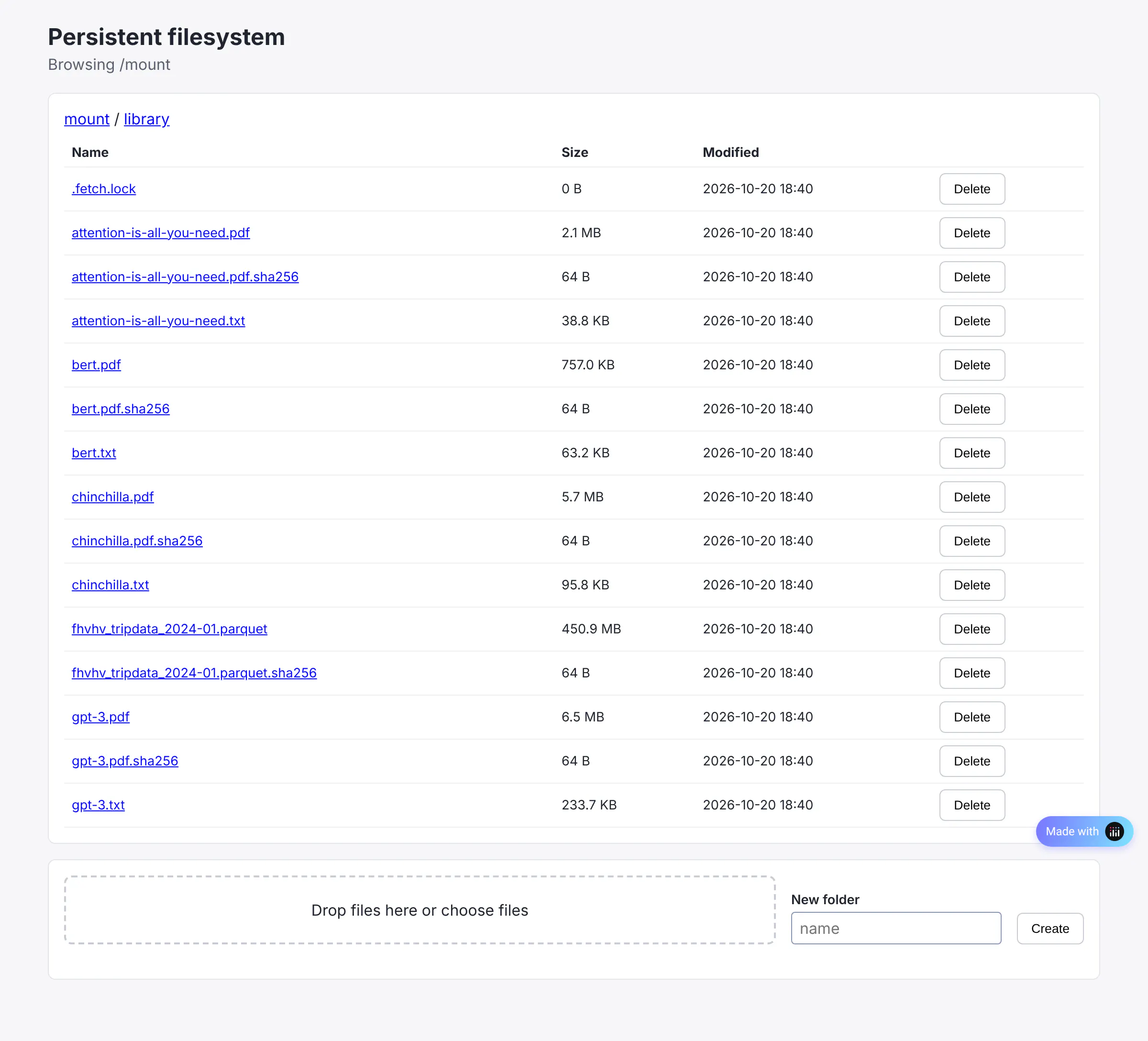
Plotly Cloud has no Workspace, and on either platform you might want people to get files out of the app itself. This example is a Dash app that lists the folder, opens subfolders, downloads files, uploads new ones with dcc.Upload, creates folders and deletes with a confirmation. Use it as a page in your own app or deploy it next to one.
Under the hood
def safe_path(rel: str) -> Path:p = (MOUNT / rel.lstrip("/")).resolve()if not p.is_relative_to(MOUNT):raise PermissionError(rel)return p@server.route(f"{app.config.routes_pathname_prefix}mount-files/<path:rel>")def download(rel):p = safe_path(rel)return send_file(p, as_attachment=True, download_name=p.name)
safe_path stops a crafted URL like ../../etc/passwd from escaping the folder. Keep uploads through dcc.Upload to tens of megabytes, since it sends the whole file inside the browser request, and use the Workspace or a download script for bigger files. Deleting from the persistent filesystem is permanent, so restrict writes to the people who should have them. The example has a can_write() hook where you can check the user's groups with dash_enterprise_auth.
More things to keep in ../mount
- Set HF_HOME=../mount/hf and Hugging Face model weights download once instead of on every deploy.
- Keep the original spreadsheets users upload for the app to process.
- Build PDF or Excel reports overnight so they download instantly.
- Keep an append-only JSONL or SQLite log of who ran which export.
- Store a FAISS, LanceDB or DuckDB vector index of your documents for an AI feature.
Turning it on in Dash Enterprise and Plotly Cloud
Both platforms have it, and the same code runs on both. They differ in where the folder lives and what it's made of:
Feature
Dash Enterprise
Plotly Cloud
Where it's attached
Always ../mount, next to your code
Wherever you choose when you deploy, with DASH_DATA_DIR set to that path
What it is
A persistent volume on the disk of the server the app runs on
Amazon EFS, a network filesystem
Who sees it
Every process in the app's Procfile, and the app's Workspace
Every app you attach it to
Turning it on
App Manager → Persistent Filesystem. 25 GB by default, and administrators can raise it
Attach it in the app's settings
Looking at the files
The Workspace's file explorer and terminal
A download route or a file browser page (example 6)
Background jobs
A Procfile worker, plus a predeploy script in project.toml
A scheduler thread inside the app, on an app set to Always awake
SQLite
WAL mode
Rollback journal (journal_mode=DELETE)
One small read or write
Well under a millisecond
12 to 18 ms
On Dash Enterprise the folder sits next to the app's code, so the default path is already right:
├── app/ ← your code, rebuilt on every deploy│ ├── app.py│ └── requirements.txt└── mount/ ← persistent filesystem, survives deploys├── query-cache/├── taxi/└── sqlite-state/
You can open a terminal in the app's Workspace and ls ../mount to see what the deployed app wrote.
On Plotly Cloud, you pick where to attach the filesystem (say /data) and set DASH_DATA_DIR to that path in the app's settings. If you forget, the app still runs, but it writes to a plain ../mount folder in the container that's wiped on the next deploy. One persistent filesystem can be attached to several apps. All six example apps in this post share one, so the file browser in example 6 shows the Parquet files, SQLite database and PDFs the other apps wrote. A sync job can live in one app and the dashboards that read its files in others.
From the command line, or from a coding agent
On Dash Enterprise, the de CLI turns it on, so a coding agent can do the whole setup from its terminal:
pip install dash-enterprise-libraries --extra-index-url https://<your-server>/packagesde --host <your-server> loginde apps create --name my-appde apps update --name my-app --persistent-filesystemde deploy . --name my-app -y
On Plotly Cloud, attaching the filesystem is a one-time step in the app's Settings → Persistent filesystems tab, or in the Storage step when you publish a new app from the Cloud UI. Pick a mount path such as /data and add DASH_DATA_DIR=/data as an environment variable. After that, an agent can publish new versions with plotly app publish, or through the Plotly Cloud MCP server, and the files stay put.
Tell the agent which platform the app runs on, and give it the llms.txt at the end of this post so it follows the rules in Doing it safely.
Performance on Dash Enterprise and Plotly Cloud
We deployed one benchmark app to a Dash Enterprise 5 server and to a Plotly Cloud app, both with DuckDB 2.0 and Polars 2.0:
- Dash Enterprise: 32 CPUs, an 8.6 GB memory limit, and ../mount on the server's local disk.
- Plotly Cloud: the Starter size, half a CPU and 1 GB of memory, which is what our demo apps use, with the persistent filesystem on Amazon EFS. In the same container we ran everything a second time against a folder on the container's own disk, which a redeploy wipes. Same CPU, same memory, different storage, so the difference between those two columns comes from the network storage. Then we repeated it on bigger app sizes, further down.
Big scans: CPUs matter, storage barely does
The six months of taxi trips from example 2, 20.3 million rows in 342 MB of Parquet:
Six months of taxi trips
Dash Enterprise
Plotly Cloud, persistent filesystem
Plotly Cloud, container disk
Trips, average fare and tip % for every hour of every weekday, DuckDB SQL
82 to 86 ms
1.8 s
1.7 s
Same aggregate, Polars lazy scan
85 to 90 ms
2.1 s
2.3 s
Same aggregate, pandas
1.9 to 2.2 s
doesn't fit in 1 GB
doesn't fit in 1 GB
Top 10 pickup zones by revenue, Parquet joined to a CSV in DuckDB
55 to 60 ms
0.9 s
0.9 s
Load 4 columns of all 20.3M rows into a Polars DataFrame
42 to 46 ms
doesn't fit in 1 GB
doesn't fit in 1 GB
With room to hold the data in memory, Dash Enterprise also ran DuckDB SQL on an in-memory Polars DataFrame of all 20.3M rows in 21 to 24 ms, and opened a memory-mapped Arrow copy in 36 to 40 ms.
On Plotly Cloud the persistent filesystem and the container's own disk came out the same, within run-to-run noise. These queries are limited by CPU, and the same DuckDB aggregate ran about 20 times faster on Dash Enterprise's 32 CPUs than on half a CPU. DuckDB and Polars read only the columns a query uses, decode Parquet on every core at once, and work on whole columns instead of Python objects. With 32 CPUs that turns 20 million rows into an 85 ms callback. pandas, reading the same three columns, took 2 seconds there.
On a small Plotly Cloud app, keep queries as aggregates and lazy scans so the engines stream through the files, and don't load 20 million rows into a 1 GB container. Both engines use Arrow in memory, so you can mix them. DuckDB will run SQL directly on a Polars DataFrame without copying it:
import duckdbimport polars as pltrips = pl.read_parquet("../mount/taxi/*.parquet", columns=["tpep_pickup_datetime", "fare_amount"])by_hour = duckdb.sql("SELECT hour(tpep_pickup_datetime) AS hour, avg(fare_amount) AS fare FROM trips GROUP BY ALL").pl()
Reading one file shows the same thing. "First read" evicts the file from the page cache first, so it measures the disk or the network:
One month of Parquet (50 to 60 MB)
Dash Enterprise
Plotly Cloud, persistent filesystem
Plotly Cloud, container disk
Read the whole file, no parsing, first read
189 to 194 ms
128 ms
177 ms
Same file, later reads
5 to 9 ms
5 ms
3 ms
Polars read_parquet, 4 columns, first read
71 to 81 ms
278 ms
274 ms
DuckDB aggregate over 2 columns, first read
25 to 28 ms
91 ms
66 ms
EFS delivered a cold 60 MB file as fast as the container's disk, and once a file has been read it's in memory and every later read takes a few milliseconds anywhere. Parsing it is what takes time, and that's CPU again. The file format matters more than the storage: the same query on CSV took nine times longer than on Parquet.
Pick the app size for the work
We ran the same benchmark on four Plotly Cloud sizes and on Dash Enterprise:
20.3M taxi trips
Starter (0.5 vCPU, 1 GB)
Standard 2x (2 vCPU, 4 GB)
Performance M (4 vCPU, 8 GB)
Performance L (8 vCPU, 16 GB)
Dash Enterprise (32 CPUs)
Heatmap aggregate, DuckDB
1.8 s
446 ms
253 ms
147 to 171 ms
82 to 86 ms
Same aggregate, Polars lazy scan
2.1 s
518 ms
261 ms
155 to 178 ms
83 to 90 ms
Same aggregate, pandas
doesn't fit in 1 GB
1.8 s
1.9 to 2.5 s
1.7 to 1.8 s
1.9 to 2.2 s
Parquet joined to a CSV, DuckDB
0.9 s
242 ms
133 ms
89 to 98 ms
55 to 60 ms
Same heatmap on 80M rows (24 months), DuckDB
not run
1.3 s
681 ms
392 to 408 ms
231 ms
8 workers running the heatmap at once, median wait
not run
3.5 s
1.9 s
1.0 s
0.33 s
CPUs set the speed. Each doubling of vCPUs made DuckDB and Polars 1.6 to 2 times faster. pandas stayed around 2 seconds on every size, because most of its work runs on one core. Memory sets what fits: pandas needed 2.5 GB for the heatmap, so it can't run on Starter at all, while DuckDB answered the same question over 80 million rows in under 1 GB on every Cloud size.
Leave the engines' thread count alone. DuckDB and Polars size their thread pools from the app's CPU quota on their own. os.cpu_count() reports 16 on every Plotly Cloud size, so don't pass it to threads or POLARS_MAX_THREADS: on Standard 2x, forcing 16 threads made DuckDB 45% slower and Polars 60% slower.
One query already uses every CPU the app has, so queries that arrive together take turns. Eight workers running the heatmap at the same moment each waited eight to ten times as long as one did alone. If many people use an app at once, a bigger size cuts the wait for all of them.
Eleven dashboard queries
The heatmap is one query. We also ran ten others a dashboard might run, each in DuckDB, Polars and pandas over the same 20.3 million rows, and checked that all three engines returned the same answer. Times are DuckDB / Polars in milliseconds, median of three runs:
Query (20.3M rows)
Standard 2x
Performance M
Performance L
Dash Enterprise
pandas, any size
Heatmap: trips, fare and tip % by hour and weekday
465 / 524
253 / 262
148 / 161
84 / 85
1.7 s
Trips and revenue per day, for a line chart
280 / 314
166 / 163
102 / 107
62 / 60
1.0 s
One week of JFK pickups, for a KPI card
165 / 129
103 / 73
71 / 49
44 / 35
0.4 s
Top 20 of 60,000 pickup-dropoff zone pairs
549 / 448
321 / 240
195 / 161
108 / 106
1.2 s
Revenue by zone, joined to the zone CSV
359 / 500
189 / 262
122 / 168
76 / 91
2.8 s
7-day rolling average per borough
414 / 427
232 / 224
153 / 160
93 / 107
2.9 s
Exact median and 90th percentile fare by hour
656 / 730
424 / 600
285 / 580
176 / 610
2.0 s
Distinct dropoff zones per day
286 / 256
174 / 138
101 / 93
59 / 58
0.7 s
The 100 longest trips, every column
497 / 441
285 / 231
176 / 148
98 / 81
0.7 to 1.3 s
Fare histogram in $1 bins
100 / 125
57 / 77
38 / 62
22 / 40
0.6 s
50,000-point sample for a scatter plot
172 / 76
173 / 56
176 / 57
237 / 67
0.8 s
DuckDB and Polars stayed within a few tens of milliseconds of each other on most queries, so pick the one whose API you like. Each has a query it's better at: DuckDB's exact percentiles kept getting faster with more CPUs while Polars' stayed near 600 ms, and Polars drew the random sample two to four times faster. pandas took the same time on every size and needed 1.2 to 3.4 GB of memory for these queries, against 0.2 to 1.1 GB for DuckDB on Plotly Cloud.
File formats and sync jobs
The same heatmap query over one month of trips, stored four ways:
One month, four formats
Size on disk
Standard 2x
Performance L
Dash Enterprise
Parquet
50 MB
65 ms
43 ms
44 ms
CSV
299 MB
686 ms
302 ms
250 ms
DuckDB database file
83 MB
17 ms
6 ms
5 ms
Arrow IPC, uncompressed
439 MB
49 ms
22 ms
13 ms
Parquet is the best default: small, fast, and readable by everything. If one app queries the same data all day, loading it into a DuckDB database file made the same query four to nine times faster than Parquet.
Jobs that write files scale with CPUs too. Building example 2's daily summary from 20.3 million rows took 388 ms on Standard 2x, 165 ms on Performance L and 72 ms on Dash Enterprise. Rewriting all 20.3 million rows sorted by time, a 350 MB file, took 7 to 8 seconds on Standard 2x and about 1 second on Dash Enterprise, with DuckDB and Polars within 20% of each other.
Small operations: where network storage slows down
Small operation
Dash Enterprise
Plotly Cloud, persistent filesystem
Plotly Cloud, container disk
SQLite single-row commits, WAL
35,000 to 39,000 per second
don't use WAL here
37,000 per second
SQLite single-row commits, rollback journal
170 per second
15 to 17 per second
224 per second
SQLite lookup by primary key
0.006 to 0.013 ms
16 to 17 ms
0.013 ms
diskcache hit
0.3 ms
16 to 18 ms
0.18 ms
Write a 4 KB file and os.replace it
0.13 ms
12 to 13 ms
0.10 ms
Every one of these takes a network round trip or several on EFS, so in the same container they ran 100 to 1,000 times slower than on the container's own disk. Dash Enterprise's local disk is as fast as the container's. That's why SQLite in WAL mode handles tens of thousands of writes a second on Dash Enterprise, and about 15 a second in rollback journal mode on Plotly Cloud.
Fifteen commits a second is plenty for notes, saved views and settings, and the wrong place for anything that writes hundreds of times per second. On Plotly Cloud, put many writes in one transaction, since the cost is per commit and not per row, and read files in big pieces rather than many small ones. A cache you can rebuild, like example 5's, works fine on either, at 18 ms a hit against the seconds of work it saves.
Downloads were fast on both. Fetching the 342 MB of taxi data from the NYC TLC's public CDN took 1.3 seconds on Dash Enterprise and 2.1 seconds on Plotly Cloud.
What it saves
Warehouses bill for every query an app runs, so fewer queries cost less. Here's a rough calculation with list prices. Plug in your own numbers.
Snowflake. An X-Small warehouse burns 1 credit per hour while it's running, and a credit is about $3 on Enterprise edition in AWS US East. Warehouses bill per second with a 60-second minimum each time they resume, and suspend after a configurable idle time, often 5 to 10 minutes.
Say 40 people use a dashboard through a 9-hour workday, and someone triggers a query every few minutes. The warehouse never gets to suspend:
- Querying live: 9 hours × 1 credit × $3 = $27 a day, about $590 a month (22 workdays). Double it for a Small warehouse.
- Hourly sync to ../mount (example 2): 24 runs a day, each waking the warehouse for about a minute of querying plus a 60-second auto-suspend, so about 48 minutes a day. 0.8 credits × $3 = $2.40 a day, about $72 a month (30 days).
That's roughly $500 a month back for one dashboard on the smallest warehouse. A nightly sync instead of an hourly one brings the cost close to zero.
BigQuery. On-demand queries cost $6.25 per TiB scanned. Say each dashboard query scans 20 GB of a partitioned events table, and after BigQuery's own result cache there are still 500 distinct queries a day:
- Querying live: 500 × 20 GB = 10 TB, about 9.1 TiB × $6.25 = $57 a day, about $1,250 a month.
- Nightly export to Parquet (one 20 GB scan): about $0.12 a day.
Databricks SQL. A 2X-Small serverless warehouse is 4 DBUs per hour, at about $0.70 per DBU, roughly $2.80 per hour while it's up. The same "awake all day versus a few minutes per sync" math applies.
These are back-of-the-envelope figures. Real bills depend on warehouse size, auto-suspend settings, concurrency and contract discounts. On every platform, an interactive app turns each click into warehouse compute. Moving those reads to local files swaps a cost that grows with usage for a fixed cost per sync.
A lot of teams now keep the warehouse as the system of record and run the repetitive reads in DuckDB or Polars against a local copy. The persistent filesystem gives a Dash app somewhere to keep that copy without new infrastructure.
Doing it safely
The examples follow a few rules that matter once several workers, a redeploy, or several apps touch the same files. Most of these we learned by breaking things on purpose. The llms.txt at the end has all of them in a form a coding agent can follow.
Writing files
- Never write a file in place where a reader can see it. A reader in another worker can open the file at any moment. Write to a temp file in the same folder and os.replace it into place.
- Publish files that change while others read them as new versions. Polars, DuckDB and pyarrow open a Parquet file two or three times per read, so a replace that lands in between can hand the reader pieces of two versions. On Plotly Cloud, with one app rewriting a file several times a second and another reading it, readers also saw the file briefly missing or got "Stale file handle" errors, and a Polars reader crashed. Examples 1 and 2 write each version under a new name and swap a small pointer file instead (versioned.py). Under the same load, from another host, that had zero errors in 4,274 reads across Polars, DuckDB and pyarrow.
- Don't memory-map an Arrow IPC (Feather) file that another app rewrites. On Plotly Cloud the reader died with SIGBUS, which kills the gunicorn worker without a Python exception.
- Give every file one writer. On Plotly Cloud, where apps can share a filesystem, it's easy for two apps to write the same file by accident. Give each app its own subfolder.
- Wrap work two workers might start at once in a file lock, as example 1 does for cache misses and example 2 does for the sync.
- Read files inside callbacks or a layout function. Data loaded at import time won't change until the app restarts.
- Write Parquet. The same query on CSV took nine times longer.
SQLite
On Dash Enterprise, use WAL. On Plotly Cloud, use the rollback journal (journal_mode=DELETE), even for a single app.
WAL keeps an index of recent changes in a -shm file that every connection maps into memory. That works when all the processes are on one machine. Memory maps aren't kept in sync across machines on a network filesystem, so two hosts each see their own stale copy of the index, and the SQLite docs say WAL "does not work over a network filesystem".
A single app runs into this too, because a redeploy starts the new container before it stops the old one, so for a few seconds two machines have the same database open. One team saw it as a crash on redeploy: the new container's first worker died at PRAGMA journal_mode=WAL with sqlite3.DatabaseError: file is not a database, then booted fine on its own restart.
We reproduced it on Plotly Cloud. Two apps on one shared filesystem wrote to the same SQLite database while opening fresh connections in a loop. With WAL, both hosts got file is not a database within 30 seconds, and within two minutes PRAGMA integrity_check found rows out of order on dozens of pages. The same load in rollback journal mode ran with zero errors and a clean integrity check.
- Pick the journal mode from the filesystem type. Examples 3 and 5 check /proc/mounts for an nfs mount. diskcache uses SQLite too, so pass it sqlite_journal_mode="delete" and sqlite_mmap_size=0 there.
- Set busy_timeout=5000 so a second writer waits instead of failing.
- Don't paper over file is not a database with a retry. A retry gets the worker booted, but WAL keeps damaging the file underneath. If a database has run in WAL mode on Plotly Cloud, check it with PRAGMA integrity_check.
- Switching an existing database out of WAL needs every other connection closed, and during a redeploy the old container still has one open. Stop the app, switch the mode, then start it again, or start a new file.
- Log the database path when an open fails, so the error points at the file.
- Let one app own each database. Once several replicas or several apps write the same data, use Postgres.
DuckDB
Open one connection when the app starts and give each callback its own cursor:
DB = duckdb.connect()@callback(...)def update(month):with DB.cursor() as cur:return cur.sql("SELECT ...").pl()
In DuckDB 1.5, if a query on the shared default connection (duckdb.sql(...)) fails while opening a file and you fetched with .fetchone() or .arrow(), that connection stays in an aborted transaction. Every later DuckDB query in the worker then fails with "Current transaction is aborted". We hit it on Plotly Cloud after a "Stale file handle" error and reproduced it locally. DuckDB 2.0 recovers on its own, so upgrading fixes it. A cursor has its own transaction and costs about the same as the default connection (1.3 ms for a small query, where a new duckdb.connect() takes 17 ms). Examples 2 and 4 do this.
Leave threads at its default. DuckDB picks it from the app's CPU quota, and the 16 CPUs os.cpu_count() reports on Plotly Cloud made queries up to 45% slower when we passed them in. The same goes for POLARS_MAX_THREADS.
Background jobs
- Run a scheduled job in exactly one process. On Dash Enterprise that's a Procfile worker. On Plotly Cloud, have each web worker try a non-blocking file lock and let only the holder run the timer.
- Have the other workers retry the lock every minute, not once per sync interval. During a redeploy the old container still holds the lock when the new one starts. Our first version retried every 6 hours and sat on "Waiting for first sync" after a redeploy.
- On Plotly Cloud, an app in Automatically sleep mode pauses after 15 minutes idle, and so does any scheduler thread inside it. Use Always awake for apps that sync on a timer, or sync on startup.
Limits and backups
- It isn't a backup. Disabling the persistent filesystem on Dash Enterprise deletes its contents permanently. Anything you can't regenerate should also live somewhere with backups.
- Give caches a size limit (diskcache has one built in) or a TTL so they don't grow forever. The default limit on Dash Enterprise is 25 GB.
- On Plotly Cloud, set DASH_DATA_DIR. Without it the app falls back to ../mount inside the container, which looks fine until the next deploy erases it.
Alternatives, and when to use them
Option
Survives deploy
Shared by workers
Speed
Good for
Load into memory at startup
No
No (one copy per worker)
Fastest
Small data that never changes
Commit files to Git
Yes
Yes
Fast
Small, versioned data. GitHub caps files at 100 MB
Container disk (/tmp)
No
Yes
Fast
Scratch space within one run
Persistent filesystem
Yes
Yes, and across apps on Plotly Cloud
Fast, local disk on Dash Enterprise
Caches, snapshots, SQLite, large files
Object storage (S3, GCS, Azure Blob)
Yes
Yes, and across apps
Network round trip
Data shared between apps or teams
Redis
Yes, if persisted
Yes, and across replicas
Very fast, in memory
Sessions, queues, small hot values
Postgres
Yes
Yes, and across replicas
Network round trip
Multi-replica app state, relational data
Warehouse result cache
Within 24 hours
Yes
Fast, still a round trip
Exactly repeated queries on unchanged data
The persistent filesystem is the right tool when the data belongs to one app, or on Plotly Cloud to a small group of apps that share a filesystem. On Dash Enterprise, where each app has its own, put files that several apps need in object storage, or use example 2's pattern to sync from object storage into each app's ../mount. If an app scales to several replicas, keep shared state in Postgres or Redis and use the persistent filesystem for read-mostly caches.
Dash Enterprise can attach Postgres and Redis to an app for you. Anywhere else, Postgres, Redis and object storage are each another service with its own account and credentials to set up, which at most companies means a ticket to IT. The persistent filesystem needs none of that on either platform: it comes with the app, so you and your coding agent can start writing files on the first deploy.
We expect about 10% of a company's workforce to become tool builders, making internal tools and data dashboards for their own teams with AI coding agents. Those people don't have time to learn a cloud platform, and they shouldn't need to. Dash Enterprise and Plotly Cloud exist so they can ship the whole app, data included, on their own.
None of the examples needed a special library. Delete ../mount and every app rebuilds what it needs on the next request or sync. Each keeps its data source behind one function (run_warehouse_query, download, DATABASE_URL), so you can swap in your own. If one of them matches a problem your team has, paste its prompt into your coding agent and point it at your data.
FAQ
llms.txt
To have your coding agent follow these rules, paste this into its instructions (AGENTS.md, CLAUDE.md or a project rule), save it as llms.txt in your repo, or paste it in with any of the prompts above.
# Dash persistent filesystem: rules for coding agents> How to read and write files on the persistent filesystem in Dash apps on Dash Enterprise and Plotly Cloud.## Finding the folder- Resolve the folder with `MOUNT = Path(os.environ.get("DASH_DATA_DIR", "../mount"))`. Don't hardcode `/mount` or any other absolute path.- Dash Enterprise always attaches the filesystem at `../mount`. On Plotly Cloud the user attaches it at a path of their choice and sets `DASH_DATA_DIR` to that path. Without the variable, files go to the container's own disk and are lost on the next deploy.- Give each app its own subfolder, such as `MOUNT / "my-app"`. Several Plotly Cloud apps can share one filesystem.## Writing files- Write to a temp file in the same folder, then `os.replace()` it into place, so readers never see a half-written file.- Wrap work that two workers might start at once (filling a cache, downloading, syncing) in a `filelock.FileLock`.- Give every file one writer. Don't have two apps write the same file.- Store data the app reads as Parquet, not CSV.- Read files inside callbacks or a layout function. Data loaded at import time won't change until the app restarts.- Give caches a size limit or a TTL.- For files other apps read while they change, write each version under a new name, swap a small pointer file such as `latest.txt`, and delete old versions a few minutes later. Overwriting in place can give readers pieces of two versions, because Polars, DuckDB and pyarrow open a file more than once per read.- Don't memory-map Arrow IPC (Feather) files that another app rewrites. The reader gets SIGBUS and the worker dies.- Query Parquet with DuckDB or Polars lazy scans (`scan_parquet`), which read only the columns a query uses. Avoid loading whole files into pandas inside callbacks.- Download large files once and skip them when they're already present. Check the size or a checksum, not just whether the file exists.## SQLite- Set `PRAGMA busy_timeout=5000` on every connection.- Choose the journal mode from the filesystem type in `/proc/mounts`. On NFS (Plotly Cloud uses Amazon EFS) use `PRAGMA journal_mode=DELETE`. On local disk (Dash Enterprise, local development) use `PRAGMA journal_mode=WAL` with `PRAGMA synchronous=NORMAL`.- Don't use WAL on Plotly Cloud, even for a single app. During a redeploy the old and new containers both have the database open, and WAL shared between two hosts corrupts the file.- Treat `file is not a database` and `database disk image is malformed` as corruption and run `PRAGMA integrity_check`. Retrying hides the damage.- To move an existing database out of WAL, stop the app first, or start a new file. The switch needs every other connection closed.- diskcache stores its index in SQLite. On NFS, create it with `sqlite_journal_mode="delete"` and `sqlite_mmap_size=0`.- Log the database path when opening it fails.- If the app runs several replicas, or several apps write the same data, use Postgres through `DATABASE_URL` instead of SQLite.## DuckDB- Open one DuckDB connection per process and run each callback's queries on its own cursor: `with DB.cursor() as cur: cur.sql(...)`. In DuckDB 1.5, a failed file open during `duckdb.sql(...).fetchone()` or `.arrow()` leaves the shared default connection stuck on "Current transaction is aborted" until `ROLLBACK`. DuckDB 2.0 fixed it; prefer `duckdb>=2.0`.- Leave DuckDB's `threads` setting and `POLARS_MAX_THREADS` at their defaults. Both engines size their thread pools from the container's CPU quota. Don't set them from `os.cpu_count()`, which reports every CPU on the host (16 on Plotly Cloud) and makes queries slower.## Background work- Run a scheduled sync in exactly one process: take a non-blocking `FileLock` and let only the holder run the timer. Have the other workers retry the lock every minute, not once per sync interval, because after a redeploy the old container holds it for a while.- On Plotly Cloud, an app in Automatically sleep mode pauses after 15 idle minutes, including its background threads. Use Always awake for apps that sync on a timer, or sync on startup.## Safety- The persistent filesystem isn't a backup. Disabling it on Dash Enterprise deletes its contents. Keep anything you can't regenerate somewhere with backups.- When serving files over HTTP, use `send_from_directory` or check that the resolved path stays inside the folder.