
Adrian Borrmann
February 03, 2026
Dash Core Components Gets a Design-Driven Refresh with Dash 4
Article written by: Adrian Borrmann, Nathan Drezner, and Jason Jajalla.
Dash 4 is here, and with it we're bringing you a completely redesigned Dash Core Components (DCC) library. We wanted to build the library from the ground up to better meet the needs of our community of folks building analytics tools, dashboards, and more.
Previously, Dash Components wrapped popular React components: We’ve taken a novel approach with Dash 4 where we’ve redesigned components in-house and rebuilt them from the ground up into Dash.
The new components are designed to be drop-in backwards compatible and compatible with third-party component libraries like Dash Bootstrap and Dash Mantine, so all you need to do to test out the new components is update Dash. You can see the steps in our process from our community forum posts during development, which included six pre-releases starting in September 2025.
Here’s an app built with the brand new components — take a look for yourself. Here’s the same app built with Dash 3 components.
This update extends beyond a visual refresh. Every UI component has been rethought around three design principles: visual accessibility, intuitive interaction patterns, and design consistency. All components now meet WCAG 2.2 Level AA requirements out of the box, follow familiar UI patterns users expect, and work together as a cohesive system.
Install the Dash 4 now to try out the new components:
pip install dash>=4
Want to see the difference immediately? Here's a quick example showing off the new Dropdown:
import dashfrom dash import dcc, htmlapp = dash.Dash(__name__)app.layout = html.Div([dcc.Dropdown(options=[f"Option {i}" for i in range(100)],multi=True,placeholder="Try the search field and Select All")])if __name__ "__main__":app.run_server(debug=True)
Run it, open the dropdown, and try the search field. That's Dash 4.
You can also explore all the components at the DCC Redesign demo app hosted on Plotly Cloud.
DatePickers: clear visual hierarchy and better navigation
The Dash 4 DatePickers feature a clean, modern design. For date ranges, two calendar months appear in a single, unified calendar popover. For small ranges, both dates are visible at once without switching between separate calendars.
For large ranges, calendars are easier to work with: quickly navigate across spans of months or years using the dedicated month/year pickers, keyboard arrows, or your mouse wheel to quickly arrive at the date you are interested in.
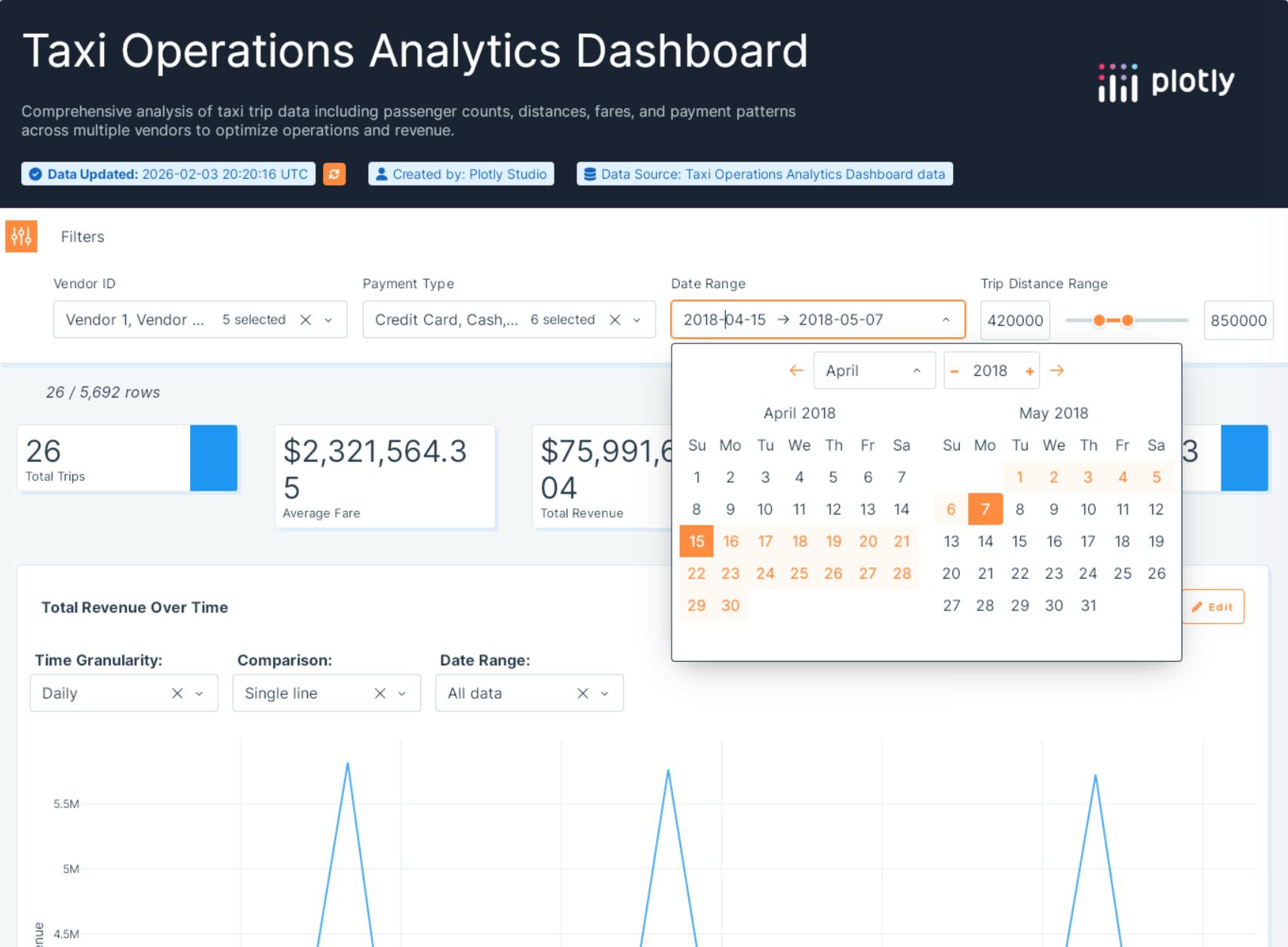
The new DatePicker component.
Try for yourself: Compare with the old DatePicker component with the redesigned component. (Click the links to compare two apps using Dash 3 vs Dash 4)
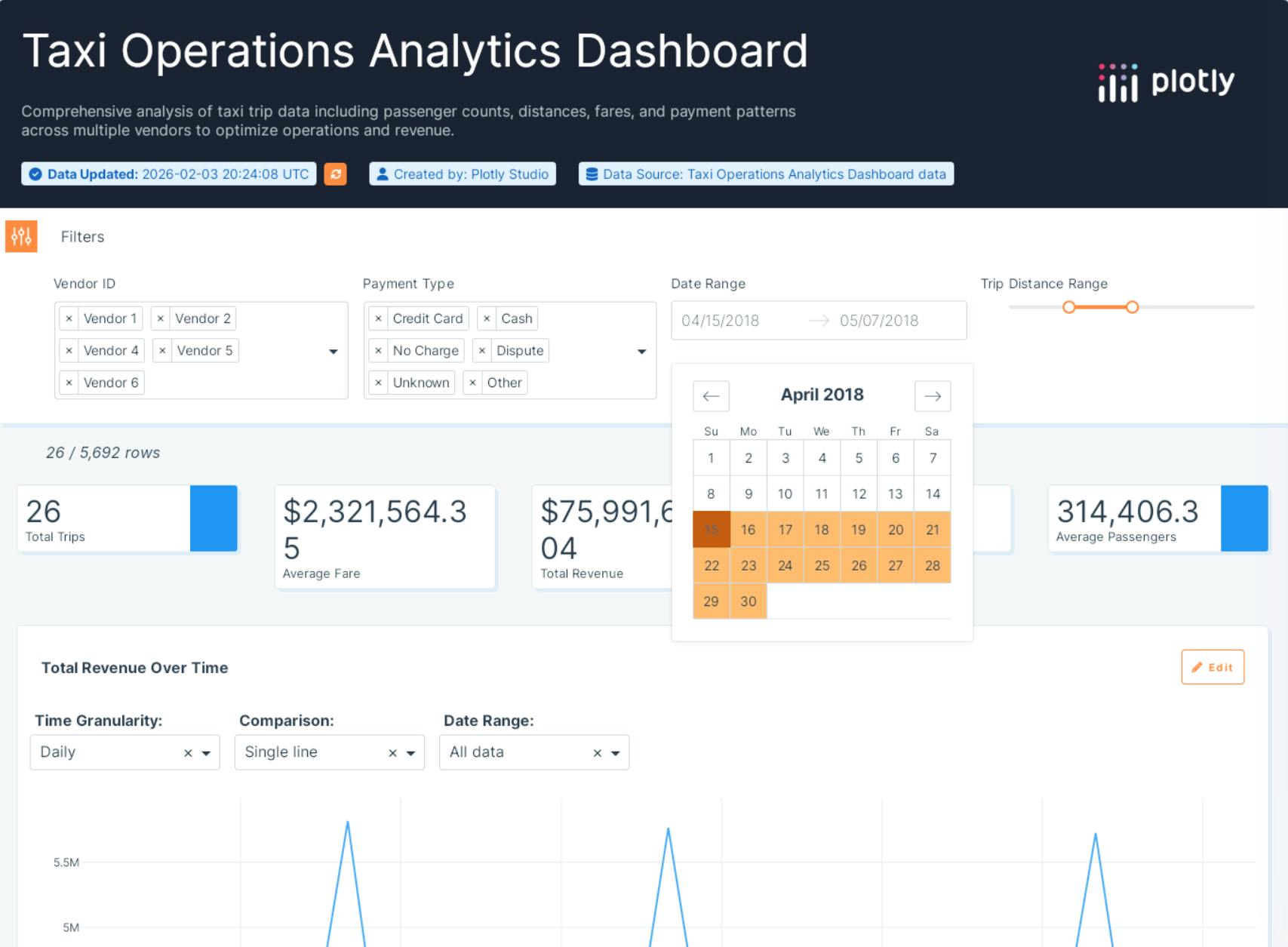
The old DatePicker component.
Try for yourself: Compare with the old DatePicker component with the redesigned component. (Click the links to compare two apps using Dash 3 vs Dash 4)
You can select a date range with a single drag & drop mouse action. Combine this with your mouse wheel or trackpad scroll to quickly select a large range spanning multiple months or years.
When working with large ranges, you can quickly bring up the calendar for either the start or end date by directly clicking on the text input for it.
Keyboard navigation works similarly to dropdowns: Enter or Down Arrow opens the calendar and arrow keys will navigate through the dates. Tabs will move across all of the various interactive elements. Escape will close the calendar.
Calendars can now be translated: you can add translations by including the relevant languages as external_scripts in your Dash app. When these languages are provided, the calendar will match the end user's language with one of the supplied languages. The docs describe this behaviour in more detail.All text and interactive elements meet WCAG 2.2 contrast minimums. The selected date ranges are visually distinct and easy to identify at a glance. Keyboard navigation works as expected: arrow keys move between dates, and all controls are fully accessible via keyboard.
Month and year navigation is now clear and efficient. Users can jump to any date without clicking through month by month. Touch targets have been sized for mobile users.
Key improvements:
- Unified calendar popover for date ranges (multiple dates visible at once)
- WCAG 2.2 compliant contrast ratios (passes accessibility audits out of the box)
- Intuitive keyboard navigation with full accessibility support
- Improved touch targets for mobile (easier to tap without mis-clicks)
- Locale support with automatic date formatting
Dropdown & multi-select: streamlined selection at scale
The Dash 4 Dropdown and multi-select components now follow established and modern UI patterns. The dropdown maintains a fixed height that prevents layout shifts, regardless of how many items are selected. No more debugging why your carefully aligned form suddenly breaks when a user selects multiple items.
When multiple items are selected, the input displays a clean count (e.g., "3 selected") with a preview of the selected values, maintaining a single-line appearance that keeps your forms aligned.
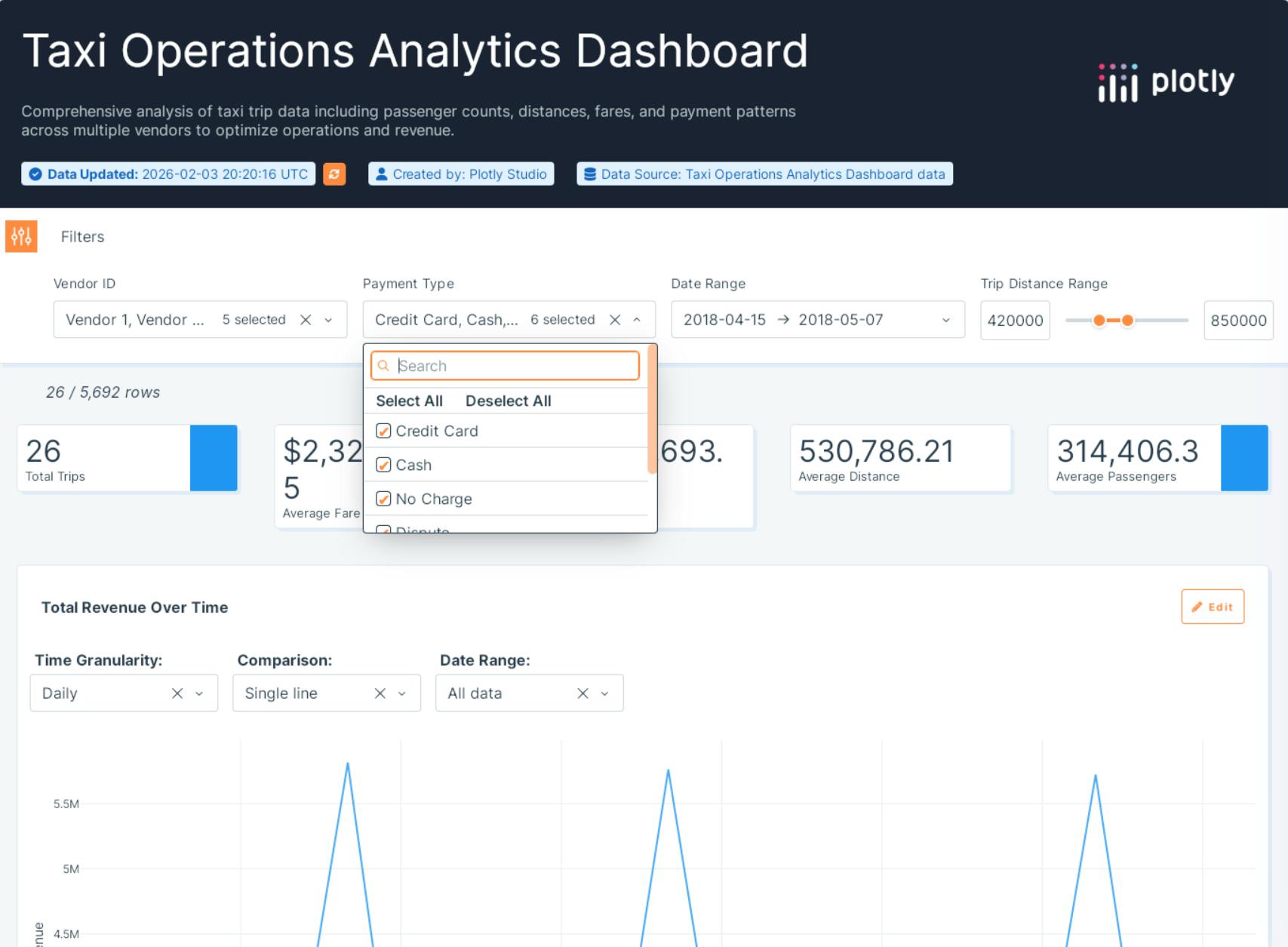
The new Dropdown component.
Try for yourself: Compare with the old Dropdown component with the redesigned component. (Click the links to compare two apps using Dash 3 vs Dash 4)
Inside the dropdown menu, we've added a dedicated search field so users can quickly find options in long lists, without you having to implement custom filtering logic. If you've ever watched a user scroll through 200 dropdown options looking for one item, you'll know why this matters. "Select All" and "Deselect All" buttons make bulk actions efficient, especially when combined with the above mentioned search field. Multi-select options display with a checkbox, making the selection state immediately clear.
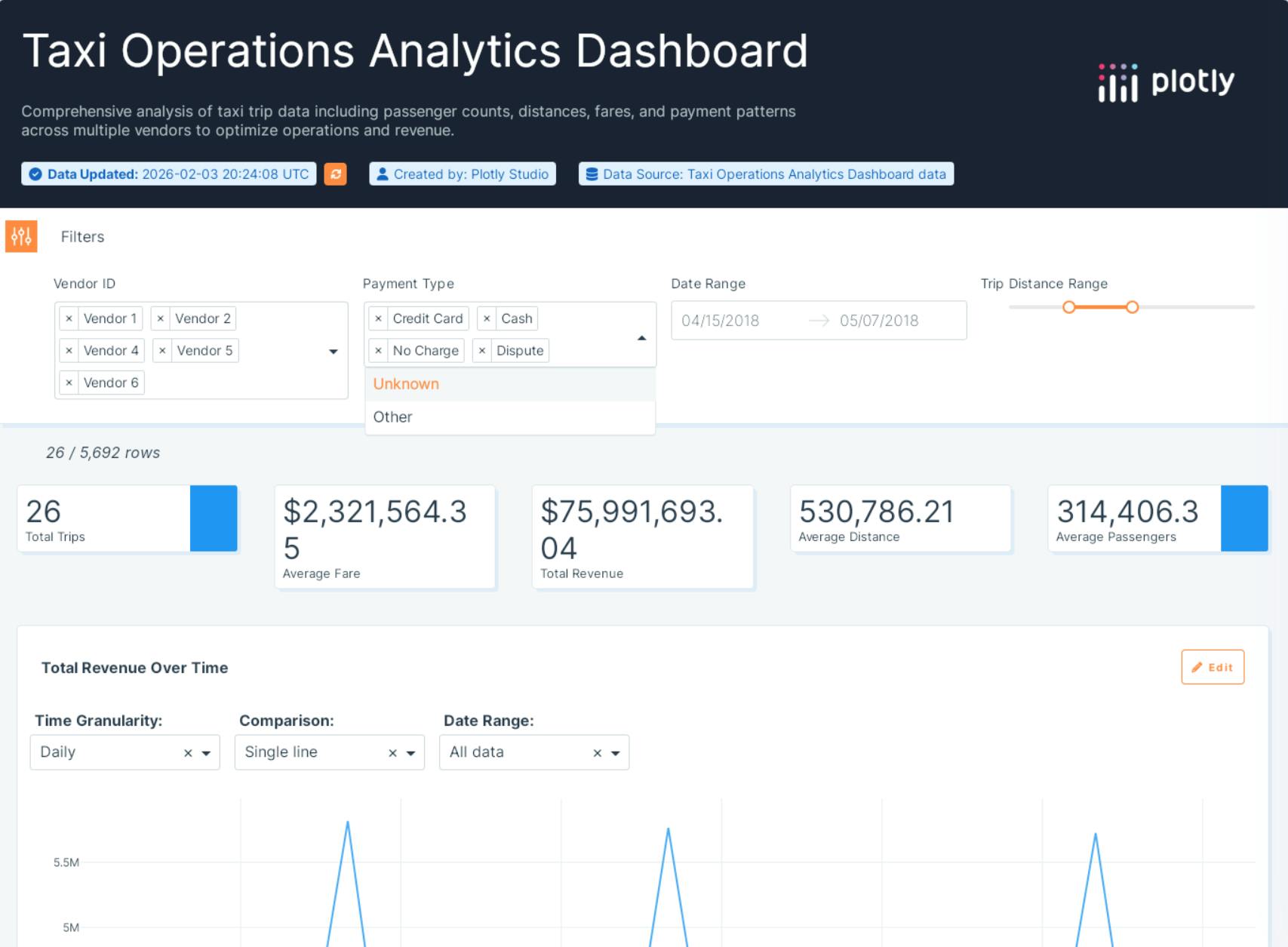
The old Dropdown component.
Try for yourself: Compare with the old Dropdown component with the redesigned component. (Click the links to compare two apps using Dash 3 vs Dash 4)
Long dropdown options are no longer cut-off on small screen sizes: everything is completely responsive.
Keyboard navigation has been refined to match user expectations: Enter/DownArrow will open the dropdown and escape will close it. Arrow keys can be used to navigate the options. Tab order is logical, Enter and Space keys select and de-select The search field is automatically focused when the dropdown opens.
Key improvements:
- Fixed input height (your forms stay aligned regardless of selections)
- Built-in search field for long lists (no custom filtering needed)
- "Select All" and "Deselect All" buttons for bulk actions
- Clear visual selection state with checkboxes
- Count display for multi-select keeps the input single-line
- Improved keyboard navigation and automatic focus management
Numeric input: precision without frustration
The Dash 4 numeric input places larger increment and decrement buttons on opposite sides of the input field. Minus on the left, plus on the right. This horizontal arrangement provides much larger touch targets and makes quick adjustments smooth and intuitive. No more gamer-level precision cursor control to increment the value up or down. You know the frustration. This fixes it.
The buttons are visually distinct and meet WCAG 2.2 contrast requirements. Keyboard controls (up/down arrow keys) work smoothly. Set step for increment granularity, min and max to enforce bounds. The component validates input client-side and prevents out-of-range values, reducing the need for custom validation callbacks.
This is especially useful for data filtering interfaces where users need to quickly adjust ranges or thresholds without fighting tiny click targets.
Key improvements:
- Large increment/decrement buttons on opposite sides (10x larger click targets)
- Significantly reduced accidental mis-clicks
- Client-side validation for min/max/step (less custom callback code)
- Smooth keyboard increment/decrement functionality
- Better touch target sizing for mobile users
Sliders: precision meets responsiveness
The Dash 4 sliders feature a solid, visually distinct handle that clearly indicates the current position. When space allows, input fields appear alongside the slider (one for standard sliders, two for range sliders), letting users type exact values instead of relying solely on dragging.
These input fields are responsive. They automatically hide when the slider is rendered in narrow layouts, ensuring the component adapts gracefully to different screen sizes. The breakpoint is calculated automatically based on the slider's container width and the length of the formatted value strings, so you don't need to manage responsive behavior manually.
Tick marks are now automatically calculated based on the slider width, step, and value range, displaying only when they provide useful guidance.Tick marks and their labels are no longer prone to overlap each other, reducing the need to provide custom marks with every slider. We've refined value formatting to show appropriate decimal precision, improved tooltip behavior to display actual values, and ensured all visual elements meet WCAG 2.2 contrast requirements. Keyboard controls (arrow keys, Page Up/Down) provide fine-grained adjustment control.
The slider also supports vertical orientation (something you won't find in many component libraries). It's perfect for volume controls, zoom interfaces, or any vertical layout requirement.
Key improvements:
- Responsive numeric input fields (type exact values instead of dragging)
- Inputs auto-hide in narrow layouts (responsive behavior built-in, no manual breakpoints needed)
- Intelligent tick mark generation prevents visual clutter
- Solid handle with clear visual distinction
- Vertical slider orientation option (unique to DCC)
- Improved keyboard navigation and value formatting
New dcc.Button
Dash 4 introduces a new `dcc.Button` component which responds to the overall theme of the other core components.
Key improvements:
- Automatically styled to fit the look-and-feel of the other core components
- Works the same way as html.Button in callbacks
Tabs
Tabs are more customizable. In addition to simple text, your tab labels can now include other Dash components such as images, styled text, or even interactive content. Additionally, individual labels can have their width fixed to a pixel or percentage value.
Key improvements:
- Tab labels are fully customizable just like any other part of the app layout
A unified design system
Beyond these four standout components, every Dash Core Component has received attention in Dash 4. Checklists, RadioItems, Inputs, Tabs, Buttons, and all other components now share a consistent visual language with the Plotly theme. This consistency extends to:
- Accessibility compliance: All components meet WCAG 2.2 Level AA requirements for contrast ratios and keyboard accessibility. No custom CSS or theming workarounds needed
- Consistent interaction patterns: Focus states, hover effects, and active states work the same way across all components
- Label associations: When you use html.Label or the Label(html_for=...) pattern, clicking the label now activates its associated component—a small change that makes forms more usable and screen-reader friendly
- Unified theming: Components use CSS variables for colors, making them easy to theme to match your application's brand
These improvements are based on feedback from the Dash community and usability testing with data teams. The most requested features included search in dropdowns, better keyboard navigation, and consistent theming. Dash 4 delivers all of them.
Easy theming with CSS variables
The new DCC components use CSS variables for colors, which makes them incredibly easy to theme. The default accent color is Plotly Purple, but you can override it by setting CSS variables on your app's outer container.
For example:
app.layout = html.Div([dcc.Dropdown([f"Option {i}" for i in range(100)])],style={"--Dash-Fill-Interactive-Strong": "blue"})
While “Fill-Interactive-Strong” is the primary way to control colour, there are other minor CSS colours that can be customized in the same manner in order to provide subtle accents that coordinate with the overall palette:
--Dash-Stroke-Strong
--Dash-Stroke-Weak
--Dash-Fill-Interactive-Strong
--Dash-Fill-Interactive-Weak
--Dash-Fill-Inverse-Strong
--Dash-Text-Primary
--Dash-Text-Strong
--Dash-Text-Weak
--Dash-Text-Disabled
--Dash-Fill-Primary-Hover
--Dash-Fill-Primary-Active
--Dash-Fill-Disabled
--Dash-Shading-Strong
--Dash-Shading-Weak
For example, to switch the accent color to your brand's primary color:
# For Dash Bootstrap Components appsstyle={"--Dash-Fill-Interactive-Strong": "var(--bs-primary)"}# For Dash Mantine Components appsstyle={"--Dash-Fill-Interactive-Strong":"var(--mantine-primary-color-filled)"}
For complete theming support including dark mode, check out the DCC Redesign examples which demonstrate how to integrate Dash 4 components with DBC and DMC themes.
Pro tip: start with the base theme
When migrating to Dash 4, resist the urge to immediately write custom CSS. The default Plotly theme is production-ready and WCAG compliant. Start there, use CSS variables to match your brand colors, and only add custom styles where you have specific design requirements. You'll save time and maintain accessibility.
Migration notes
All props remain the same, so upgrading to Dash 4 shouldn't introduce breaking changes to your application logic. You will see visual and layout changes, which is the point of this design refresh.
If you wrote custom CSS targeting Dash 3 components, those selectors will need updating since the components have been completely rewritten. We recommend starting with the base theming approach using CSS variables and only adding custom CSS where specifically needed for your design requirements.
What's next?
Install the release candidate today and test it in your apps:
pip install dash>=4
We especially want to hear feedback on:
- How the new components work with your existing DBC/DMC apps
- Any edge cases or workflows we haven't covered
- Features you'd like to see before the final release
Explore all the components at the live demo site, and share your feedback in the Plotly Community Forum or open an issue on GitHub. Your input shapes the final release.
The Dash 4 components represent months of work to make Dash apps more accessible, more intuitive, and honestly, more pleasant to build. We're excited to see what you create with them.