
Plotly
October 21, 2026
Building LLM-Powered Data Apps in Python
TL;DR
- Decide what the model is allowed to see before choosing which model to use. Default to giving it your schema, not the rows.
- Match the model to the task. Use a fast, cheap model for narrow questions, a slower one for real reasoning, and let data-privacy rules decide for you when your data cannot leave your infrastructure.
- Pick the build path by how specific the interaction is. Use Plotly Studio Embedded for a more autonomous widget.
- After launch, cache repeat questions, handle failed or throttled model calls, and update what the model knows whenever your schema changes.
An LLM-powered data app combines an interface, a model, and a data layer. The interface collects a question, the model interprets it, and the application retrieves or calculates the information needed to produce an answer.
The model is only one part of the system. Most LLM app development work involves controlling how a question becomes a query, calculation, chart, table, or written response.
Before comparing models, define two things. What the user needs to accomplish and what data the model is allowed to access.
We cover what changes when a data app talks back, how to choose a model for that job, and where to draw the line between what the model sees and what it does not.
What an LLM-Powered Data App Must Return
A general-purpose chatbot usually returns text. A data app has a stricter bar. Its response must stay consistent with the underlying data and calculations.
If someone asks about last quarter's churn rate, the answer has to match the result produced by the approved calculation or database query.
This requirement affects what the model receives. A model should get only the information required for its task. That might be a semantic description of the data, an approved query result, or a limited set of records.
The response may not be a paragraph. It could be a chart specification, a filtered table, a calculated metric, or a short explanation. The application must turn the model’s response into an output that the interface can render safely.
How the Interface, Model, and Data Fit Together
A simple LLM-powered data app has three main layers. The interface, the model integration, and the data layer.
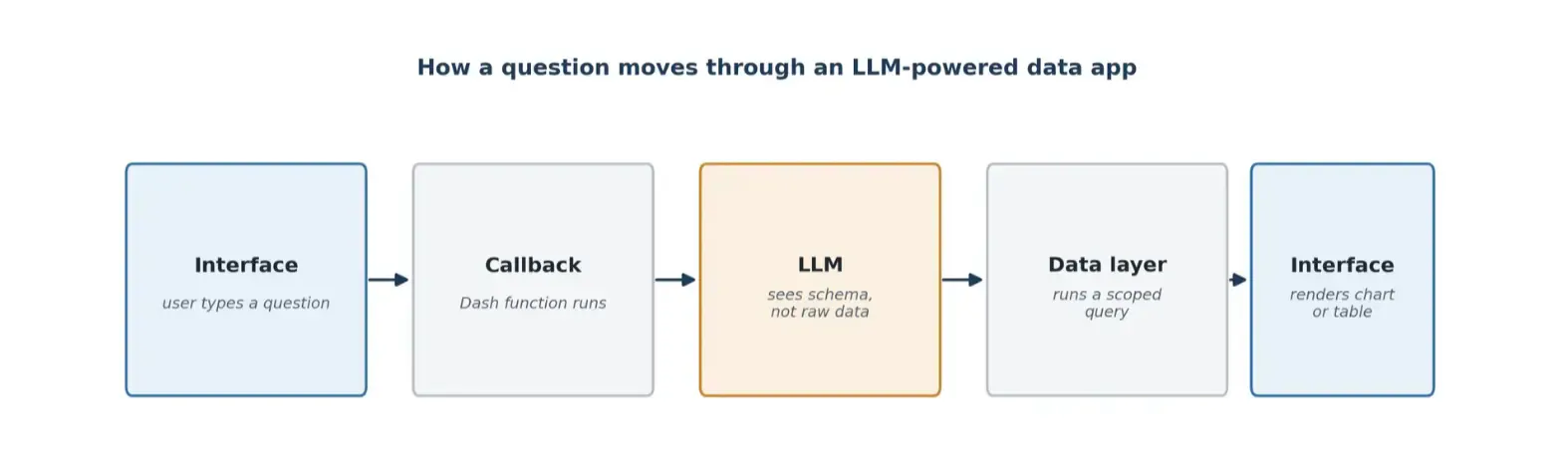
The interface collects the question. The application sends the question and approved context to the model. The model returns a structured instruction, such as the fields to plot or the query to run. The application validates that instruction before retrieving the data and rendering the result.
In a Dash app, that flow usually runs through a callback. A callback is a Python function that Dash runs in response to an interaction, such as selecting a filter or submitting a question.
The following simplified example shows where the model call fits. It uses a placeholder model function so that the architecture remains independent of any one provider.
import plotly.express as pxfrom dash import Dash, dcc, html, Input, Output, State, callback, no_updatedf = px.data.gapminder().query("country == 'India'")app = Dash(__name__)app.layout = html.Div([dcc.Input(id="question",type="text",placeholder="Ask about this data",),html.Button("Submit", id="submit-question"),html.Div(id="answer"),])@callback(Output("answer", "children"),Input("submit-question", "n_clicks"),State("question", "value"),prevent_initial_call=True,)def answer_question(_, question):if not question:return no_updateschema = {"year": {"type": "integer", "description": "Calendar year"},"lifeExp": {"type": "number", "description": "Life expectancy"},"pop": {"type": "integer", "description": "Population"},"gdpPercap": {"type": "number", "description": "GDP per person"},}instruction = call_model(question, schema)allowed_columns = set(schema)if (instruction.get("x") not in allowed_columnsor instruction.get("y") not in allowed_columns):return "The model returned an unsupported field."figure = px.line(df,x=instruction["x"],y=instruction["y"],markers=True,)return dcc.Graph(figure=figure)def call_model(question, schema):# Replace this placeholder with a model API call.# Require the model to return structured JSON.return {"x": "year", "y": "lifeExp"}if __name__ == "__main__":app.run(debug=True)
Most of this is standard Dash. The model integration sits inside call_model(), which can be connected to a hosted, self managed, or internal model.
The callback sends a small semantic schema that includes field names, types, and descriptions. The model returns a structured instruction, and the callback checks that instruction against an allow list before creating the figure.
The same pattern can return a filtered table, calculated metric, or written explanation. In each case, the application should validate the model’s instruction before rendering the output.
Figure 1. A question moves from the interface through a callback to the model, which sees schema rather than raw data, then to the data layer, and back to the interface as a chart or table.
What Is the Best LLM for App Development?
There is no single best LLM for app development. The right choice is the smallest model that can complete the required task reliably while meeting the application’s latency, cost, and privacy requirements.
Requirement
What to evaluate
Natural-language filtering or query generation
Structured-output reliability, SQL accuracy, and response time
Multi-step analysis
Reasoning quality, context capacity, and consistency
High-volume usage
Cost per request, latency, concurrency, and rate limits
Sensitive data
Data retention, deployment location, access controls, and approved providers
Production stability
Model versioning, fallback options, and evaluation results
Test candidate models against representative questions from the application. A model that performs well on general benchmarks may still produce unreliable queries, incorrect field selections, or inconsistent output for a specific dataset.
Data governance sometimes settles the question immediately. If the data cannot leave your infrastructure, the model must be deployed or accessed through an approved environment. Dash Enterprise offers air-gapped solutions behind the organization’s firewall to ensure security.
The integration should also make it possible to change models without rewriting the entire application.
Keep provider-specific code behind a small adapter layer. A model change may still require prompt and output testing, but it should not require changes throughout the Dash app.
Deciding What the Model Is Allowed to See
The model should receive only the information required for the current task. Three common access patterns are schema context, bounded query results, and direct access to approved documents or records.
With schema context, the model receives field names, data types, relationships, and metric definitions. It can then generate a query or structured instruction that the application validates and executes.
With bounded-result access, the application runs an approved query first and sends only the relevant result to the model for summarization or explanation. Direct content access is appropriate for tasks such as document retrieval or classification, but the application should still limit the records and fields available to the model.
Schema context is a useful default for query planning because it keeps row-level values out of the first model request. It can reduce the amount of data sent to the model and keep query execution inside the application. However, the model may still need a limited result if it must explain what the data shows.
This pattern depends on a well-documented semantic schema. Include data types, descriptions, relationships, metric definitions, and valid dimensions. Ambiguous fields and undocumented business rules can produce incorrect queries even when the underlying model is capable.
Start with a Hand Coded or Studio-Generated Dash App
The underlying Dash app can be written manually or generated with Plotly Studio. Both approaches produce code-backed applications, but they provide different starting points.
Hand-coding gives you direct control over the layout, callbacks, validation rules, and model integration. It works well when the required interaction is already clear, but it requires more development work.
Plotly Studio produces a working data app from a dataset and natural-language instructions. Building charts and tables, and writing Python code as analysis develops.
What it produces is a working Dash app backed by real code. That code uses Dash, Plotly.py, and Dash Design Kit, along with libraries such as Pandas. A finished session can publish to Plotly Cloud or Dash Enterprise, or export to a local Python file for further development.
Hand coding suits an interaction you already know precisely. Generating suits a dataset you are still exploring, where a working starting point is required before refining the code.
Ways to Add an LLM Feature to a Dash App
After defining the interaction and data-access rules, choose how the LLM feature will be added. The main options are a custom integration and Plotly Studio Embedded.
A user-initiated assistant responds to a specific question and then stops. A more agentic workflow can plan multiple steps, call tools, and create new outputs. The second pattern requires stronger validation because the model has more freedom to act.
Build a Custom Dash Integration
This is the pattern from the architecture section above. You add a callback inside your Dash app, your own call to the model, and your own logic for handling the response.
A custom integration can support a simple question-and-answer flow or a multi-step workflow. Dash callbacks can respond to user input, timers, application events, or other triggers, while the developer controls the prompts, tools, validation, and output format.
Hand coding gives full control over prompt construction, caching, and error handling. It is the right call when the interaction is specific enough to your app that no existing tool fits it cleanly.
The cost is that it is also the most code to write and maintain. A version that acts on its own initiative also means writing your own guardrails for what the model can do unprompted.
The model you configure can also cache pre-written answers for questions that come up repeatedly. This approach provides the most control over prompts, caching, validation, and error handling. It is appropriate when the interaction is highly specific, but it also requires the most code and ongoing maintenance.
Plotly Studio Embedded
Plotly Studio Embedded adds a floating AI assistant to a Dash app published on Plotly Cloud. Viewers can ask questions about registered data and receive written responses or charts.
For many apps, Studio Embedded can automatically register supported dataframes defined at the module level. An underscore-prefixed variable can be used to exclude a dataframe. Registered data reflects its state when the app initializes, so applications with frequently changing data need to account for that behavior.
Studio Embedded uses the model supplied through the Plotly platform. This differs from Chatbot Builder, where the application team selects and connects the model.
Approach
Best suited to
Model control
Deployment
Custom Dash integration
Specialized workflows and complete implementation control
Developer selects and integrates the model
Any compatible Dash environment
Plotly Studio Embedded
Natural-language exploration of a published app’s data
Platform-supplied model
Plotly Cloud / Dash Enterprise
Keeping the Model Reliable Once It Is Live
A working prototype is not the end of LLM app development. The application also needs controls for output validation, failures, changing data, and repeated requests.
Cache repeated requests only when the result remains valid for the same user, filters, permissions, dataset version, and schema version. Include an expiration policy so that an old answer is not presented as a current result. When the same approved request occurs repeatedly, a valid cached response can reduce latency and model usage. A cached response may provide a limited fallback during a model outage, but the interface should show when the answer was generated.
Set timeouts and handle failed or throttled model requests explicitly. Return a clear message instead of leaving the interface loading indefinitely. Limit retries to avoid creating additional traffic during an outage. A data app that breaks when that happens will train people to stop trusting it.
Refresh the model’s schema context whenever fields, relationships, or metric definitions change. Add test questions that confirm the model still selects valid fields and produces the expected instructions after each update.
Validate every model-generated instruction before execution. Restrict it to approved fields and operations, and use read-only data access for analytical questions. Any action that changes data should require explicit application logic and user confirmation.
How Broadband Insights Uses Two Models in One Data App
Broadband Insights develops analytics applications for internet service providers. The company added conversational functionality to its Monthly Metrics app with Dash Enterprise.
Users can switch between two modes. One uses Ollama to generate SQL from natural-language questions. The model receives the application’s database schema as context. The other uses OpenAI to answer general questions about trends, including questions containing typing errors.
For the trend-analysis mode, the team reshaped a Pandas dataset so that the model could process it more like a text document. This gave the model the context required for that task without changing how the entire application handled data.
The implementation demonstrates why one model does not have to serve every use case. Broadband Insights selected a different model and data-access pattern for each type of question.
How to Start Building an LLM-Powered Data App
Successful LLM app development starts by defining what the user needs to accomplish and what information the model can access. Then decide what information the model needs and what information it must not receive.
These choices determine the data-access pattern, model requirements, validation rules, and implementation path. Model selection becomes easier once the task and data boundaries are clear.
To build the interface manually, start with the Dash tutorial and add the model integration after the basic callback flow works.
If you would rather start from an existing dataset than a blank layout, Plotly Studio can generate a code-backed Dash app that you can refine through natural-language instruction or by editing the Python code.