
Eszter Kovacs
March 10, 2026
Building a Python Dashboard that Connects to your Data
Author: Eszter Kovacs
I have been a Plotly community member for years, and one of the reasons I keep coming back to Dash is how easy it is to build apps and connect them directly to real data. In real projects, data lives in different formats and locations, and Dash makes it simple to bring everything together.
In this post, I’ll show the different ways that I usually connect data to my dashboards:
- CSV
- Excel
- JSON files
- PostgreSQL
- MS SQL Server
- SQLite
- Google Sheets
- APIs (weather data example)
Throughout my work with data and dashboard development, I’ve seen the same problems again and again:
- Excel files shared within email threads
- Static charts outdated the moment they’re shared
- Dashboards that require manual updates every week
Dash solves this by letting me connect directly to data sources and build interactive apps using only Python.
A Simple Dash App with Filters
Before connecting multiple data sources, here’s the basic structure I use almost every time: a Dash app with controls and interactive charts.
import pandas as pdfrom dash import Dash, html, dcc, Input, Outputimport plotly.express as pxdf = pd.read_csv("sales_data.csv")app = Dash(__name__)app.layout = html.Div([html.H1("Live Sales Dashboard (Connected to Real Data)"),dcc.Dropdown(id="region-filter",options=[{"label": r, "value": r} for r in df["region"].unique()],value=df["region"].unique()[0],clearable=False),dcc.DatePickerRange(id="date-filter",start_date=df["date"].min(),end_date=df["date"].max()),dcc.Graph(id="sales-chart")])@app.callback(Output("sales-chart", "figure"),Input("region-filter", "value"),Input("date-filter", "start_date"),Input("date-filter", "end_date"),)def update_chart(region, start_date, end_date):filtered = df[(df["region"] == region) &(df["date"] >= start_date) &(df["date"] <= end_date)]return px.line(filtered,x="date",y="revenue",title="Revenue Over Time")if __name__ == "__main__":app.run_server(debug=True)
This sample app gives you interactive filtering, data updates, and a real application feel, instead of a static report.
Now let's look at how I connect different data sources, depending on where my data is stored.
1. CSV
CSV is usually the quickest way to get started using df=pd.read_csv("sales_data.csv"). It is perfect for prototypes, exports, and quick internal tools. This is the example we used in the Python code block above.
2. Excel
Excel is also a very common method. I use df=pd.read_excel("sales_data.xlsx") to connect to my Excel sheets. In this example, make sure that your Excel sheet is in the same folder as your app file.
3. JSON Files
JSON is often used for exports and config-driven workflows. Use df=pd.read_json("data.json") to read the data into a pandas dataframe.
4. PostgreSQL
Most production dashboards connect directly to databases using sqlalchemy to create an engine and pd.read_sql to fetch data. Benefits include no manual exports, always fresh data, and easy automation.
# -----------------------------# 1. Create SQLAlchemy Engine# -----------------------------DB_USER = "your_username"DB_PASSWORD = "your_password"DB_HOST = "localhost"DB_PORT = "5432"DB_NAME = "your_database"DATABASE_URL = (f"postgresql+psycopg2://{DB_USER}:{DB_PASSWORD}"f"@{DB_HOST}:{DB_PORT}/{DB_NAME}")engine = create_engine(DATABASE_URL)# -----------------------------# 2. Fetch Data from PostgreSQL# -----------------------------query = """SELECT date, revenueFROM salesORDER BY date;"""df = pd.read_sql(query, engine)
5. MS SQL Server
Common in enterprise environments with existing BI systems, it uses a similar sqlalchemy engine setup with a pyodbc driver. Once the data is in a DataFrame, it’s ready to use in Dash.
import pandas as pdfrom sqlalchemy import create_engineimport urllibparams = urllib.parse.quote_plus("DRIVER={ODBC Driver 17 for SQL Server};""SERVER=localhost;""DATABASE=mydb;""UID=user;""PWD=password;")engine = create_engine(f"mssql+pyodbc:///?odbc_connect={params}")query = "SELECT date, revenue FROM sales ORDER BY date"df = pd.read_sql(query, engine)
6. SQLite
For something local and lightweight, use the sqlite3 library. It is fast, requires minimal setup, and is great for demos.
import sqlite3import pandas as pdconn = sqlite3.connect("data.db")query = "SELECT date, revenue FROM sales ORDER BY date"df = pd.read_sql(query, conn)conn.close()
7. Google Sheets
Many teams often work with Google Sheets because it's easy to collaborate on and has a similar format to Excel. This can also be imported into Dash, but for the code below to work, your Google Sheet must be set to "Anyone with the link can view”. Also, make sure to replace the FILE_ID in the second line of code.
import pandas as pdsheet_url = "https://docs.google.com/spreadsheets/d/FILE_ID/export?format=csv"df = pd.read_csv(sheet_url)
8. APIs (weather connection example)
By using the requests library to get JSON data and converting it to a DataFrame, you can combine database data, spreadsheets, and live external metrics in one app.
import requestsimport pandas as pdurl = "https://api.open-meteo.com/v1/forecast?latitude=47.5&longitude=19.0&daily=temperature_2m_max&timezone=auto"response = requests.get(url)data = response.json()df = pd.DataFrame({"date": data["daily"]["time"],"temp_max": data["daily"]["temperature_2m_max"]})
Final Thoughts
Real-world data is messy, but Dash works because it makes it much easier to connect to your data. If Python can be used, Dash and Plotly can connect to it and visualize it. There is no frontend framework, JavaScript, or complex setup required. And once you successfully connect your data to your Dash app, you can turn your attention to building the layout and interactivity of the app.
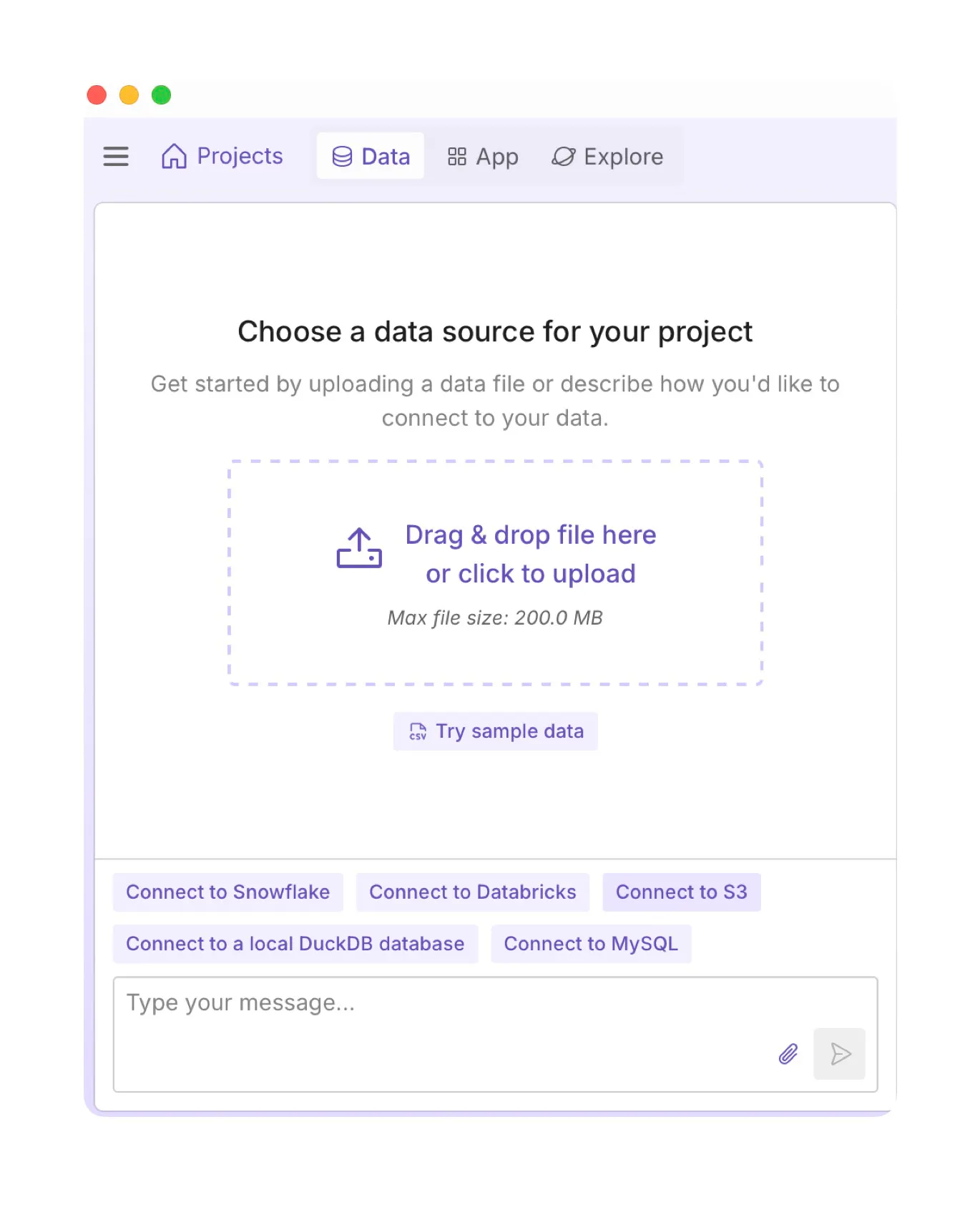
Oh, and if you don’t want to write everything manually, I recommend using Plotly Studio. The new Data Sources feature lets you connect data using natural language, which can speed things up a lot.
For example, here’s how I connect my Amazon s3 bucket data to Plotly Studio.
First, I click on the “Connect to s3” button:
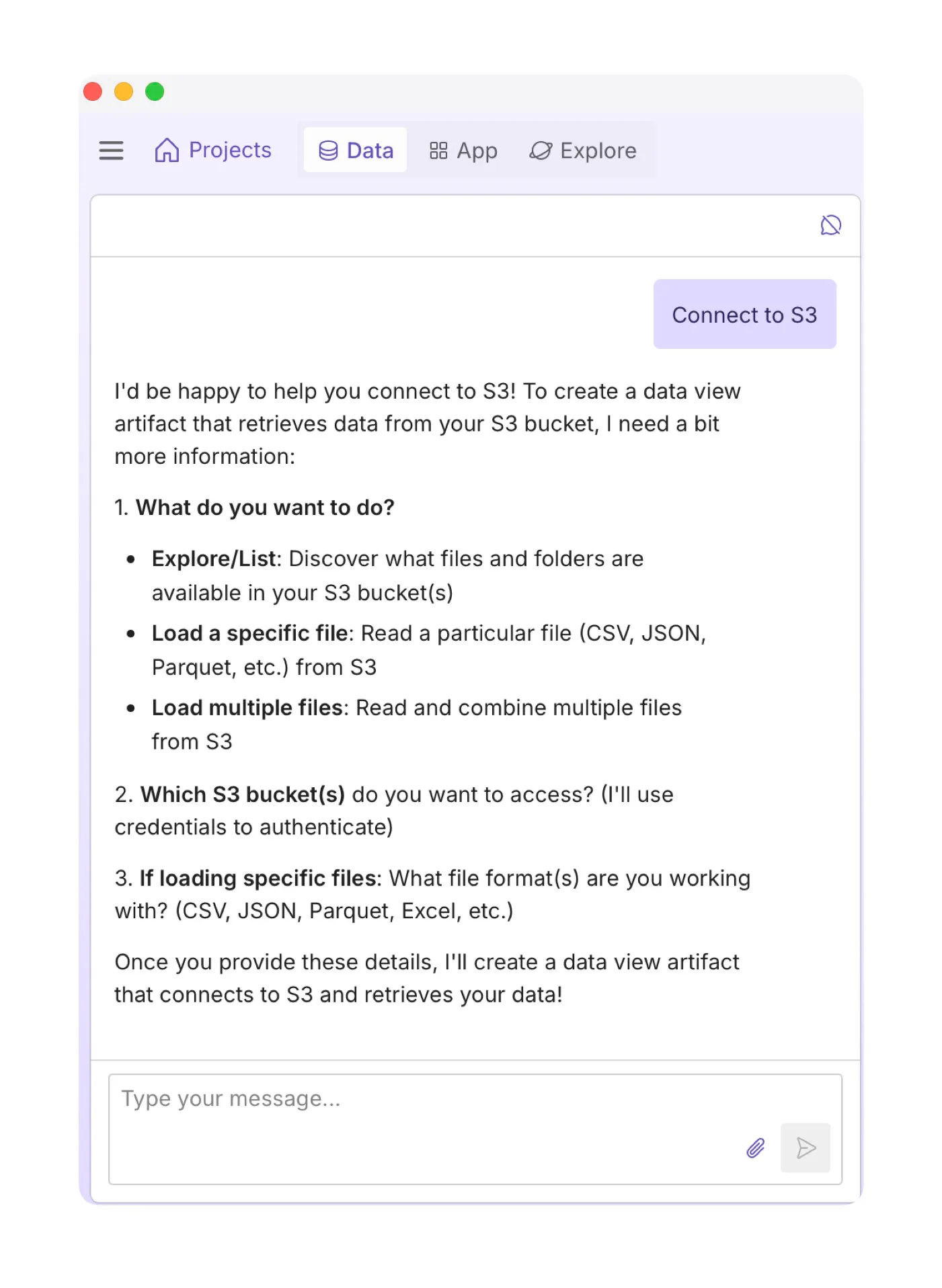
Once you provide the necessary details, Plotly will load the credentials page. Add your credentials and click “Save Credentials”.
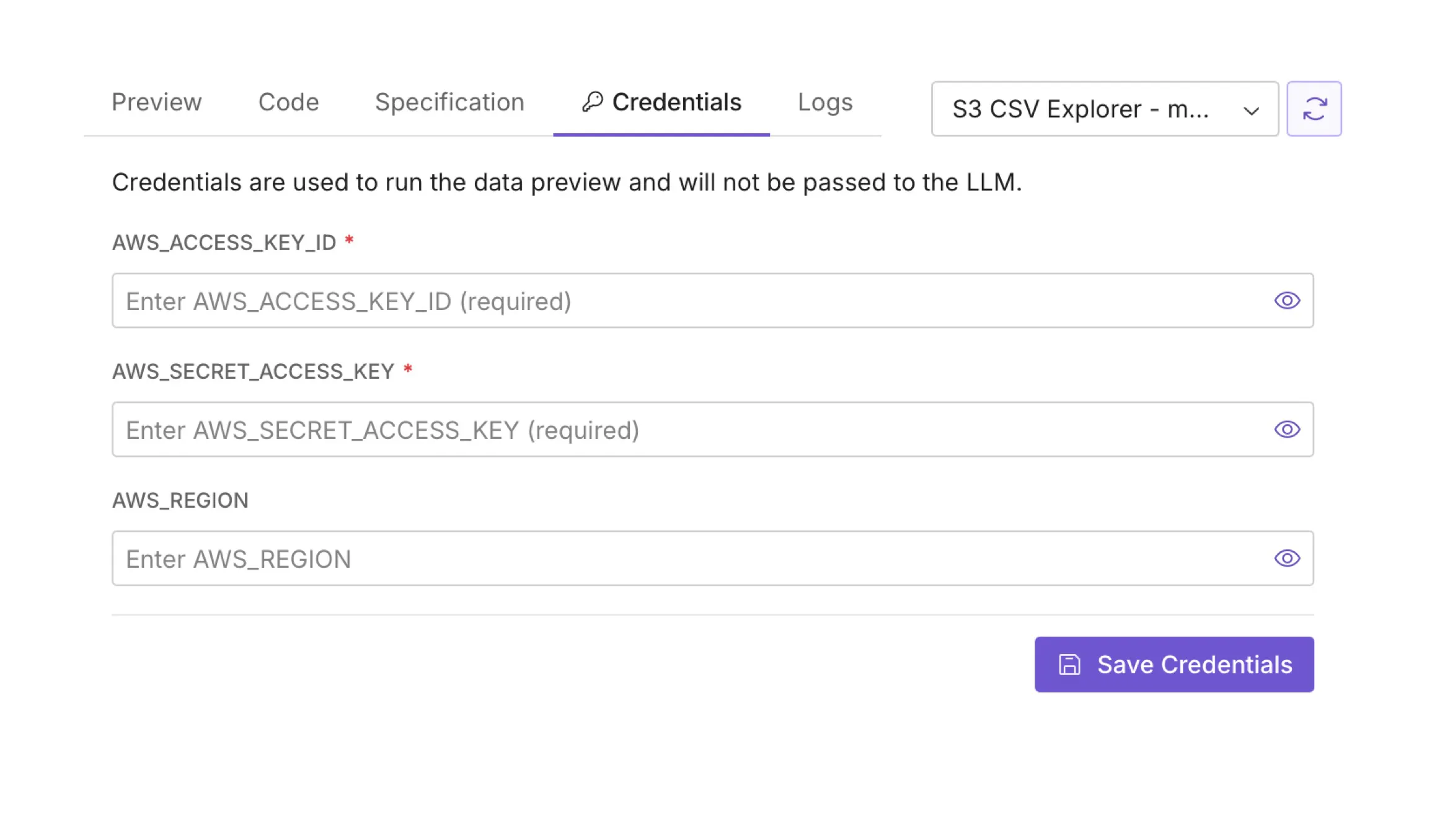
Plotly Studio will attempt to connect to your data. Once the connection is successful, it will display a data table. When ready, simply click “Continue” and start building your dashboard.