5 Awesome MCP Examples You Can Build Yourself
TL;DR
- Since Dash 4.3, any Dash app can also be an MCP server: add enable_mcp=True and the same app gives people a web UI and gives Claude, ChatGPT or Copilot a set of tools.
- The tools are meant for knowledge workers. Someone in finance or IT asks a question in the chat assistant they already use, and the answer comes from your app's data and actions. Coding agents can call the same tools, but they aren't the main audience.
- Plotly Cloud and Dash Enterprise 6.3 handle the MCP sign-in, so only people who can open the app can connect an AI to it.
- We built five internal examples: a company handbook, a certified metrics hub, a dashboard that shares its callbacks with the AI, an IT helpdesk that takes permissioned actions, and a spend approval flow where the AI files requests and people approve them.
- Each one comes with the prompt we'd give a coding agent to build it. Copy it, swap in your own details and publish.
Your company already has an AI chat. People ask it about the expense policy or why their laptop won't charge. It answers confidently, and a lot of the time it's guessing, since the real answers sit in internal docs and ticketing systems it can't see.
MCP (the Model Context Protocol) is how you fix that. An MCP server hands an AI client a set of tools it can call. Writing the tools is the easy bit. The work is in hosting them and making sure the AI can only do what the person asking is allowed to do.
Dash MCP is the glue for this. Your data and internal knowledge sit on one side, in a warehouse or a wiki. The chat client people already use sits on the other. In between you write ordinary Python functions, and Dash publishes them as tools the chat can call:
from dash import Dashfrom dash.mcp import mcp_enabledapp = Dash(__name__, enable_mcp=True)@mcp_enabled(expose_docstring=True)def search_handbook(query: str) -> list:"""Search the company handbook. Read the full page before answering and cite its owner."""return wiki.search(query)
The function name becomes the tool name, the type hints become its schema, and the docstring tells the AI when and how to use it. The same app can also give people a regular web UI built on the same functions.
What a tool is, and how to design them
A tool is a function the AI is allowed to call. It has a name, typed parameters, a description, and a return value the chat reads, usually JSON or text and sometimes a chart. When someone asks a question, the AI looks through the descriptions of the tools it's connected to, picks one, fills in the parameters and reads the result before it answers. Designing an MCP server mostly comes down to deciding which functions to offer and how much freedom each one gets.
Tools that hand over context
The simplest tools return text, like a policy or a glossary entry. The AI reads it and answers from it. These tools are cheap to write, and they're what stops the chat from guessing about how your company works.
@mcp_enabled(expose_docstring=True)def get_policy(name: Literal["expenses", "travel", "security", "pto"]) -> str:"""Return the current text of a company policy. Quote the relevant part when answering."""return (POLICY_DIR / f"{name}.md").read_text()
Tools that answer data questions
For numbers, give each tool parameters that match how people slice the data. A Literal type becomes a fixed list of choices in the tool's schema, so the AI can filter by region or pick a metric, but only from values you've approved. You can offer one flexible tool with several parameters, or a few narrow ones named after the questions people ask. Narrow tools are easier for the AI to pick correctly.
@mcp_enabled(expose_docstring=True)def revenue_by_month(region: Literal["Americas", "EMEA", "APAC"] | None = None,start: str = "2026-01", end: str = "2026-09") -> list[dict]:"""Monthly recognized revenue in USD from the finance-approved view."""return warehouse.query("revenue_monthly", region=region, start=start, end=end)
Tools that run SQL
You can also hand the AI a SQL tool and let it write its own queries. It's the most flexible option and the least governed, so point it at a read-only connection with views you've picked, and cap the rows. A companion tool that describes the views helps it write queries that work the first time.
con = duckdb.connect("analytics.duckdb", read_only=True)@mcp_enabled(expose_docstring=True)def run_sql(query: str) -> list[dict]:"""Run a read-only SQL query against the analytics views (orders, customers,arr_monthly). Call describe_views first. Results are capped at 500 rows."""return con.execute(f"SELECT * FROM ({query}) LIMIT 500").df().to_dict("records")
Tools that take action
Tools can change things too: open a ticket, file a request, approve access. Here the important part lives on the server. Read who's signed in, check their role, write an audit entry, and give the browser UI and the MCP tool the same function to call, so neither path can skip the check. Keeping read tools and write tools separate also lets people set reads to run automatically and writes to ask for confirmation in their chat client.
Callbacks you already have
If you already have a Dash dashboard, its callbacks can be tools with no extra code. Turn on enable_mcp=True, add docstrings and type hints, and the AI can call the same functions that drive your charts.
The five examples below use all of these.
How to build these
Pick a coding agent and a platform to host the apps on. Any agent that writes Python will do, like Claude Code or Codex. For hosting you want something that signs people in for both the browser and their AI client. Plotly Cloud and Dash Enterprise 6.3 both do that, and only people who can view an app can connect an agent to it.
If you're on Plotly Cloud, also connect your coding agent to the Plotly Cloud MCP server. It lets the agent search the Dash docs while it writes the app, then publish it for you.
Then paste one of the prompts below. Once the app is live, turn on MCP in the app's MCP tab, add its /_mcp URL to Claude, ChatGPT or Copilot as a custom connector, and sign in.
The chat screenshots below show real tool calls and results from the apps these prompts produced. Most chat clients fold tool calls into a collapsed "used a tool" line, so day to day you'd only see the answer. We've drawn every call out in full so you can see what's going on: the chat client calls your Dash app, gets data back, and then writes its answer from that data.
After each screenshot there's a trimmed excerpt of the Dash code behind it, so you can see the glue.
1. A company handbook your chat can read
"How much PTO do I get?" gets a generic answer about US averages. "Who approves a 20% discount in Germany?" gets nothing useful. This app serves your handbook and a who-owns-what directory to people and to the AI.
The prompt
Build a Dash app (dash>=4.4.1) that is our internal company handbook and an MCP server for our AI assistants.
Content: 8-10 handbook pages in Markdown (PTO, expenses, travel, security, onboarding, on-call, product and pricing, brand voice, offices), a glossary of internal jargon, a directory of who owns which topics, and a company calendar. Use realistic placeholder content for a company called Acme; I'll swap in ours later.
UI: a sidebar of pages grouped by section, a search box, and tabs for the glossary, the people directory and the calendar.
MCP: create the app with Dash(__name__, enable_mcp=True). Use configure_mcp_server to hide the layout and the UI callbacks, and expose only these tools with @mcp_enabled(expose_docstring=True): search_handbook, read_handbook_page, list_handbook_pages, define_term, find_owner, company_calendar. Write each docstring as instructions to the AI: search first, read the full page before answering, and cite the page title and owner.
Read the Dash MCP docs before writing the MCP code, then publish the app to Plotly Cloud.
What it looks like in chat
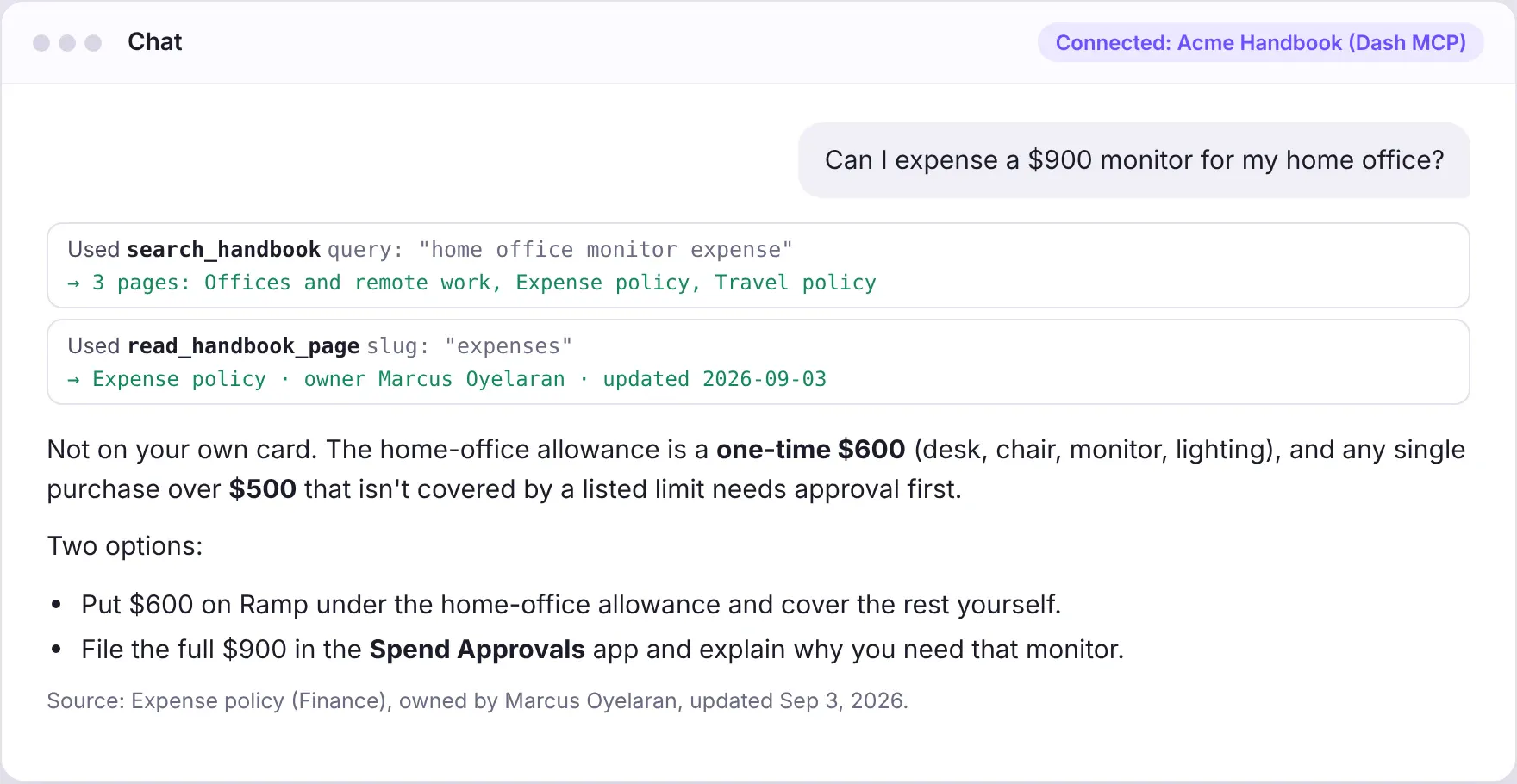
Under the hood
Each tool is a plain Python function over your content, and configure_mcp_server hides the UI's own callbacks so the chat only sees these:
configure_mcp_server(include_layout=False, include_callbacks=False,include_clientside_callbacks=False, include_pages=False)@mcp_enabled(expose_docstring=True)def search_handbook(query: str, limit: int = 5) -> list:"""Search Acme's internal handbook (policies, how-tos, product info).Use this first for any question about how Acme works. Follow up withread_handbook_page to get the full text before answering, and cite thepage title and owner in your answer."""return _search(query, max(1, min(limit, 10)))@mcp_enabled(expose_docstring=True)def read_handbook_page(slug: str) -> dict:"""Return the full Markdown text of one handbook page, plus its owner and last-updated date."""page = PAGES_BY_SLUG[slug]return {k: page[k] for k in ("title", "owner", "updated", "body")}
The docstrings do most of the work. They tell the agent to search, read the whole page and cite the owner, so answers come back as "per the Expense policy, owned by Marcus in Finance" instead of a guess.
2. A metrics hub with numbers finance signed off on
Point an AI at your warehouse and ask for ARR and you'll get an answer. Ask again tomorrow and you might get a different one, from SQL nobody in finance would recognize. This app gives the agent a short menu of certified metrics instead.
The prompt
Build a Dash app (dash>=4.4.1) called Metrics Hub that serves certified business metrics to people and, over MCP, to AI assistants.
Data: generate a realistic synthetic customer-by-month ARR table for a B2B software company, Jan 2024 to Sep 2026, with region, segment and industry. Plant one story in it: EMEA Grocery customers churn much faster in 2026.
Metric catalog: ARR, new ARR, expansion ARR, churned ARR, active customers, logo churn rate, NRR, average ARR per customer. Each metric gets one definition, an owner, a certified flag, and a caveat if it isn't certified.
UI: KPI cards, a metric explorer chart (metric, grain, split by, filter), a definition card, and a top customers table.
MCP: no raw table access. Expose only @mcp_enabled tools: list_metrics, query_metric, compare_segments, top_customers. Type metric names, dimensions and filter values with Literal so they become enums in the tool schema. Every response includes the metric's definition, owner and certified flag.
Read the Dash MCP docs first, then publish to Plotly Cloud.
What it looks like in chat
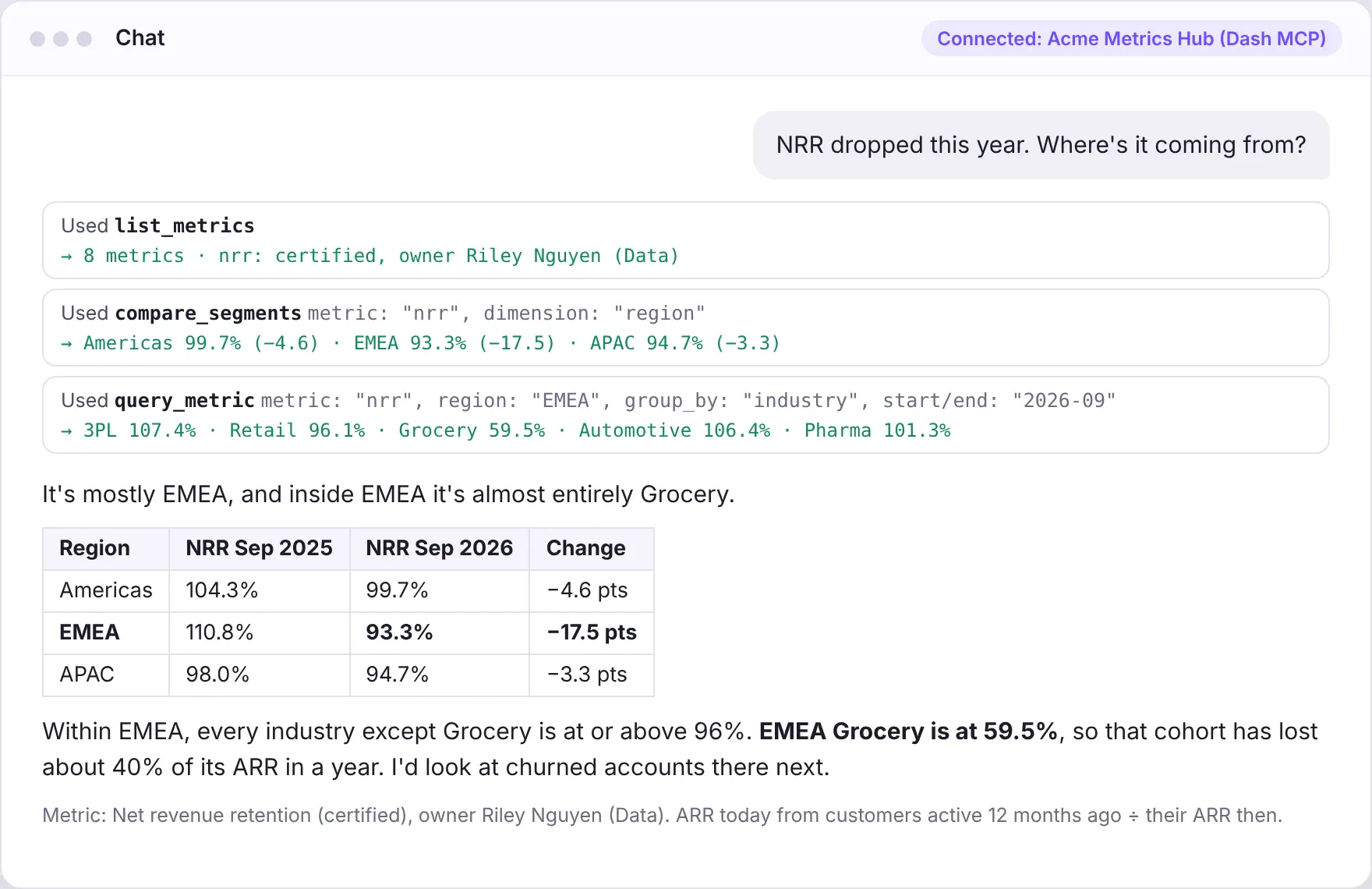
Under the hood
There's no table access at all. The agent gets one query function, and every argument is typed:
MetricName = Literal["arr", "new_arr", "expansion_arr", "churned_arr","active_customers", "logo_churn_rate", "nrr", "avg_arr_per_customer"]Dimension = Literal["region", "segment", "industry"]@mcp_enabled(expose_docstring=True)def query_metric(metric: MetricName, start: str = "2025-10", end: str = "2026-09",grain: Grain = "month", group_by: Optional[Dimension] = None,region: Optional[Region] = None, industry: Optional[Industry] = None) -> dict:"""Compute one certified metric over time, optionally sliced and filtered.This is the only way to get numbers out of the Metrics Hub. Always state themetric's definition and owner when you report a number."""rows = metrics.compute(metric, start, end, grain, group_by,{"region": region, "industry": industry})return {**metric_card(metric), "rows": rows} # definition, owner, certified flag
The Literal type hints become enums in the tool schema, so the agent can't ask for a metric that doesn't exist or slice by something finance hasn't approved. Every number it quotes matches the dashboard, because both come from the same function.
3. A pipeline dashboard the AI uses too
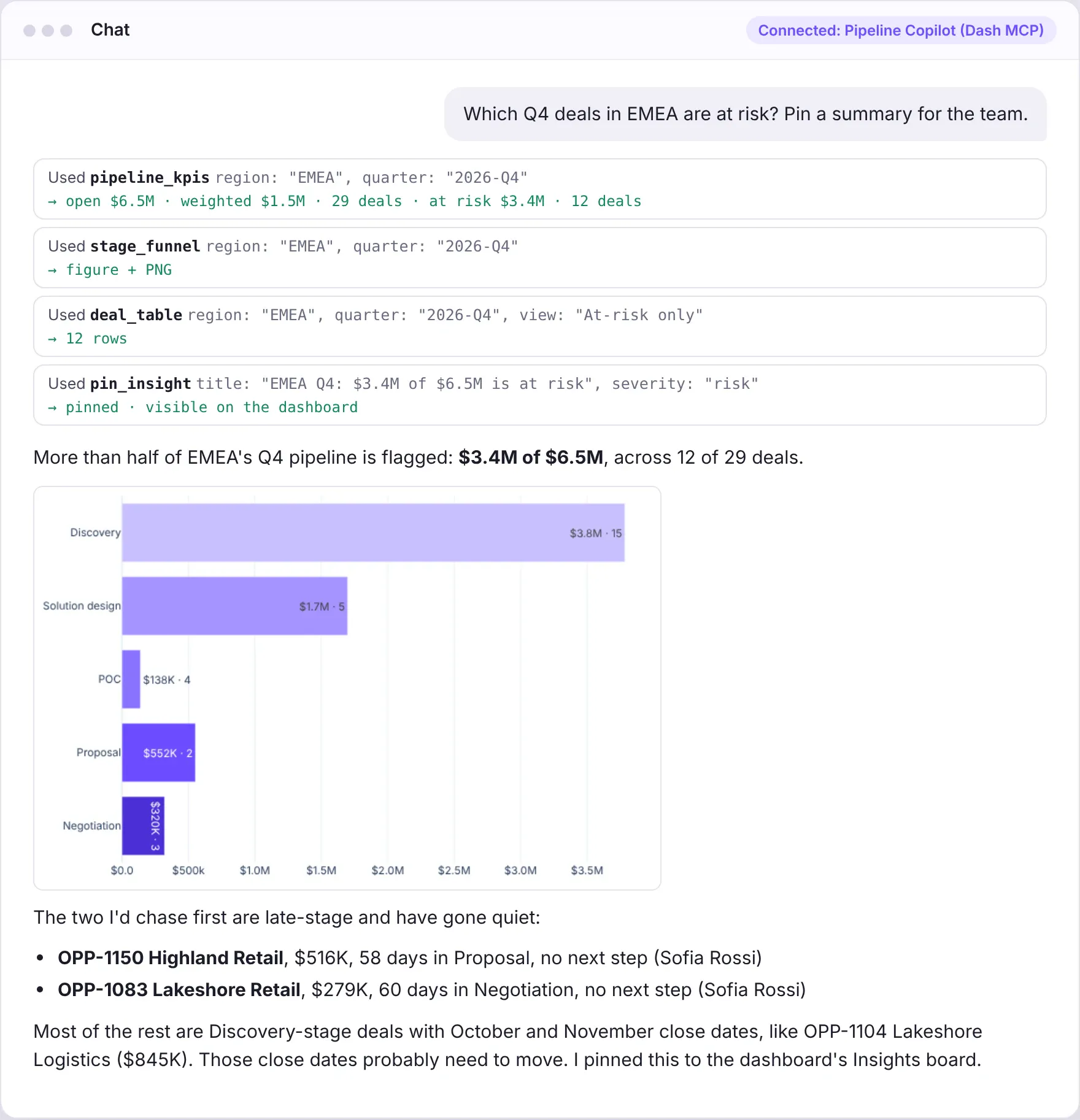
You already built the dashboard. Rebuilding its logic as a separate set of AI tools means two codebases that drift apart. With Dash MCP, the dashboard's callbacks are the tools: the agent calls stage_funnel(region="EMEA") and gets the same chart a person sees, rendered as an image.
The prompt
Build a Dash sales pipeline dashboard (dash>=4.4.1) where the dashboard's own callbacks are the AI's tools.
Data: a synthetic open pipeline of about 180 deals with account, owner, region, segment, stage, amount, close date, days in stage, next step, and risk flags (stalled over 45 days, no next step, Discovery stage closing within 45 days).
UI: labeled region, segment and close-quarter dropdowns; KPI cards; a pipeline-by-stage bar chart; a weighted-by-rep chart; a deals DataTable with an "At-risk only" toggle; and a deal details panel.
MCP: create the app with enable_mcp=True and expose_callback_docstrings=True. Give every callback a clear name, a docstring and Literal type hints on its inputs so the agent can call it directly. Add kaleido so figures come back as images, and make the image rendering best-effort so a missing Chrome doesn't break the tool call.
Insights board: add an @mcp_enabled tool pin_insight(title, body, deal_ids, severity) that writes to SQLite, plus list_pinned_insights. The dashboard polls the table every few seconds so pinned insights show up live. Keep the polling callbacks off MCP with mcp_enabled=False.
Read the Dash MCP docs first, then publish to Plotly Cloud.
What it looks like in chat
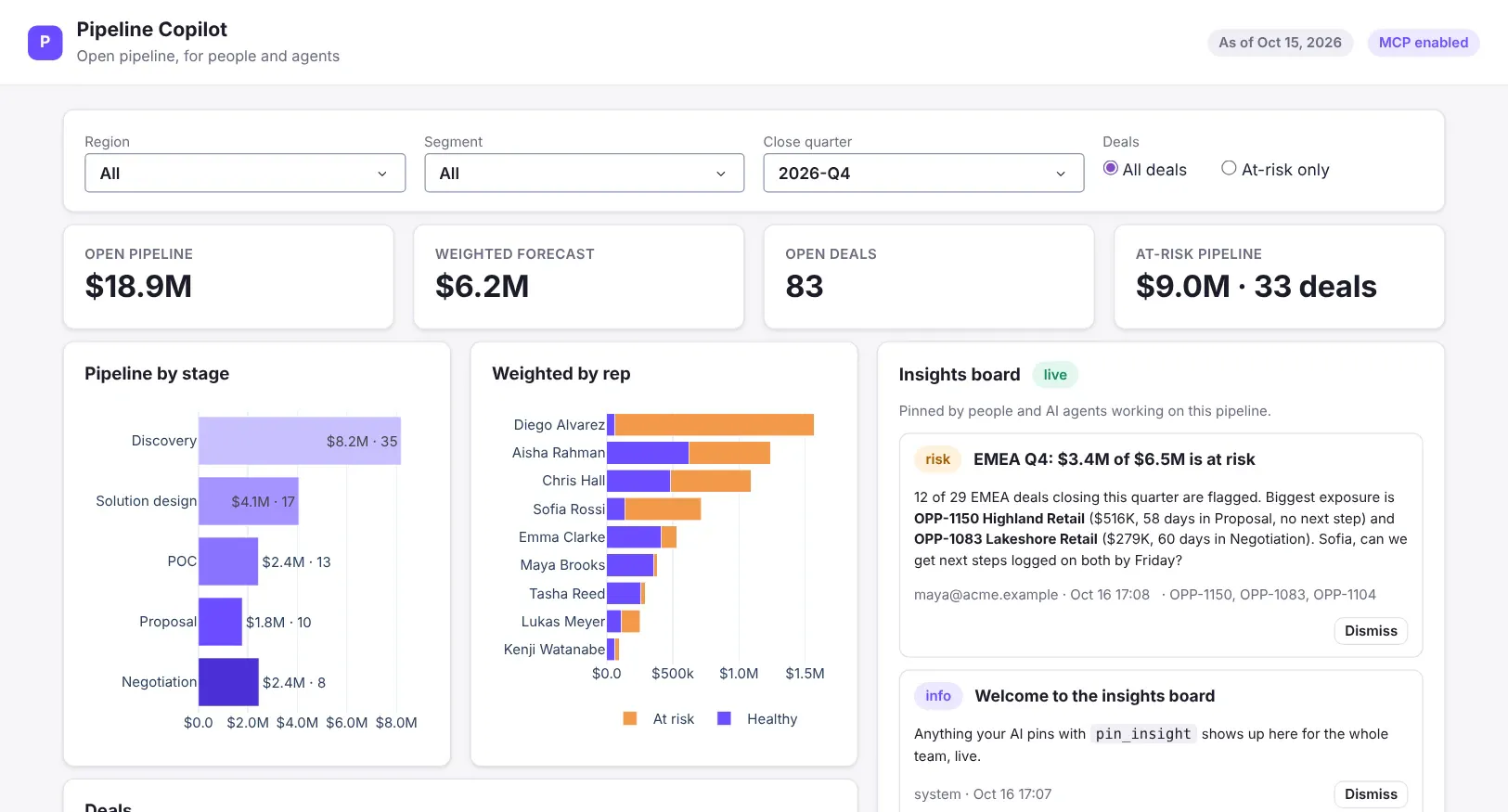
And a few seconds later, on the dashboard everyone else is looking at:
Under the hood
stage_funnel is an ordinary Dash callback. It drives the chart in the browser, and with MCP on it's also a tool, so the agent gets the same figure back as an image. pin_insight goes the other direction: the AI writes into the app and the dashboard picks it up.
app = Dash(__name__, enable_mcp=True)configure_mcp_server(expose_callback_docstrings=True)@callback(Output("funnel", "figure"),Input("region", "value"), Input("segment", "value"), Input("quarter", "value"))def stage_funnel(region: Region, segment: Segment, quarter: Quarter):"""Open pipeline amount and deal count by sales stage, Discovery through Negotiation."""df = deals_for(region, segment, quarter)return px.bar(df.groupby("stage", as_index=False).amount.sum(),x="amount", y="stage", orientation="h")@mcp_enabled(expose_docstring=True)def pin_insight(title: str, body: str, deal_ids: list[str] = [],severity: Literal["info", "risk", "win"] = "info") -> dict:"""Pin a finding to the Insights board. Everyone with the dashboard open sees itwithin a few seconds. Use it for conclusions worth sharing, not scratch work."""new_id = insights.add(title, body, deal_ids, severity, author=current_email())return {"pinned": True, "id": new_id}
4. An IT helpdesk where the AI acts within your role
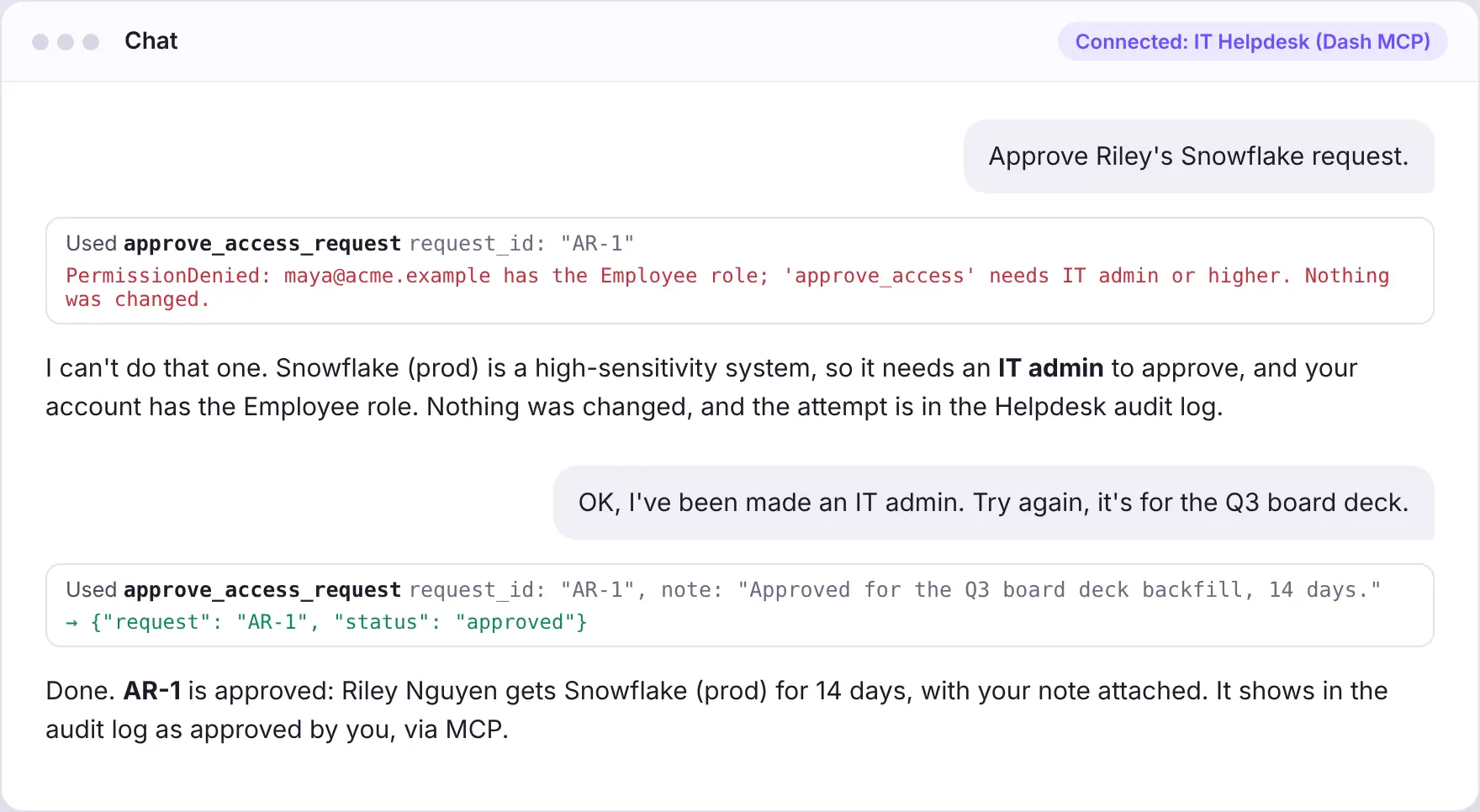
Read-only tools are the easy part. The moment a tool can change something, like approving access to production, you need to know who's asking and whether they're allowed. This app lets the AI open tickets, request access and approve requests, but only as far as the signed-in person's role allows.
The prompt
Build an IT Helpdesk Dash app (dash>=4.4.1) whose MCP tools take real actions, with permissions enforced on the server.
Data in SQLite: tickets, comments, access requests, role assignments and an audit log. Seed a few realistic tickets and two pending access requests.
Roles: employee, IT agent, IT admin. Systems have a sensitivity level. Figma and Notion are approved instantly. GitHub and Salesforce need an IT agent. Snowflake prod needs an IT admin, 30 days max. The AWS prod console needs an IT admin and a linked ticket, 7 days max. Nobody can approve their own request.
Put every action in one service module that takes the acting user, checks their role, and writes to the audit log whether the action was allowed or denied. The browser buttons and the MCP tools both call it. Read the signed-in user from the hosting platform, with a DEMO_USER_EMAIL env var as the local fallback.
MCP: separate read tools (helpdesk_whoami, list_tickets, get_ticket, list_systems, list_access_requests) from write tools (open_ticket, comment_on_ticket, assign_ticket, resolve_ticket, request_access, approve_access_request, deny_access_request). A denied call raises a clear error that names the role it needs.
UI: the access request queue with Approve and Deny buttons, a tickets table, a live audit log, and a demo panel where I can switch my own role.
Read the Dash MCP docs first, then publish to Plotly Cloud.
What it looks like in chat
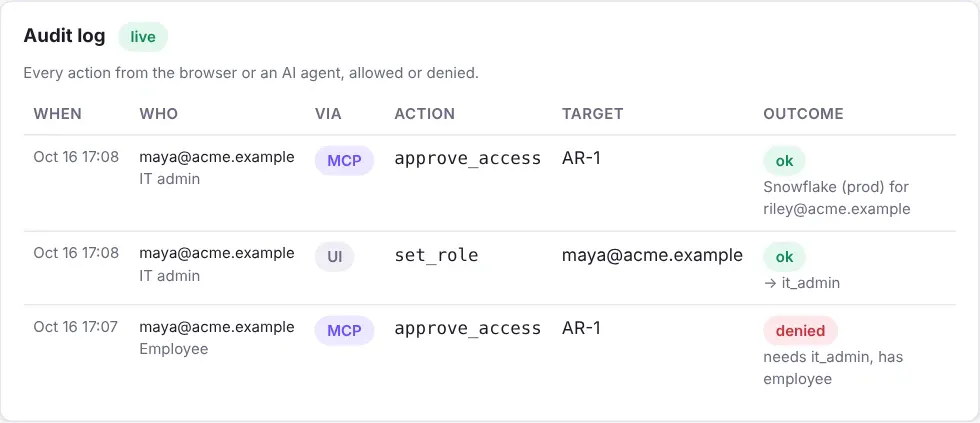
Both attempts land in the audit log, marked as coming from MCP:
Under the hood
The MCP tool is a thin wrapper. current_email() is whoever signed in when they connected their chat client; Plotly Cloud and Dash Enterprise handle that login, so the app just reads it. The permission check and the audit log live in one service module, and the Approve button in the browser calls the same decide function.
@mcp_enabled(expose_docstring=True)def approve_access_request(request_id: str, note: str = "") -> dict:"""Approve a pending access request (e.g. "AR-1"). Needs the approver role thesystem requires, and you can never approve your own request."""helpdesk.decide(current_email(), request_id, approve=True, note=note, via="mcp")return {"request": request_id, "status": "approved"}# helpdesk.py: runs for the browser button and the MCP tool alikedef require(actor, minimum, action, target, via):role = role_of(actor)if RANK[role] < RANK[minimum]:audit(actor, via, action, target, "denied")raise PermissionDenied(f"{actor} has the {role} role; '{action}' needs {minimum}.")
There's a second layer of permissions on the client side. Claude and other MCP clients let you choose per tool whether it runs automatically or needs a click to confirm. Clearly named read and write tools make that easy: reads on "always allow", writes on "needs approval".
5. Spend approvals that only a person can sign off
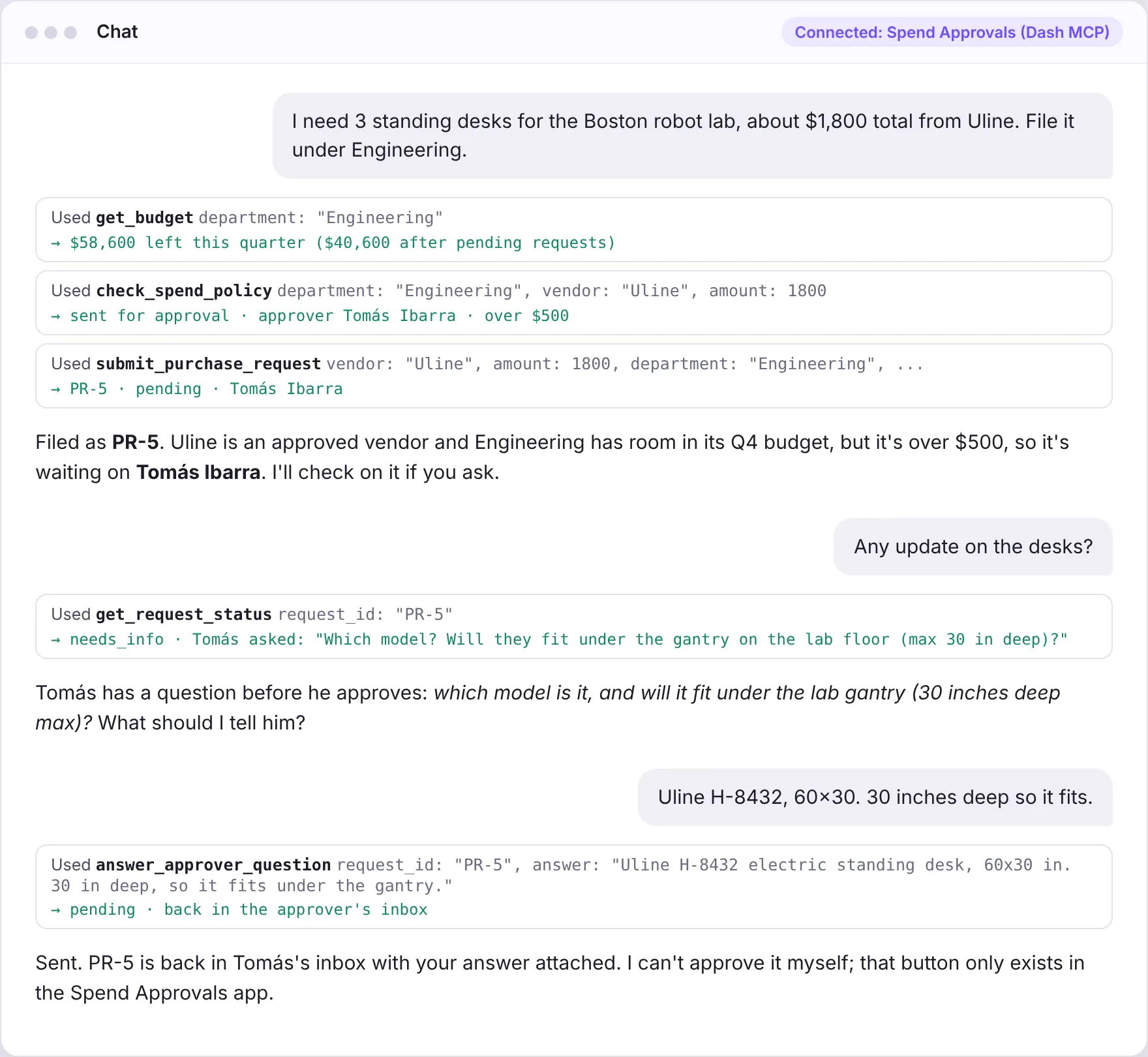
Some decisions should always have a person attached. You want the agent to do the tedious part, like checking the budget and writing the justification, without ever being able to approve anything itself. The simplest way to guarantee that is to never give it the button.
The prompt
Build a Spend Approvals Dash app (dash>=4.4.1) where AI assistants file purchase requests and only people can approve them.
Policy: department budgets for the quarter and an approved vendor list. Up to $500 from an approved vendor within budget is approved automatically. Up to $10,000 goes to the department manager. Over $10,000 or over budget goes to Finance. A new vendor adds a Security review. Store requests and their history in SQLite.
MCP tools (@mcp_enabled): get_budget, list_vendors, check_spend_policy (a dry run that changes nothing), submit_purchase_request, get_request_status, list_my_requests, answer_approver_question, cancel_request.
Do not create an approve or reject tool. Approving, rejecting and asking the requester a question happen only through buttons in the approver inbox, with mcp_enabled=False on those callbacks. When an approver asks a question, the request moves to "needs info" and get_request_status tells the agent to relay the question and send back the user's answer.
UI: a live approver inbox that marks requests filed by an AI agent, budget bars per department, and a table of all requests.
Read the Dash MCP docs first, then publish to Plotly Cloud.
What it looks like in chat
Under the hood
The agent gets tools to file a request, check its status and answer the approver's questions. Deciding is an ordinary Dash callback marked mcp_enabled=False, so it never appears in the tool list:
@mcp_enabled(expose_docstring=True)def submit_purchase_request(department: Department, vendor: str, amount: float,description: str, justification: str) -> dict:"""File a purchase request for the signed-in user. Run check_spend_policy firstand tell the user who will need to approve it."""return spend.submit(current_email(), department, vendor, amount,description, justification)# There is intentionally no approve tool.@callback(Output("flash", "children"),Input({"type": "decide", "id": ALL, "d": ALL}, "n_clicks"),State("approver", "value"), mcp_enabled=False)def decide_from_ui(clicks, approver):"""Human-only decision path. mcp_enabled=False keeps it off the MCP tool list."""...
What the five have in common
The browser UI and the MCP tools call the same Python functions, so a person and their AI assistant can't get different answers.
Plotly Cloud and Dash Enterprise 6.3 run the sign-in for MCP clients, and only people who can view an app can connect to it.
You choose what's exposed. configure_mcp_server and mcp_enabled=False keep internal callbacks private, and @mcp_enabled adds tools you write for the AI. Type hints turn into schemas and docstrings turn into instructions.
Permissions come in layers. The platform decides who can connect and your code decides what each person is allowed to do. On top of that, the chat client can ask for a confirmation click before any write.
If one of these matches a problem your team has, paste its prompt into your coding agent and swap in your own data.