
MATLAB parallelplot in MATLAB®
Learn how to make 6 parallelplot charts in MATLAB, then publish them to the Web with Plotly.
Parallel Coordinates Plot with Tabular Data
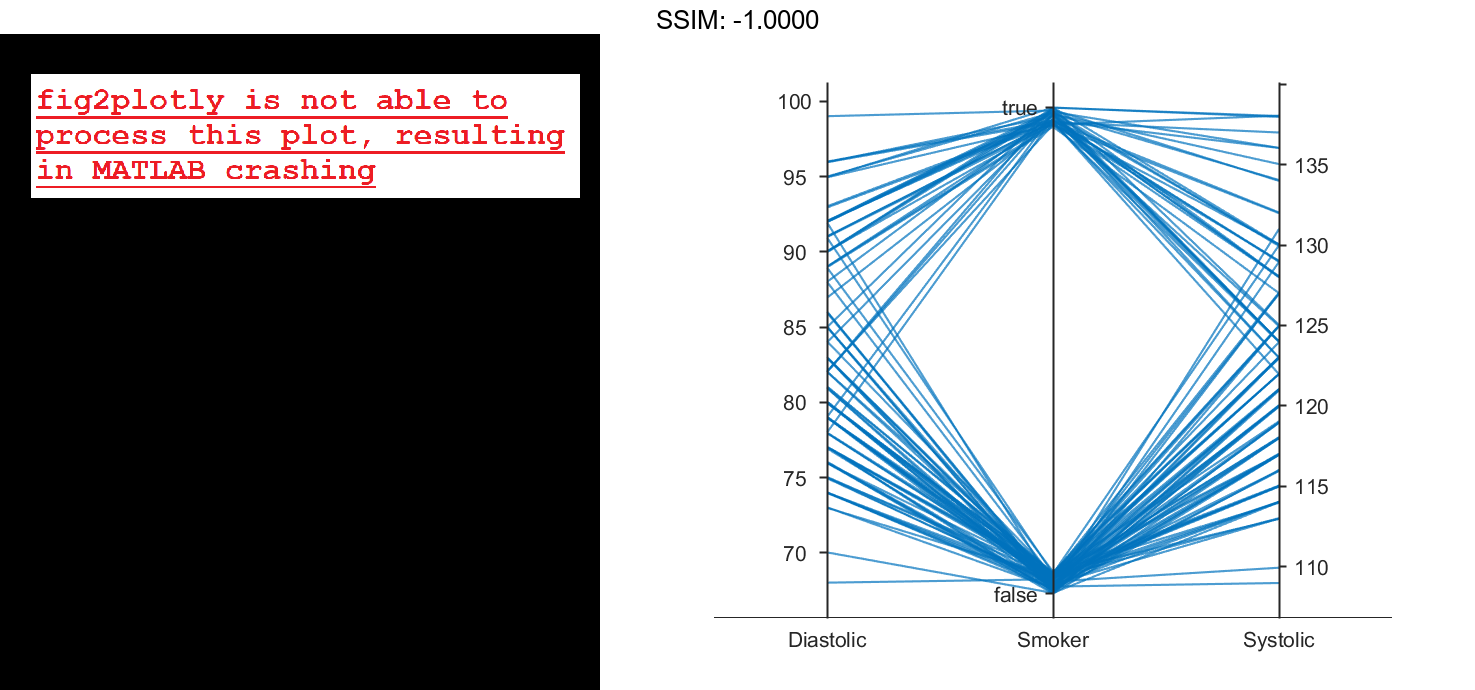
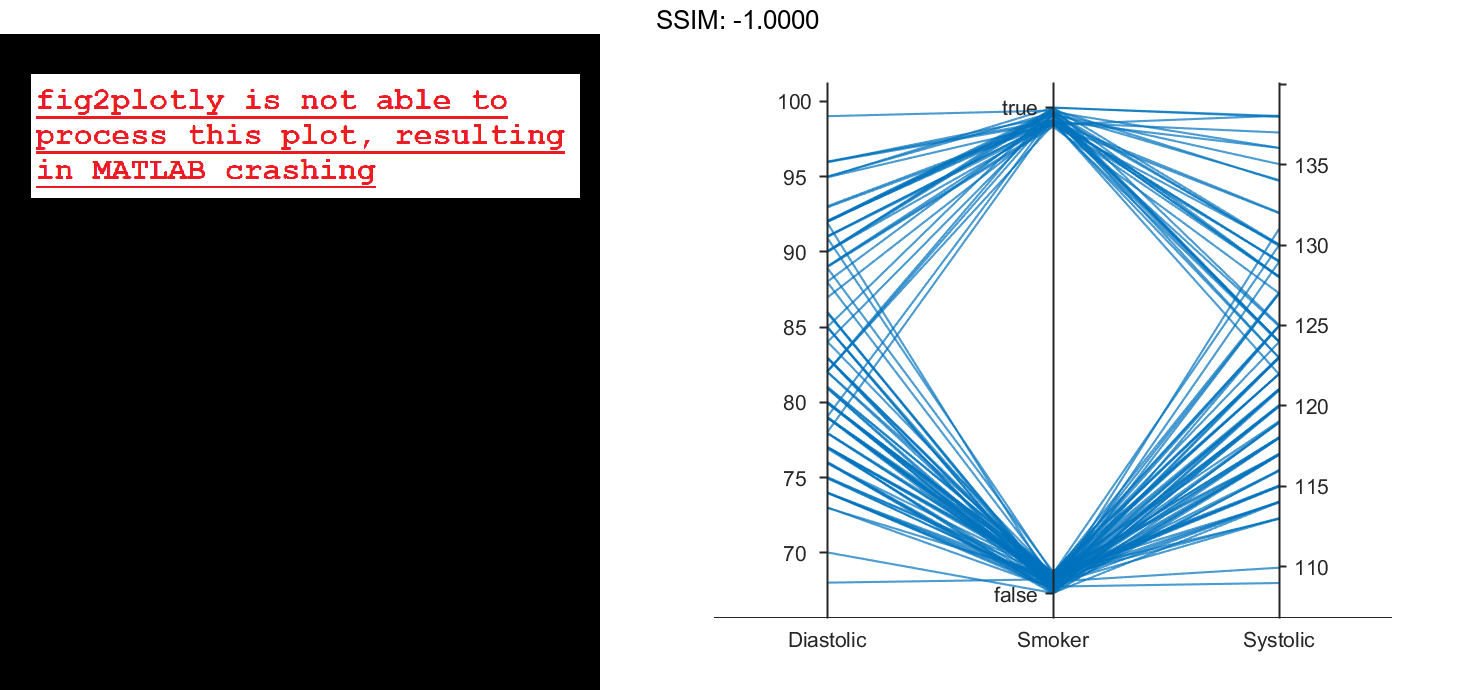
Create a parallel coordinates plot from a table of medical patient data.
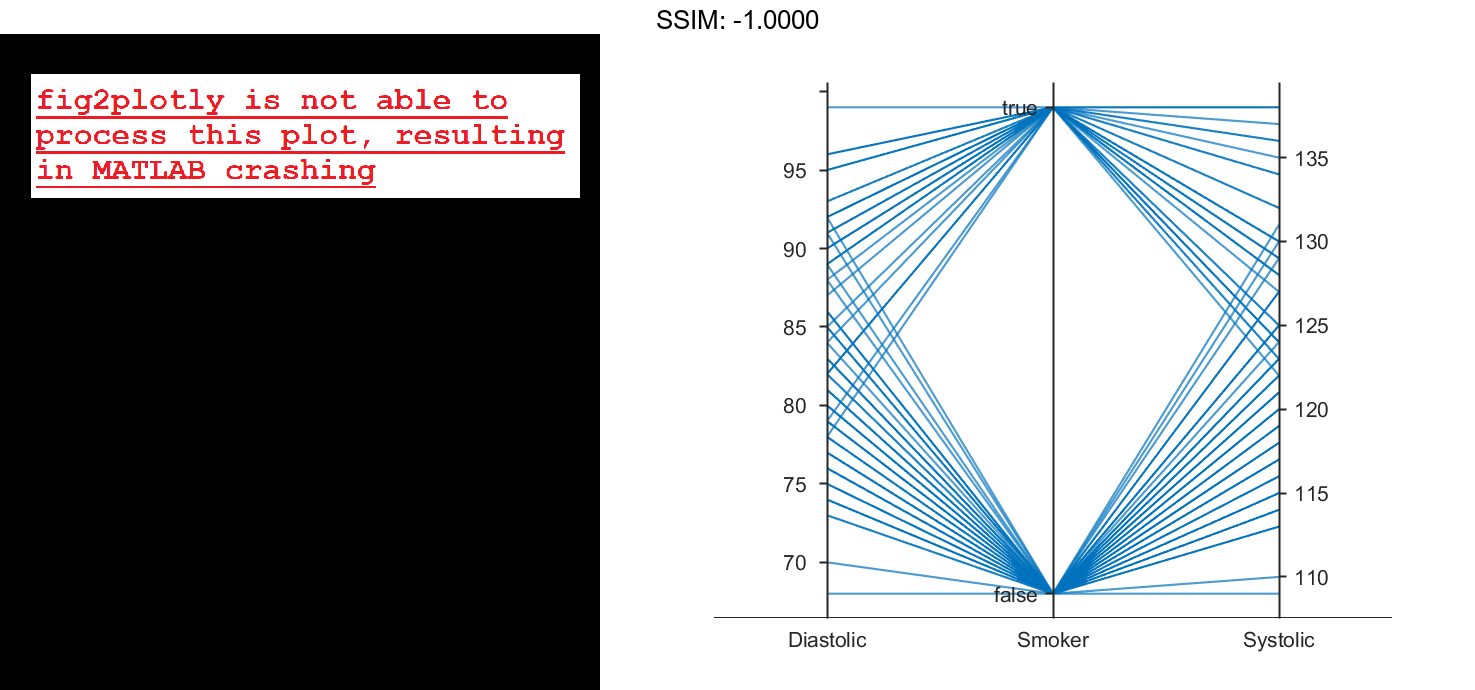
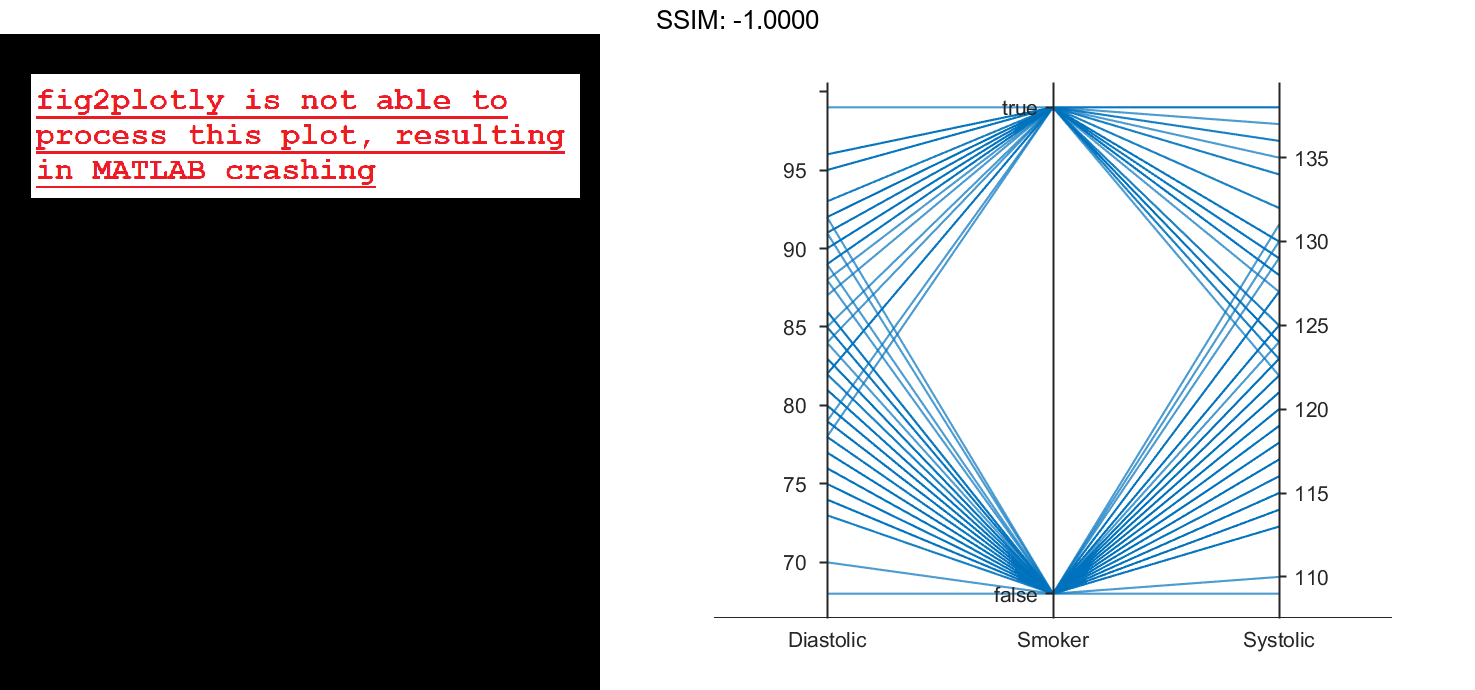
Load the patients data set, and create a table from a subset of the variables loaded into the workspace. Create a parallel coordinates plot using the table. The lines in the plot correspond to individual patients. Use the plot to observe trends in the data. For example, the plot indicates that smokers tend to have higher blood pressure values (both diastolic and systolic).
load patients tbl = table(Diastolic,Smoker,Systolic); p = parallelplot(tbl)
p =
  ParallelCoordinatesPlot with properties:

            SourceTable: [100x3 table]
    CoordinateVariables: {'Diastolic'  'Smoker'  'Systolic'}
          GroupVariable: ''

  Show all properties
p.Jitter = 0;

fig2plotly()
Specify Coordinate and Group Variables
Create a parallel coordinates plot from a table of tsunami data. Specify the table variables to display and their order, and group the lines in the plot according to one of the variables.
Read the tsunami data into the workspace as a table.
tsunamis = readtable('tsunamis.xlsx');
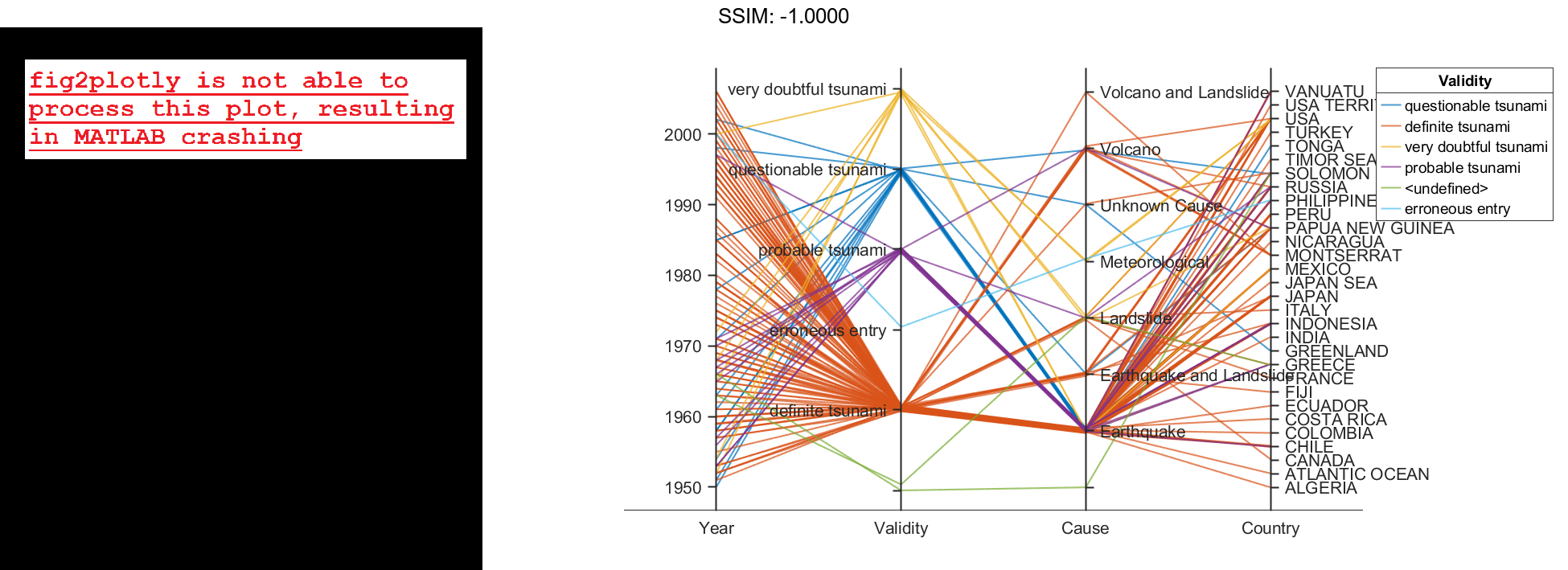
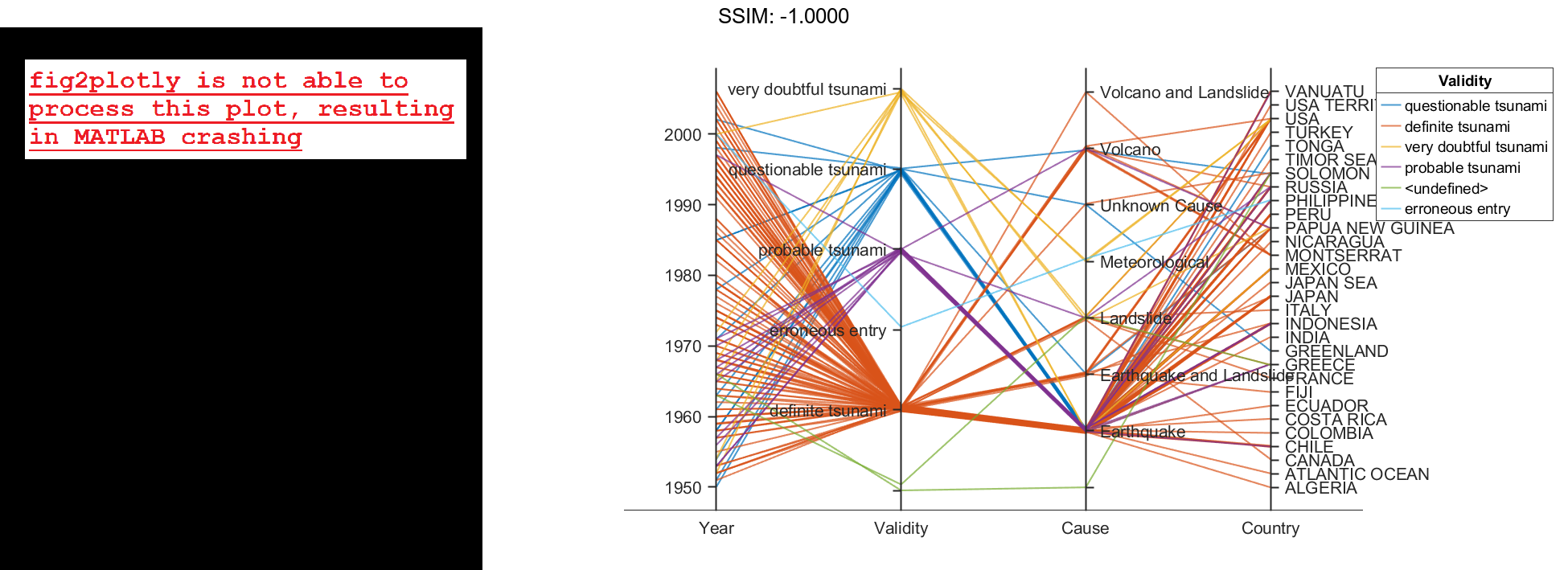
Create a parallel coordinates plot using a subset of the variables in the table. First, increase the figure window size to prevent overcrowding in the plot. Then, to specify the variables and their order, use the 'CoordinateVariables' name-value pair argument. To group occurrences according to their validity, set the 'GroupVariable' name-value pair argument to 'Validity'. The lines in the plot correspond to individual tsunami occurrences. The plot indicates that most of the occurrences in the data set that have a Validity value are considered definite tsunamis.
figure('Units','normalized','Position',[0.3 0.3 0.45 0.4]) coordvars = {'Year','Validity','Cause','Country'}; p = parallelplot(tsunamis,'CoordinateVariables',coordvars,'GroupVariable','Validity');
Parallel Coordinates Plot with Binned Data
Create a parallel coordinates plot from a matrix containing medical patient data. Bin the values in one of the columns in the matrix, and group the lines in the plot using the binned values.
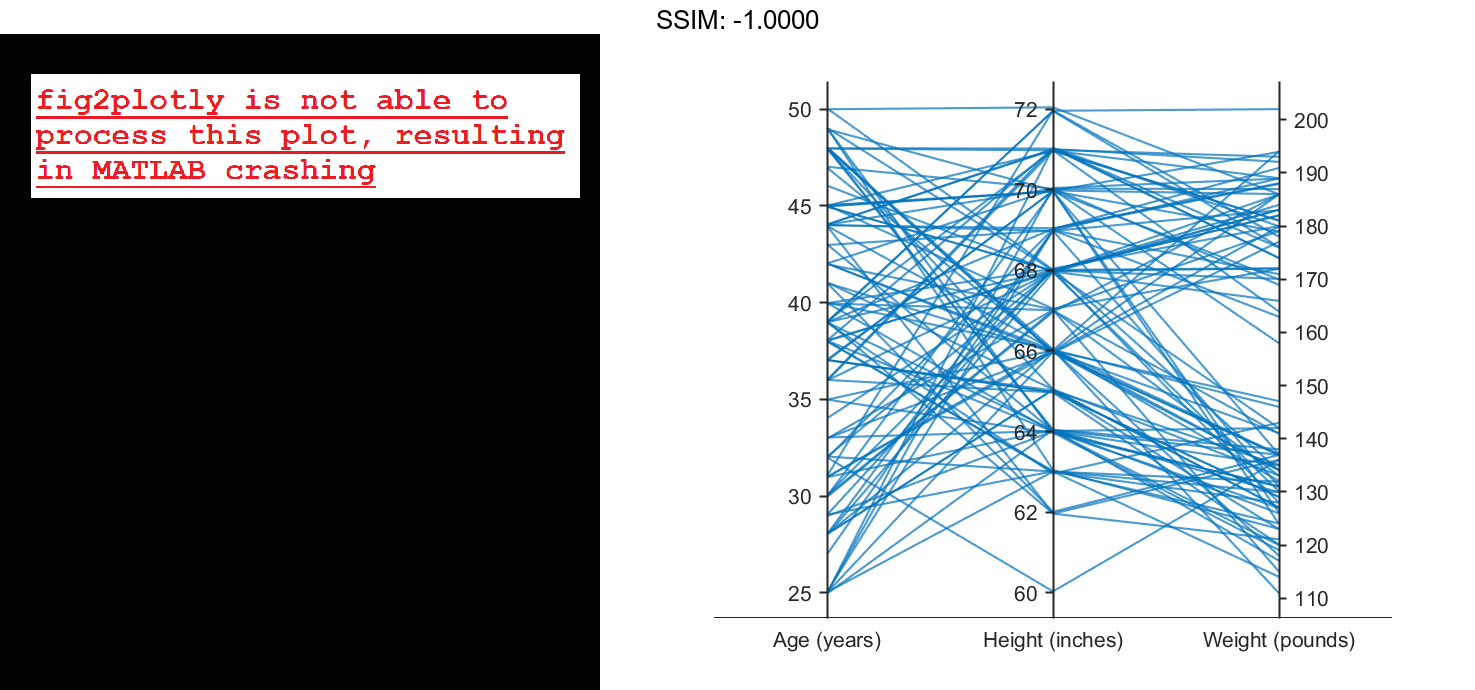
Load the patients data set, and create a matrix from the Age, Height, and Weight values. Create a parallel coordinates plot using the matrix data. Label the coordinate variables in the plot. The lines in the plot correspond to individual patients.
load patients X = [Age Height Weight]; p = parallelplot(X)
p =
  ParallelCoordinatesPlot with properties:

              Data: [100x3 double]
    CoordinateData: [1 2 3]
         GroupData: []

  Show all properties
p.CoordinateTickLabels = {'Age (years)','Height (inches)','Weight (pounds)'};

fig2plotly()
Create a new categorical variable that groups each patient into one of three categories: short, average, or tall. Set the bin edges such that they include the minimum and maximum Height values.
min(Height)
ans = 60
ans = 72
binEdges = [60 64 68 72];
bins = {'short','average','tall'};
groupHeight = discretize(Height,binEdges,'categorical',bins);

fig2plotly()
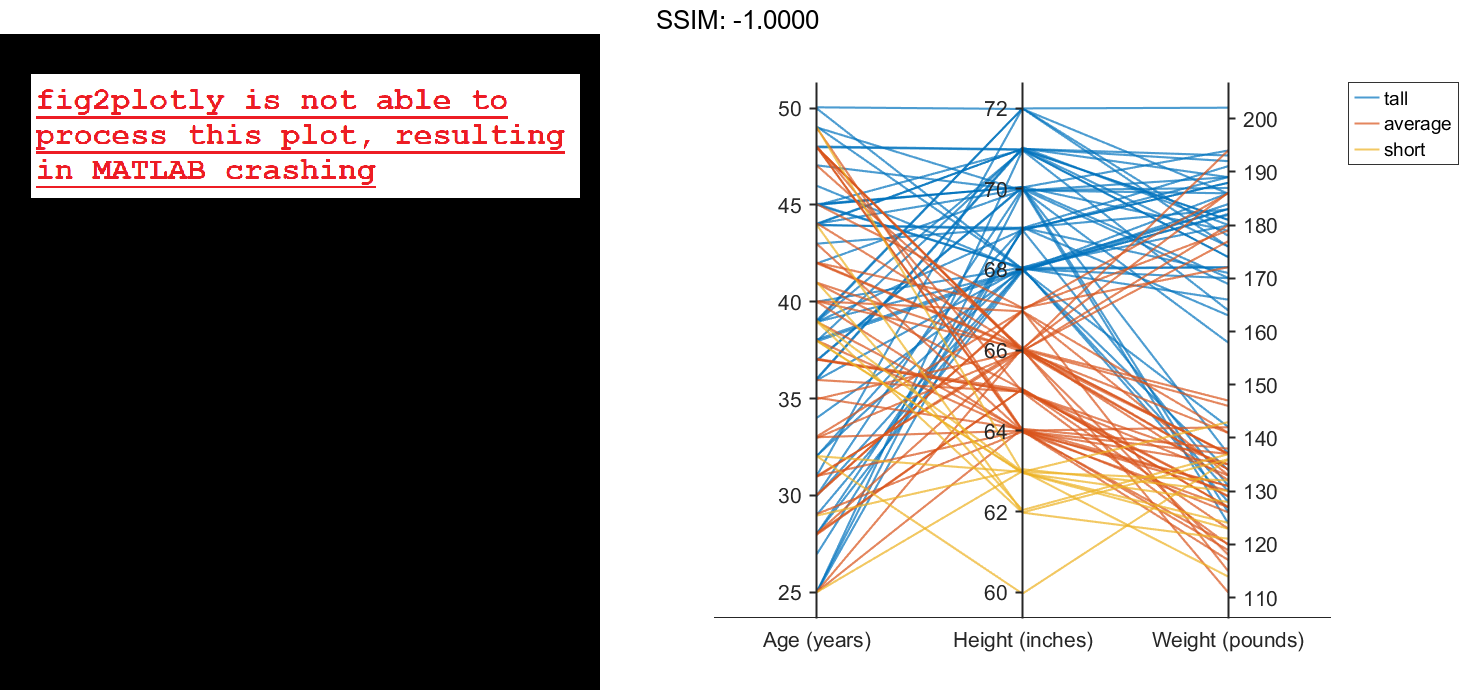
Now use the `groupHeight` values to group the lines in the parallel coordinates plot. The plot indicates that `short` patients tend to weigh less than `tall` patients.
p.GroupData = groupHeight;

fig2plotly()
Specify Coordinate and Group Data
Create parallel coordinates plots from a matrix containing medical patient data. For each plot, specify the columns of the matrix to display, and group the lines in the plot according to a separate variable.
Load the patients data set, and create a matrix from some of the variables loaded into the workspace.
load patients X = [Age Height Weight];
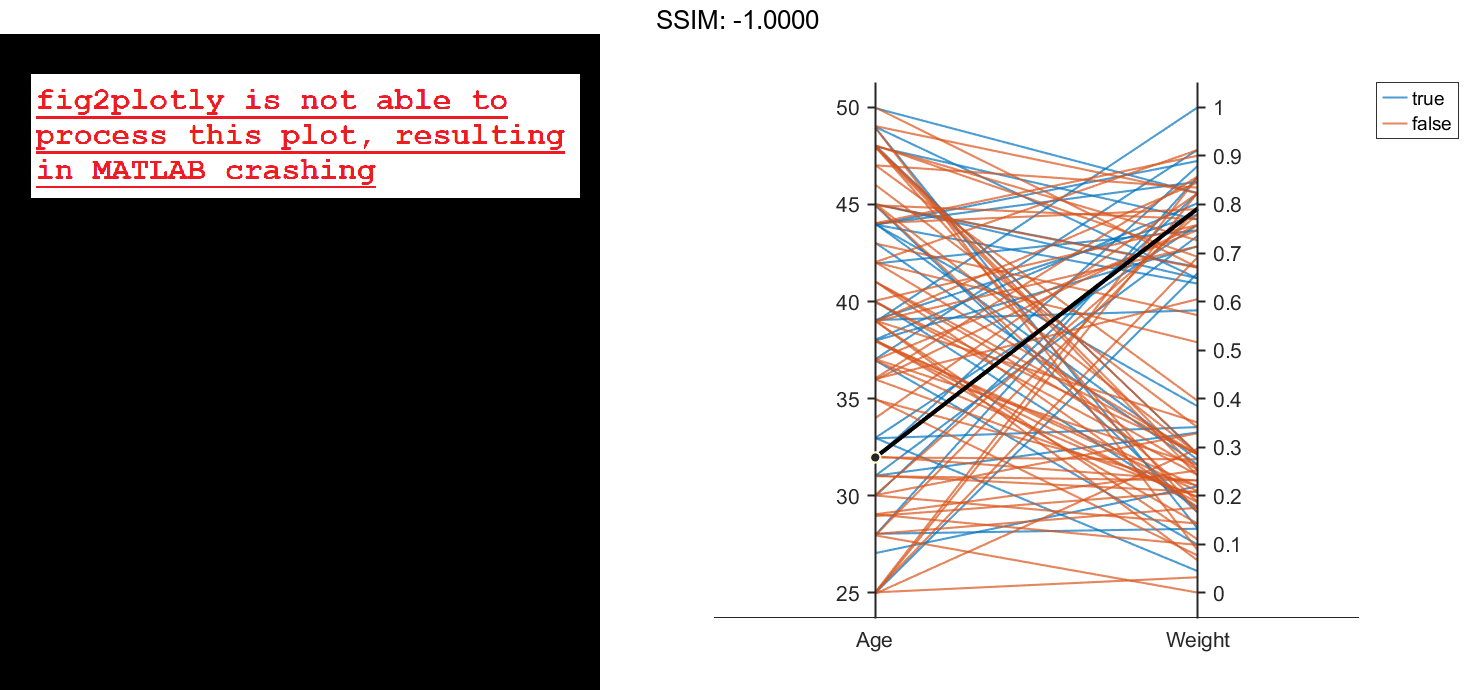
Create a parallel coordinates plot using a subset of the columns in the matrix X. To specify the columns and their order, use the 'CoordinateData' name-value pair argument. Group patients according to their smoker status by passing the Smoker values to the 'GroupData' name-value pair argument. The lines in the plot correspond to individual patients. The plot indicates that no clear relationship exists between smoker status and either age or weight.
coorddata = [1 3]; p = parallelplot(X,'CoordinateData',coorddata,'GroupData',Smoker)
p =
  ParallelCoordinatesPlot with properties:

              Data: [100x3 double]
    CoordinateData: [1 3]
         GroupData: [100x1 logical]

  Show all properties
p.CoordinateTickLabels = {'Age','Weight'};

fig2plotly()
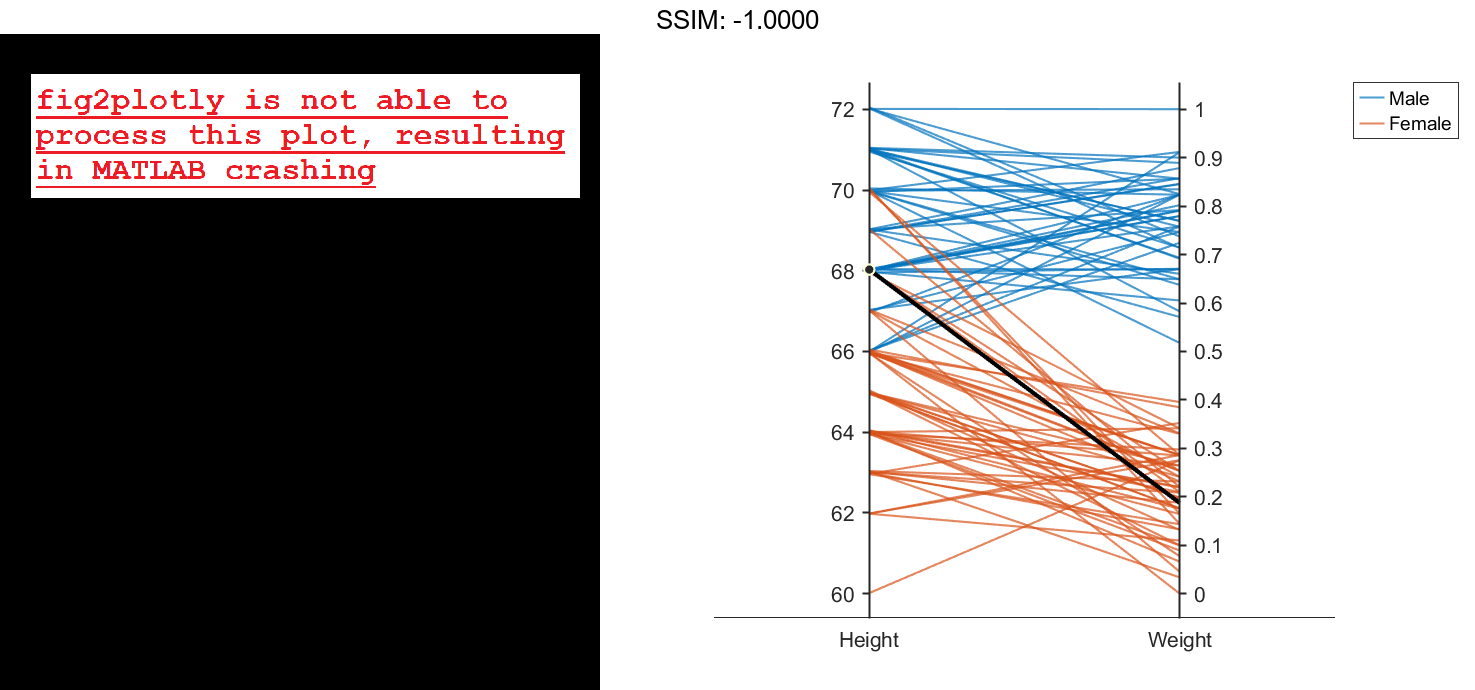
Create another parallel coordinates plot using a different subset of the columns in X. Group the patients according to their gender. The plot indicates that the men are taller and weigh more than the women.
coorddata2 = [2 3]; p2 = parallelplot(X,'CoordinateData',coorddata2,'GroupData',Gender)
p2 =
  ParallelCoordinatesPlot with properties:

              Data: [100x3 double]
    CoordinateData: [2 3]
         GroupData: {100x1 cell}

  Show all properties
p2.CoordinateTickLabels = {'Height','Weight'};

fig2plotly()
Change Data Normalization in Plot
Create a parallel coordinates plot from a table of power outage data. Change the normalization method for the numeric coordinate variables.
Read the power outage data into the workspace as a table. Display the first few rows of the table.
outages = readtable('outages.csv'); head(outages)
ans=8×6 table
       Region           OutageTime        Loss     Customers     RestorationTime            Cause
    _____________    ________________    ______    __________    ________________    ___________________

    {'SouthWest'}    2002-02-01 12:18    458.98    1.8202e+06    2002-02-07 16:50    {'winter storm'   }
    {'SouthEast'}    2003-01-23 00:49    530.14    2.1204e+05                 NaT    {'winter storm'   }
    {'SouthEast'}    2003-02-07 21:15     289.4    1.4294e+05    2003-02-17 08:14    {'winter storm'   }
    {'West'     }    2004-04-06 05:44    434.81    3.4037e+05    2004-04-06 06:10    {'equipment fault'}
    {'MidWest'  }    2002-03-16 06:18    186.44    2.1275e+05    2002-03-18 23:23    {'severe storm'   }
    {'West'     }    2003-06-18 02:49         0             0    2003-06-18 10:54    {'attack'         }
    {'West'     }    2004-06-20 14:39    231.29           NaN    2004-06-20 19:16    {'equipment fault'}
    {'West'     }    2002-06-06 19:28    311.86           NaN    2002-06-07 00:51    {'equipment fault'}
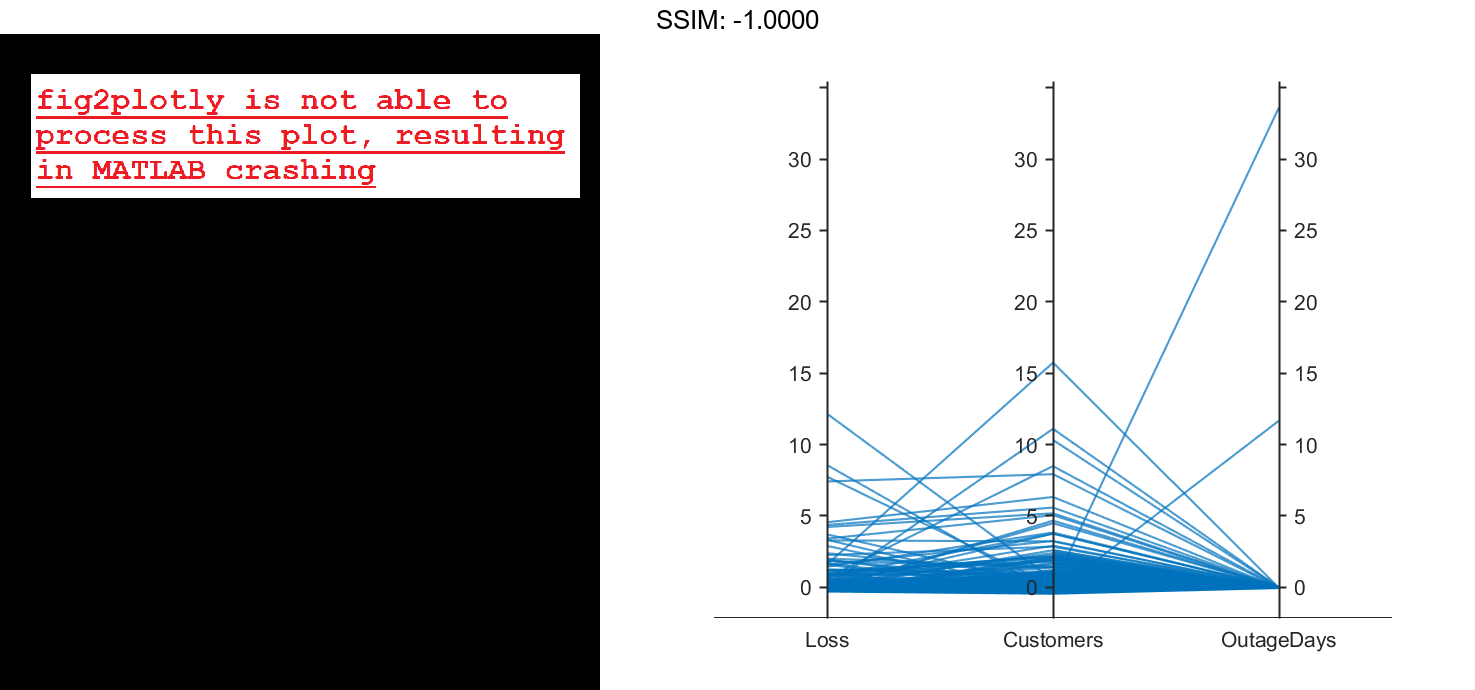
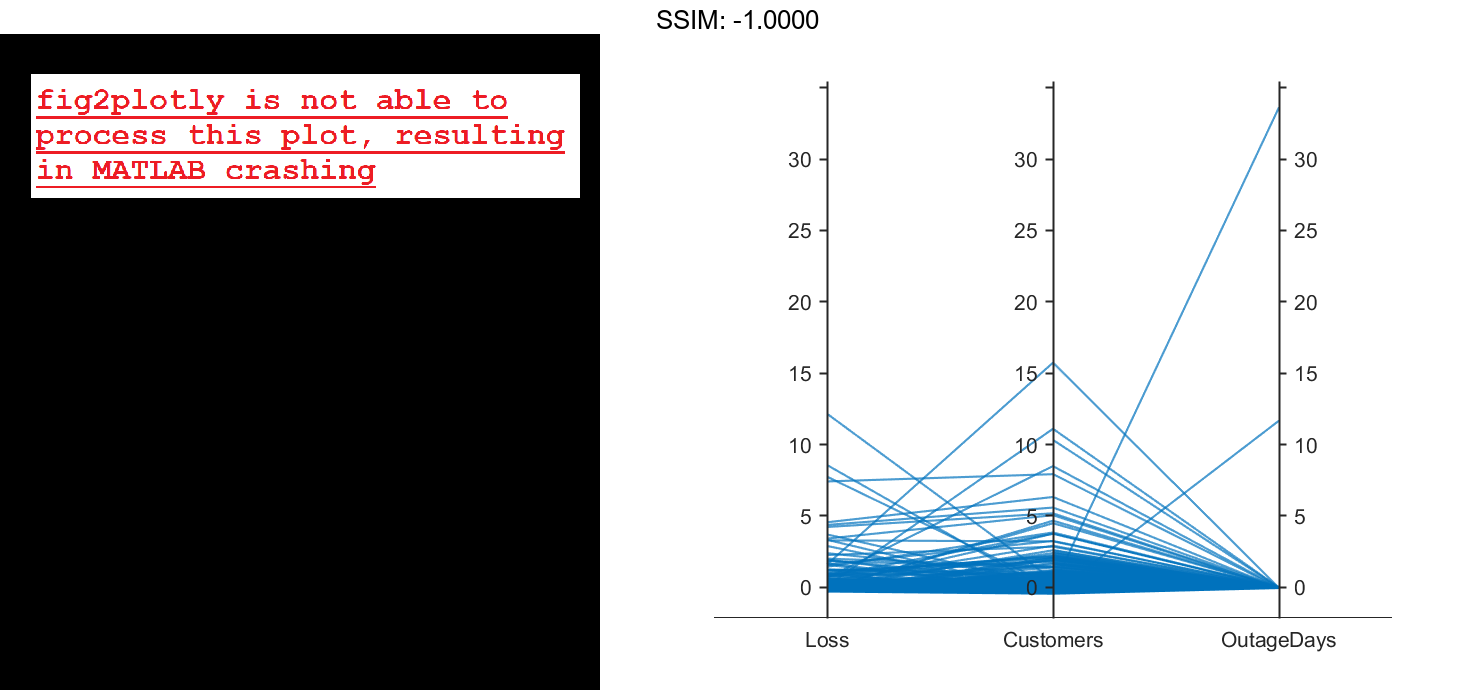
The OutageDays variable contains one value that is more than 30 standard deviations away from the mean OutageDays value and another value that is more than 10 standard deviations away from the mean. Hover over the values in the plot to display data tips. Each data tip indicates the row in the table corresponding to the line in the plot.
Find the rows in the outages table that have the identified extreme OutageDays values. Notice that the RestorationTime values for these two power outages are suspicious.
outliers = outages([1011 269],:)
outliers=2×7 table
       Region           OutageTime        Loss     Customers     RestorationTime            Cause            OutageDays
    _____________    ________________    ______    __________    ________________    ____________________    __________

    {'NorthEast'}    2009-08-20 02:46       NaN    1.7355e+05    2042-09-18 23:31    {'severe storm'    }       12083
    {'MidWest'  }    2008-02-07 06:18    2378.7             0    2019-08-14 16:16    {'energy emergency'}      4206.4
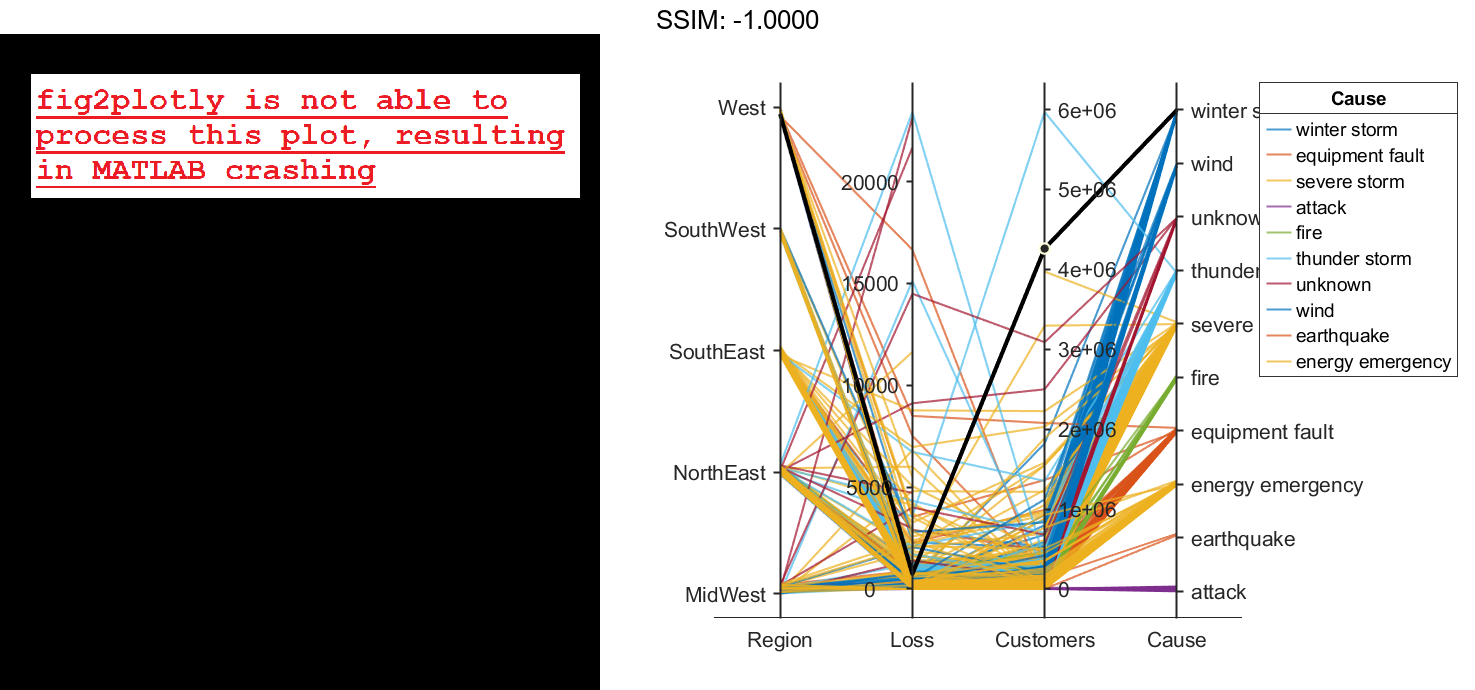
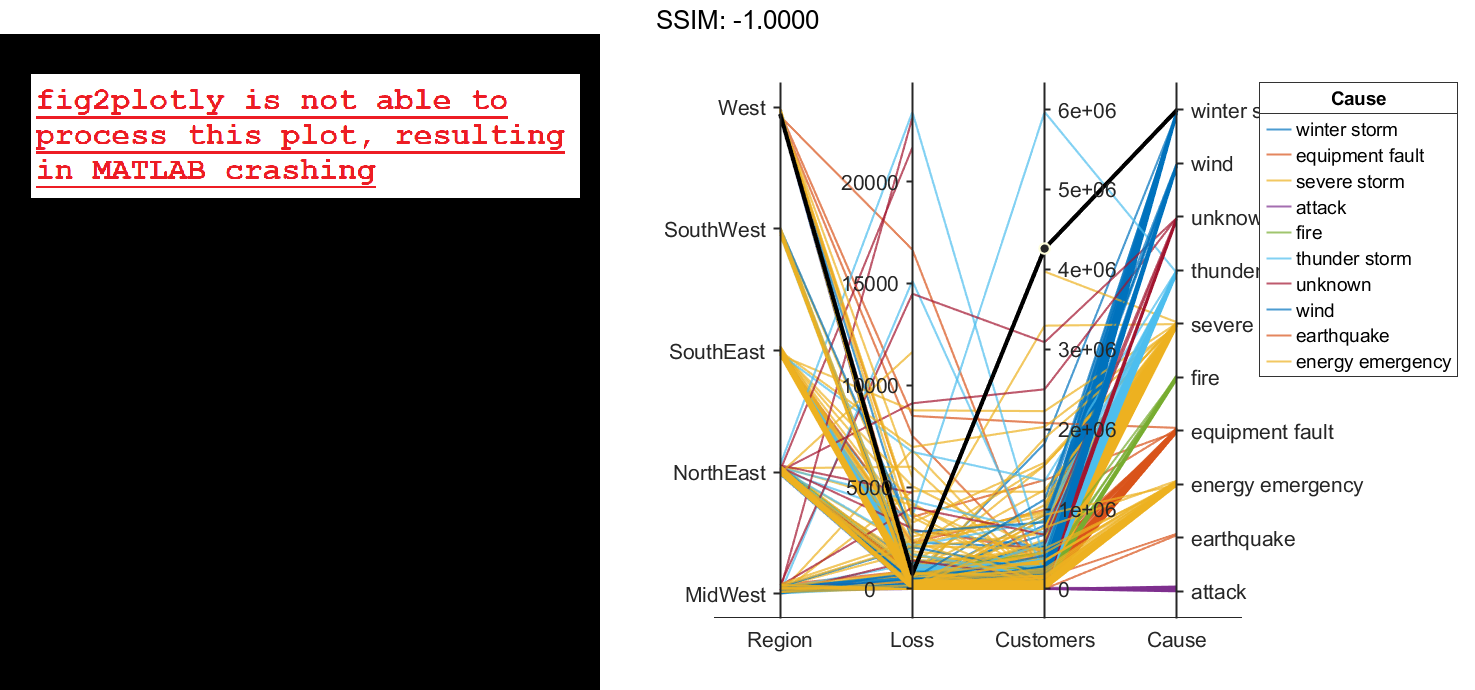
Change the order of the events in Cause by updating the source table. First, convert Cause to a categorical variable, specify the new order of the events, and use the reordercats function to create a new variable called orderCause. Then, replace the original Cause variable with the new orderCause variable in the source table of the plot.
categoricalCause = categorical(p.SourceTable.Cause);
newOrder = {'attack','earthquake','energy emergency','equipment fault', ...
    'fire','severe storm','thunder storm','wind','winter storm','unknown'};
orderCause = reordercats(categoricalCause,newOrder);
p.SourceTable.Cause = orderCause;

fig2plotly()
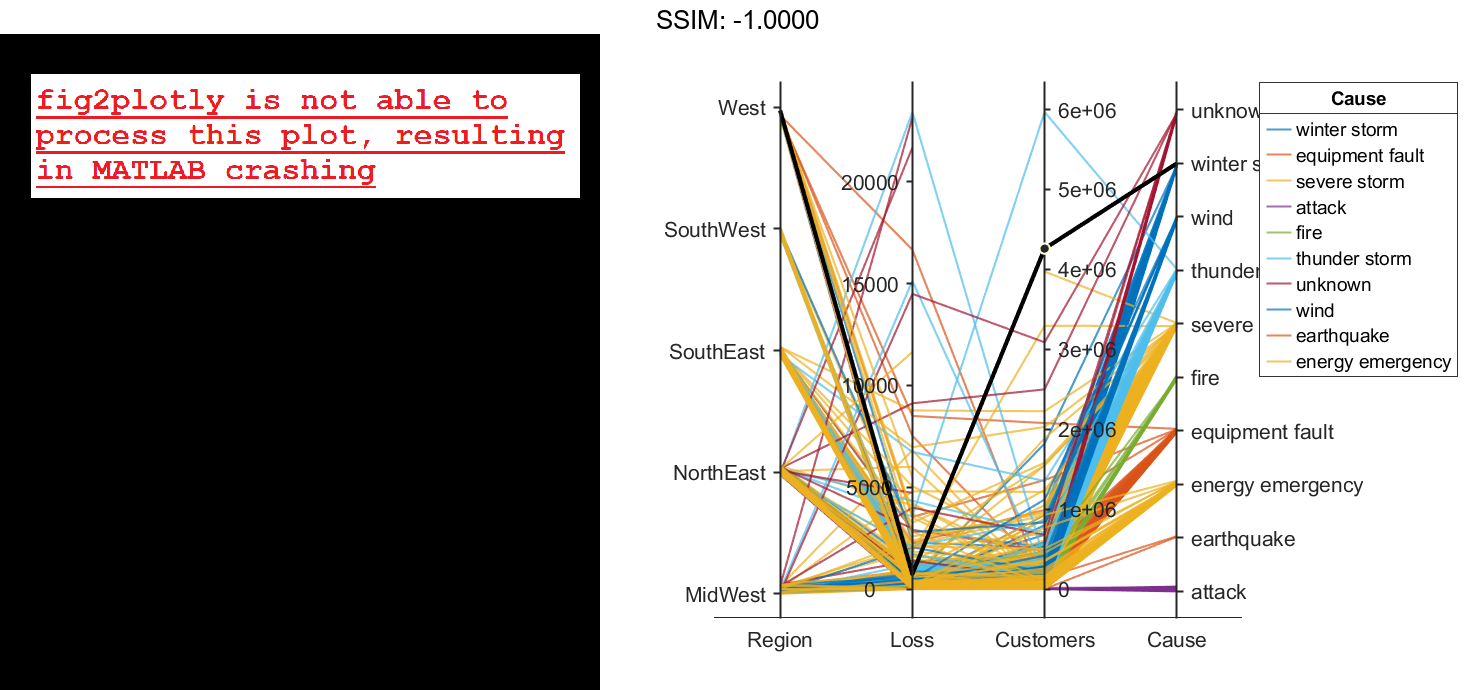
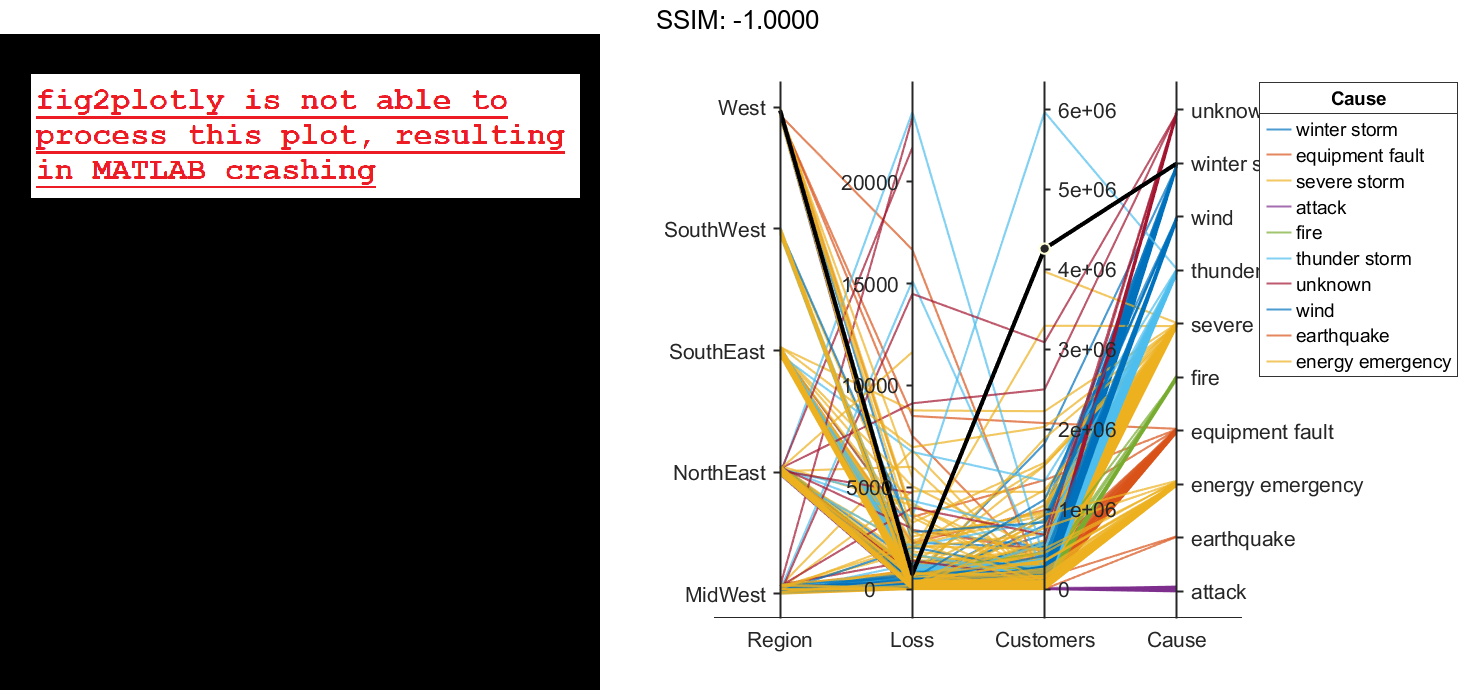
Because the Cause variable contains more than seven categories, some of the groups have the same color in the plot. Assign distinct colors to every group by changing the Color property of p.
p.Color = parula(10);

fig2plotly()